
Clock in where the work happens
Not all work happens at a desk. For installation work, field service, care, the trades and building sites, the phone is the one device that is always there. The ITN-Zeiterfassung mobile app uses exactly that — no app store, no device management, with a location record.
The app on the phone
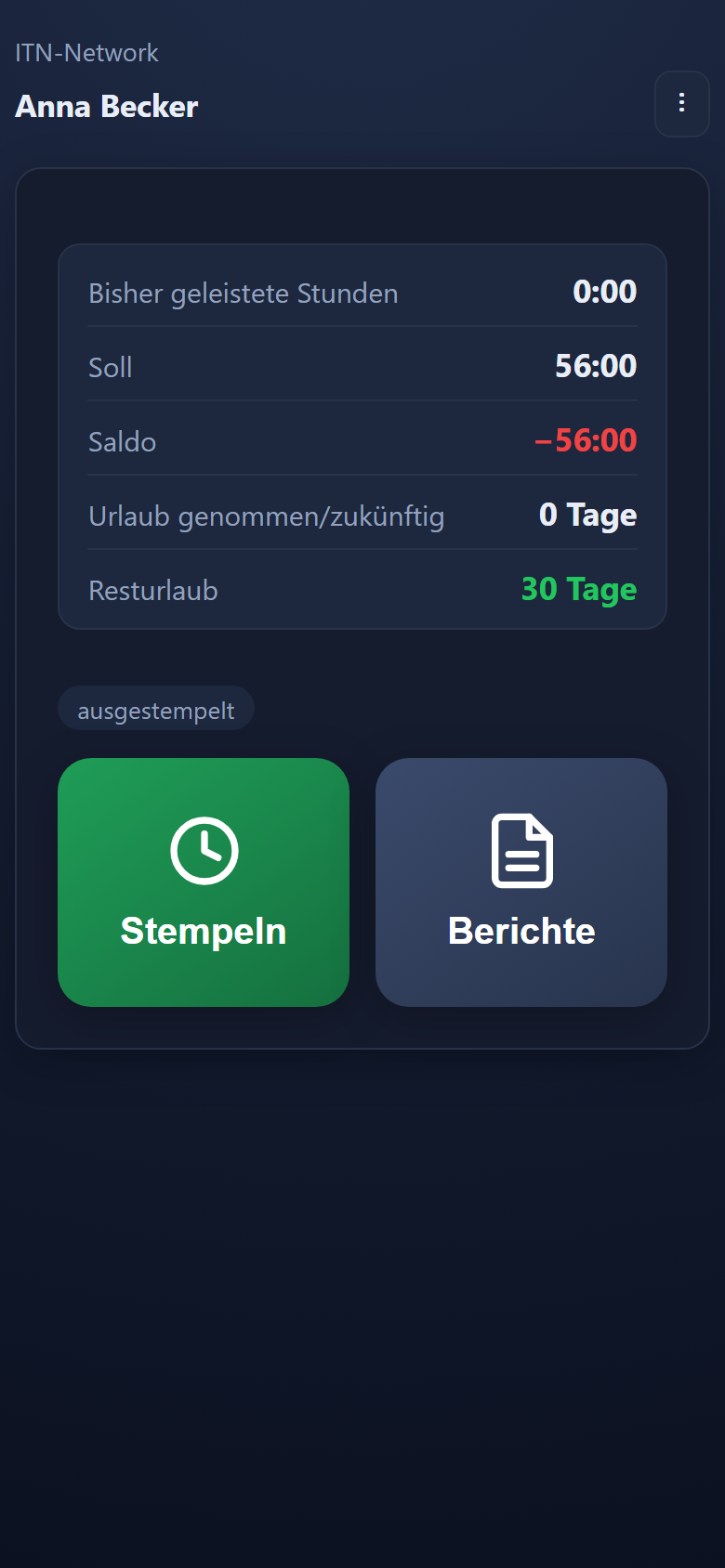
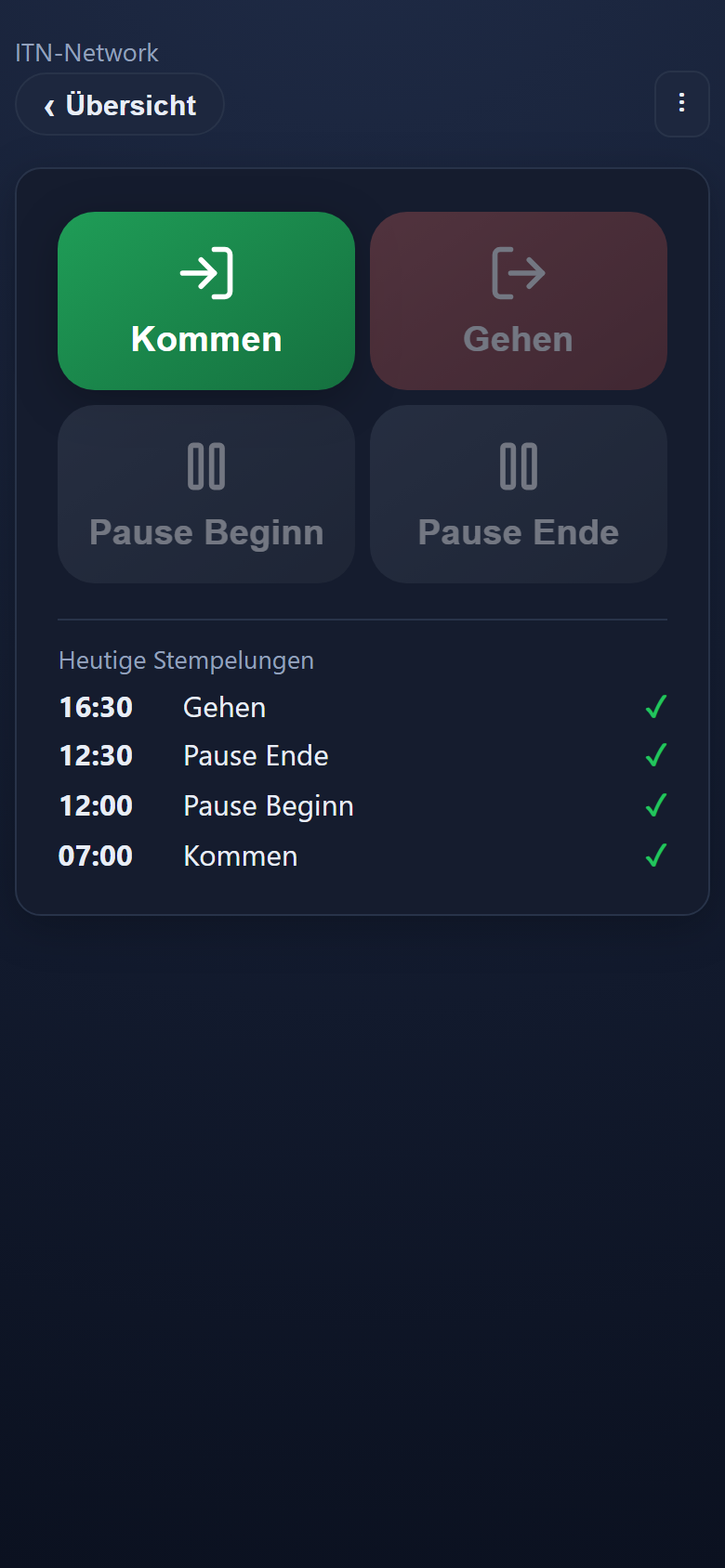
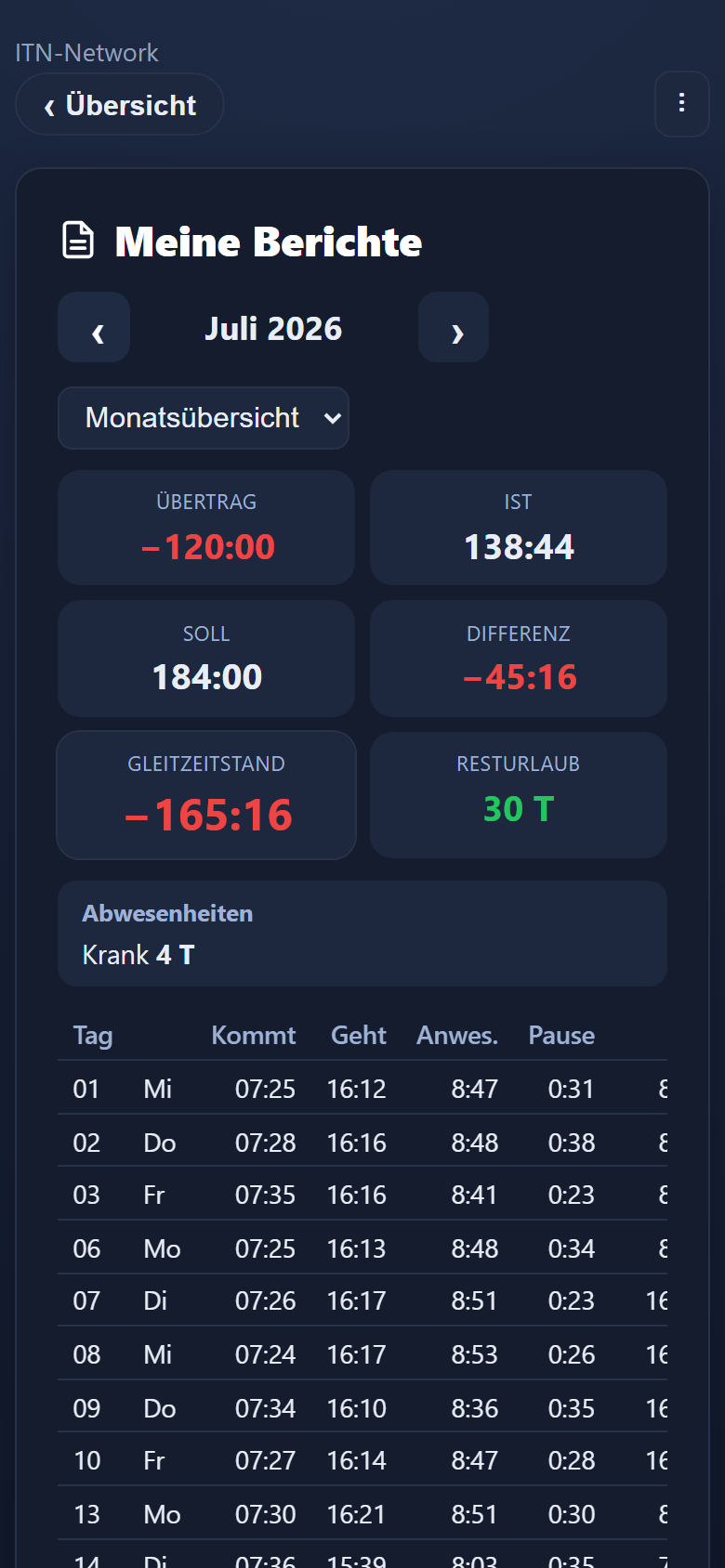
The home screen holds the time account and a tile for each task: clocking, messages, requests for leave and time corrections, reports — plus Projektzeit and own shifts where they are enabled. Daily life needs no more. The interface of ITN-Zeiterfassung is currently available in German.
From website to app in four steps
Deliberately without an app store: that saves the rollout and works on private devices too, without having to manage them.
Open it in the browser
The employee opens the application in the browser on their phone and adds it to the home screen. After that it starts like an app, full screen and with an icon of its own.
The device registers itself
On the first sign-in the device registers itself and displays a device number.
An administrator approves it
The number is given to an administrator, who assigns the device to a user and approves it. Only then do the tiles for clocking and reports appear.
- device assigned to a user
- approval by administration
- no open sign-up
Permit location
Precise location has to be permitted the first time an entry is made. On an iPhone the permission has to be set to allow in the settings for Safari or for the website.
To pass on to the workforce there is an illustrated guide for Android and iPhone at itn-network.de/en/appinstall — short enough to pin on a noticeboard.
What happens when there is no signal?
Mobile time tracking rarely fails on usability — it fails on connectivity. In a basement, an underground car park, out in a field or in a dead spot between two jobs, there is no signal precisely when someone needs to clock in. An app that can do nothing at that moment creates rework — and mistrust of the figures.
So the app buffers: without a connection, entries are stored locally and transmitted with their original time once a connection returns — not with the time of transmission. That works even if the app was closed beforehand. Every entry shows its status, so it stays clear what is still waiting.
A practical note: for buffered entries to arrive, the app should occasionally be opened with an internet connection and location active. Anyone staying offline for weeks will have their hours stored correctly, but not transmitted.
A buffered entry keeps the moment at which it was made.
Transmitted or waiting — visible to the employee, with no need to ask the office.
Transmission is caught up automatically, even after the app has been closed.
Being offline does not remove the location requirement — the record stays complete.
A record, not a movement profile
The difference matters — for acceptance among staff just as much as for data protection.
Location when clocking
Location is captured at the moment of the entry. That establishes where the entry was made from.
No continuous tracking
Nothing is captured between entries. No movement profile and no route arises.
Checking permitted locations
Permitted locations can additionally be stored and checked against — mark only or block, as one level for the whole account. Individual users or devices can be exempted or restricted to particular locations.
How this is agreed with the works council is covered on the page about data protection and co-determination. The technical detail on the app is in the feature reference.
Step by step in the manual (in German): mobile app · approving devices · location check.
Frequently asked questions about time tracking on a phone
Does an app have to be installed from an app store?
No. The application is opened in the browser and added to the home screen — after that it behaves like an app, but without an app store and without a rollout by IT. That is particularly practical where staff use their own private devices.
Can anyone simply clock in with their phone?
No. After the first sign-in the device registers itself and displays a device number. The employee gives that number to an administrator, who assigns the device to a user and approves it. Only after approval do the tiles for clocking and reports appear.
Can someone clock in before they start or after they leave?
No. Before someone's start date in the time tracking and after they leave, clocking is not possible by any route — not on a phone, at a computer, at the time clock, at terminals or by adding entries afterwards. A night shift begun on the leaving day can still be finished.
Can leave or a time correction be requested from a phone?
Yes. There is a tile on the home screen for it: give the type, the period and a reason, and that is that. For a time correction the form shows the entries for the chosen day, so an incorrect time can be struck out and a forgotten one added. Your own status is visible at any time and an open request can be withdrawn. Decisions are deliberately made only at a desk.
Is location needed when clocking?
Yes — clocking through the mobile app requires location. The first time, precise location has to be permitted. If the positioning is too imprecise, the entry is rejected with a note; wait a moment and try again.
What happens without an internet connection, in a basement or out in a field?
The entries are stored locally and transmitted with their original time once a connection returns. That works even if the app was closed before the location fix arrived — it catches up by itself. Every entry shows its status: transmitted or waiting.
Can employees see their own hours on their phones?
Yes. The home screen shows hours worked, target, balance, remaining leave and leave that is planned or still free to plan. Through the reports an employee can call up their own monthly report straight on the phone; it also notes when someone who left shortly before the end of their shift was counted up to the planned end. Where work follows a shift plan, the „Meine Schichten“ (my shifts) tile shows your own shifts with their times from–to and the hours planned for the month.
Does it work on iPhone and Android?
Yes, on both. On an iPhone, location access has to be set to allow in the settings for Safari or for the website, otherwise every attempt to clock will fail — that is the most common cause of trouble during an introduction.
For teams without their own devices, a PIN terminal or a fixed terminal is the better choice — and either can be combined with the app. How clocking in works on a building site, even with no signal, is shown on the page for the trades and crafts.