
ITN-Zeiterfassung — every function in detail
From clocking in on any device through to the finished payroll export: ITN-Zeiterfassung in detail — every function with screenshots from the running application, in the order in which you meet them in the program itself. The interface of ITN-Zeiterfassung is currently available in German.
New in version 1.0.54: the setup assistant — it guides
you step by step through setting up, checks against the real data what is already right and what is still
missing, and takes you straight to the right place with „Zeig mir wo“ (show me where).
New in version 1.0.55: with „Rest des Tages als „Krank“ werten“ (count the rest of the day
as sick), anyone who goes home sick during the day is credited with exactly the time up to the day's target
(chapter 4), and the shifts in shift planning can be sorted and searched
(chapter 9).
New in version 1.0.58: the DATEV import file is built according to DATEV's interface
descriptions — for LODAS, a second import of the same month replaces the first instead of booking
everything twice; for Lohn und Gehalt there is also an INI file for the ASCII import assistant. New as well: the
payroll summary for all other payroll programs; personnel numbers are unique per tenant
(chapter 13), and in the connected calendar, sick, sick child, rehabilitation,
phased return to work and maternity protection now all appear simply as „Krank“ (sick) (chapter 5).
New in versions 1.0.60 to 1.0.62: half public holidays and public holidays with a fixed number
of hours off, such as Christmas Eve and New Year's Eve; the half day of leave; break windows at fixed times and
leaving/returning counted as a break (chapter 8). Receipt of a request is
confirmed by email, and each request shows whether the email was sent (chapter 6).
Reports go as a PDF straight to the payroll office by email (chapter 12).
Messages can additionally go out by email if wanted (chapter 7), and anyone who
has left appears in reports and the payroll export only up to the month in which they left
(chapters 12 and 13).
New in versions 1.0.63 to 1.0.65: shifts with a planned end and a planned break, so that
shift planning shows „geplant / Ziel“ (planned / target) next to every name; a tolerance before the end of the
shift that counts a slightly early departure up to the planned end (chapter 9);
plus premiums attached to the shift and the flat-rate allowance per shift, such as €20.00 for every early shift
(chapter 11).
Also: shift planning — the month fills itself from stored shift
patterns, over a cycle of up to twelve weeks. When someone clocks in, the system recognises which shift they
actually worked, so reality always stands next to the plan. Alongside that: minimum and maximum cover per day,
three printable plans, the plan as an Excel spreadsheet, a whiteboard for the wall and the „Meine Schichten“
(my shifts) tile in the mobile app.
Also included: messages to one person, a department or everyone, with
read receipts; the request workflow for leave, time corrections and
cancellations; further types of absence, from sick child to parental leave,
with a sick note check; the RFID terminal with chip (chapter 15); and the
log, which makes every change traceable.
Step-by-step instructions are in the manual: the application's built-in help can also be read publicly, without signing in, in German — at zef.itn-network.de/handbuch.
Version 1.0.65 (18 October 2026)
Overview & ways in
ITN-Zeiterfassung is a multi-tenant web application. Arrival, departure and break entries are worked out per user against the working time model assigned to them; targets, actual hours, breaks, premiums and balances arise automatically. Clocking happens on whichever device is to hand.
Desktop browser
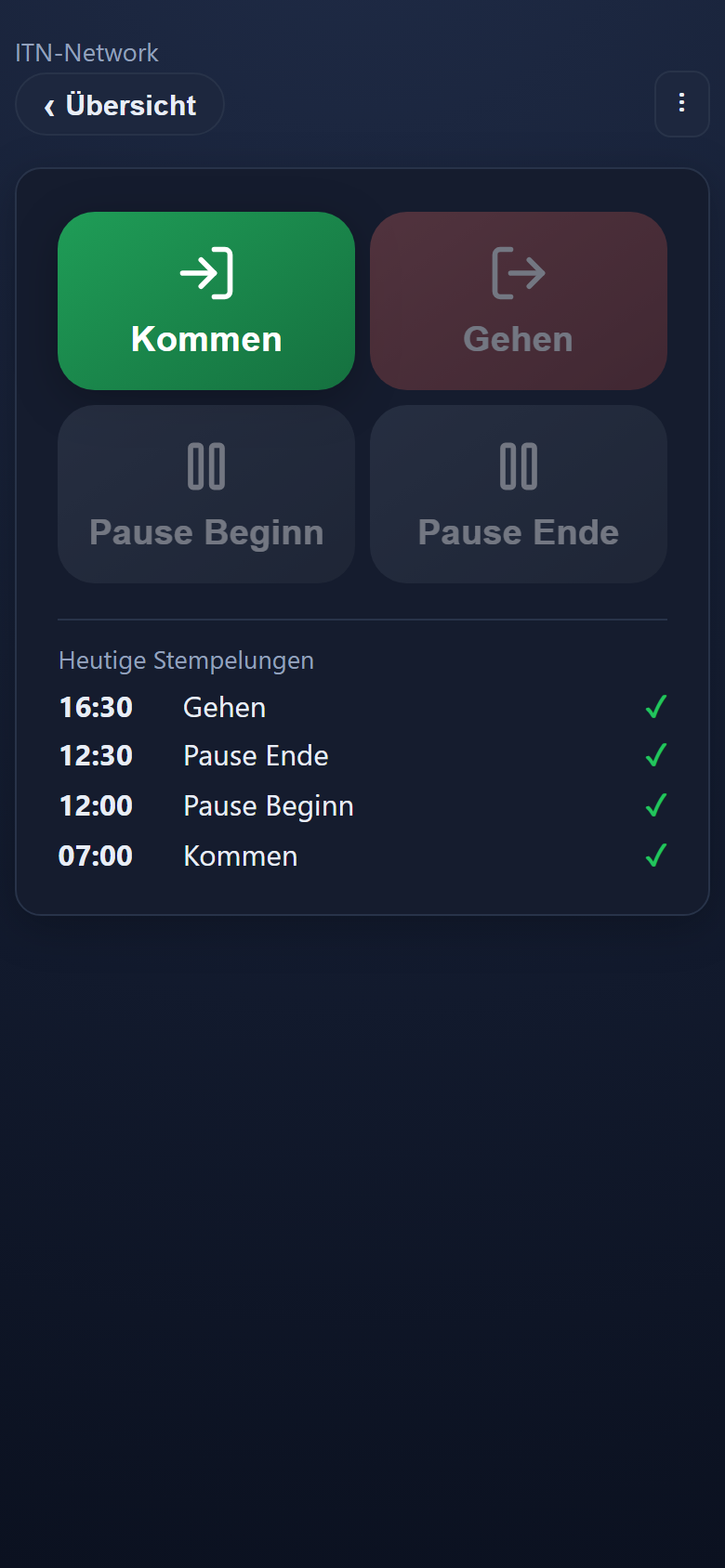
At a desk you clock in straight from the dashboard in the browser — nothing installed, with large buttons for arriving, leaving and taking a break.
Mobile PWA
On an employee's own phone the app runs as an installable PWA at …/app — with mandatory location and an offline buffer, and no app store.
Tablet PIN terminal
A shared tablet at …/kiosk becomes the time clock: tap the action, enter your personal PIN, done.
RFID terminal
A Raspberry Pi with a 7-inch touch display and a chip reader becomes the time clock: hold up your chip and the matching action is recorded — the PIN remains as a fallback.
Datafox terminal
Fixed RFID hardware reads the chip or the fingerprint and reports every entry straight to the server — offline too.
Which menu entries are visible depends on the role: employees clock in and see their own account, editors may change hours (possibly only for the groups assigned to them), and administrators manage users, models and settings and approve leave.
Setting up with the assistant
New in version 1.0.54: an assistant guides administrators step by step through setting up — checking against the real data as it goes what is already right and what is still missing. It complements the „Schnellstart“ (quick start) help chapter, which describes the same steps with pictures and warnings.
What it checks
Eighteen steps, in the order in which a setup works: company details, time zone and date format, clocking buttons, public holidays, your own clocking reasons, premiums, working time models, groups, users, start of time recording and leave entitlement, model assignment, PIN or chip, terminals, phones, locations, notifications by email, payroll export and, finally, a trial run. Each step shows whether it is done, started or open — and exactly what is missing: „5 of 15 employees are still missing something“, for instance, together with their names; a working time model that produces a target on no day at all; public holidays not yet imported for the current year; or phones waiting for approval. Clicking a name opens the personnel record at the relevant tab.
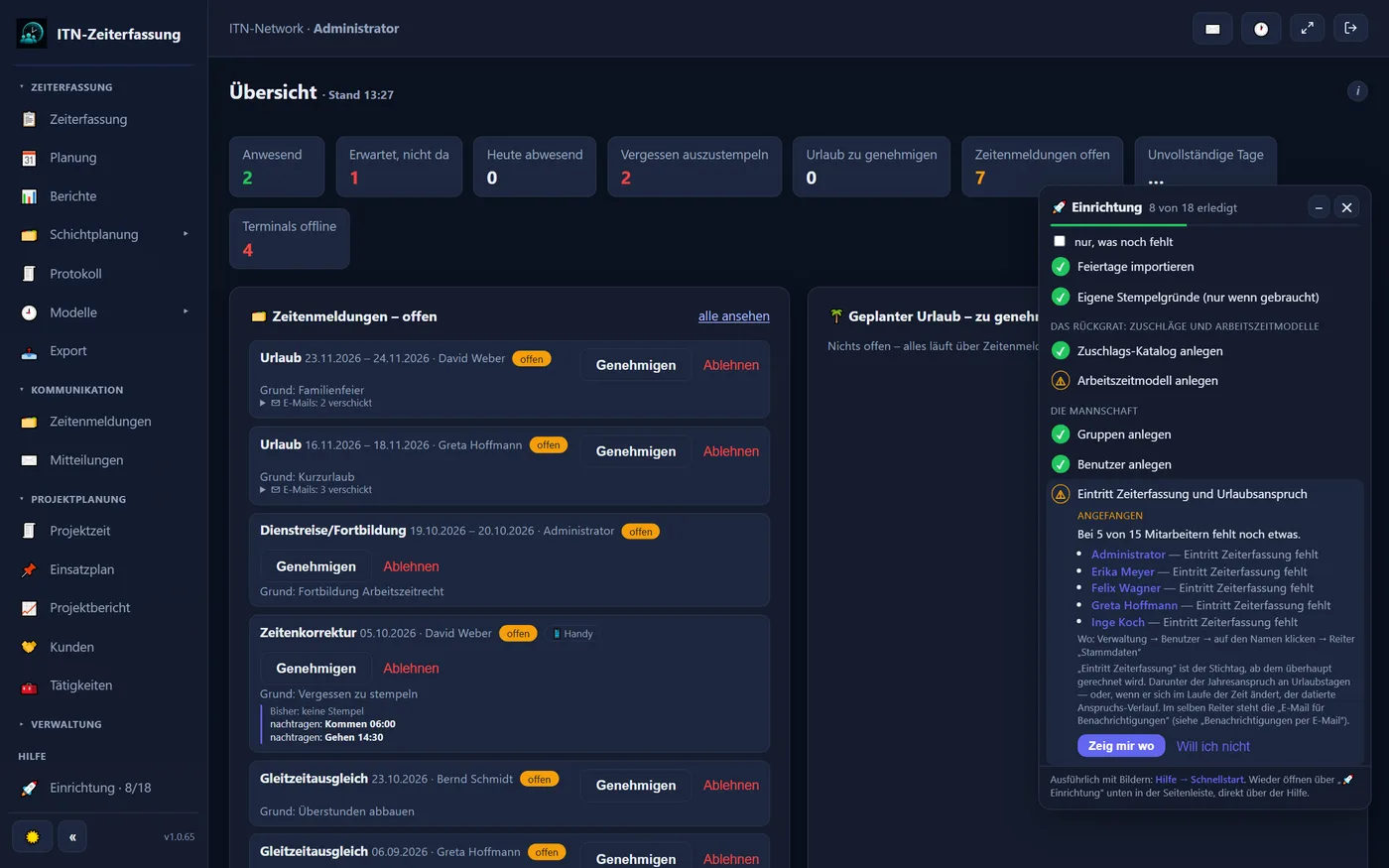
„Zeig mir wo“ (show me where)
One click opens the relevant page, dims the rest and highlights the field or button where you carry on — with a speech bubble such as „click here: + new model“. The page stays fully usable all the while. As you work, the window updates itself: whatever has been saved is ticked off.
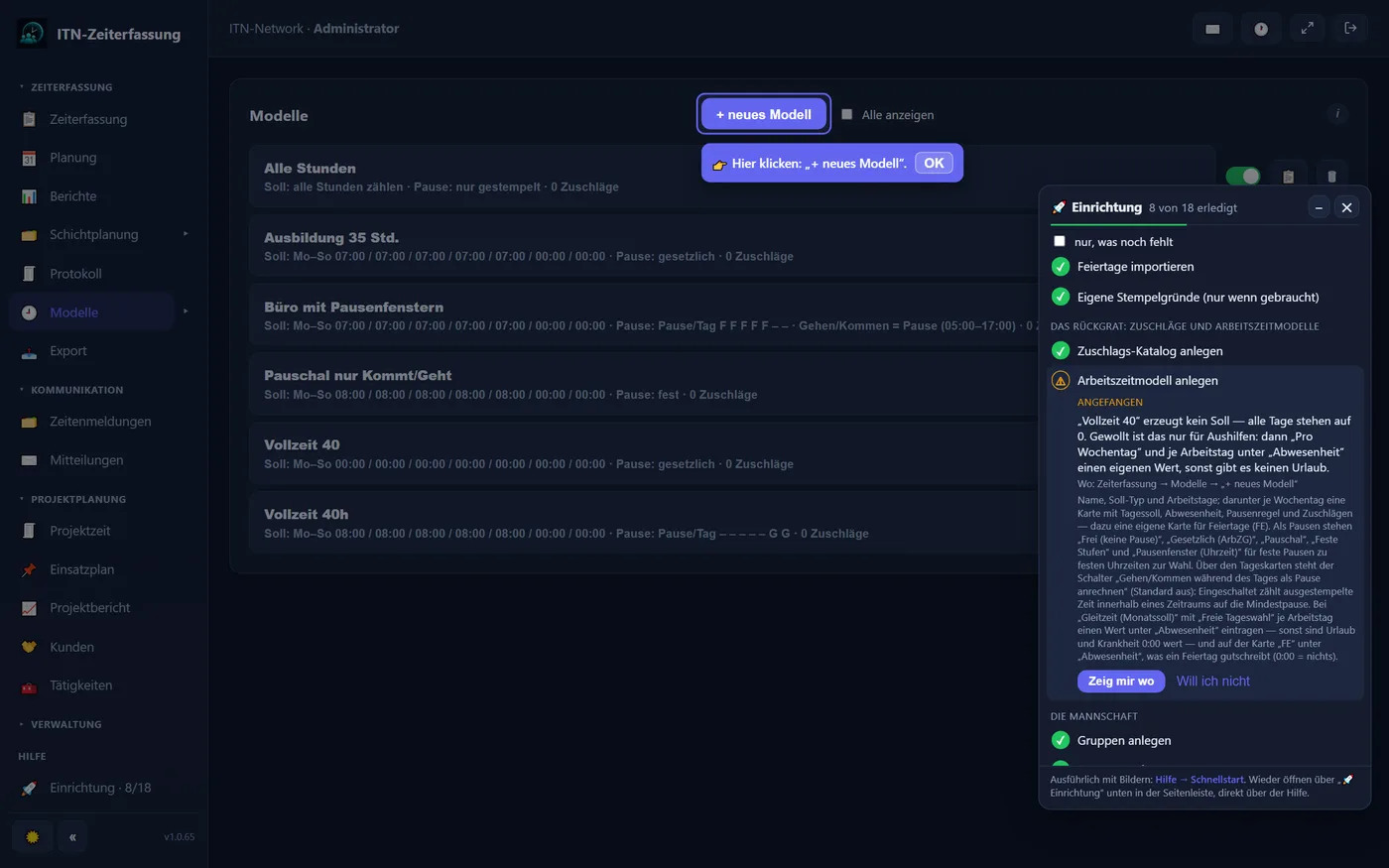
„Will ich nicht“ and „Passt so“
Not every company needs every step. „Will ich nicht“ (I don't want this) deliberately leaves a step out; it then counts as done — for all of the tenant's administrators — and can be brought back with „Doch einrichten“ (set it up after all). Whatever cannot be read from the data, such as the time zone or the final trial run, is closed off with „Passt so“ (that's fine).
Where to find it
In a new tenant the assistant opens by itself as long as nobody has clocked in yet. Otherwise it sits at the very bottom of the sidebar, above the help — „🚀 Einrichtung“ (setup), with the progress, 8/18 for instance — and as a button in the „Schnellstart“ help chapter. It is visible to administrators only and changes nothing itself: saving happens as usual on the pages concerned.
Active accounts outside the system groups count as employees; pure administration accounts with no working time model and no clocking entries are left out.
Dashboard — the admin cockpit
The dashboard is both the home screen for clocking in and an overview of the business. Employees see their figures for the day; administrators additionally see outstanding tasks and the status of the whole workforce.
Figures & clocking
At the top are the tiles for the current day: hours worked today, the day's target and the balance, plus a remaining-leave tile with the days left. On public holidays the model's public holiday rule applies (usually a target of 0); on a half public holiday the dashboard shows the reduced target. Clocking happens through the large buttons, with only the currently permitted actions active — after arriving, for instance, leaving and taking a break. Reasons of your own (such as „going to the doctor“) appear as additional buttons — also as a paid break that counts as working time; below them are today's entries with their source.
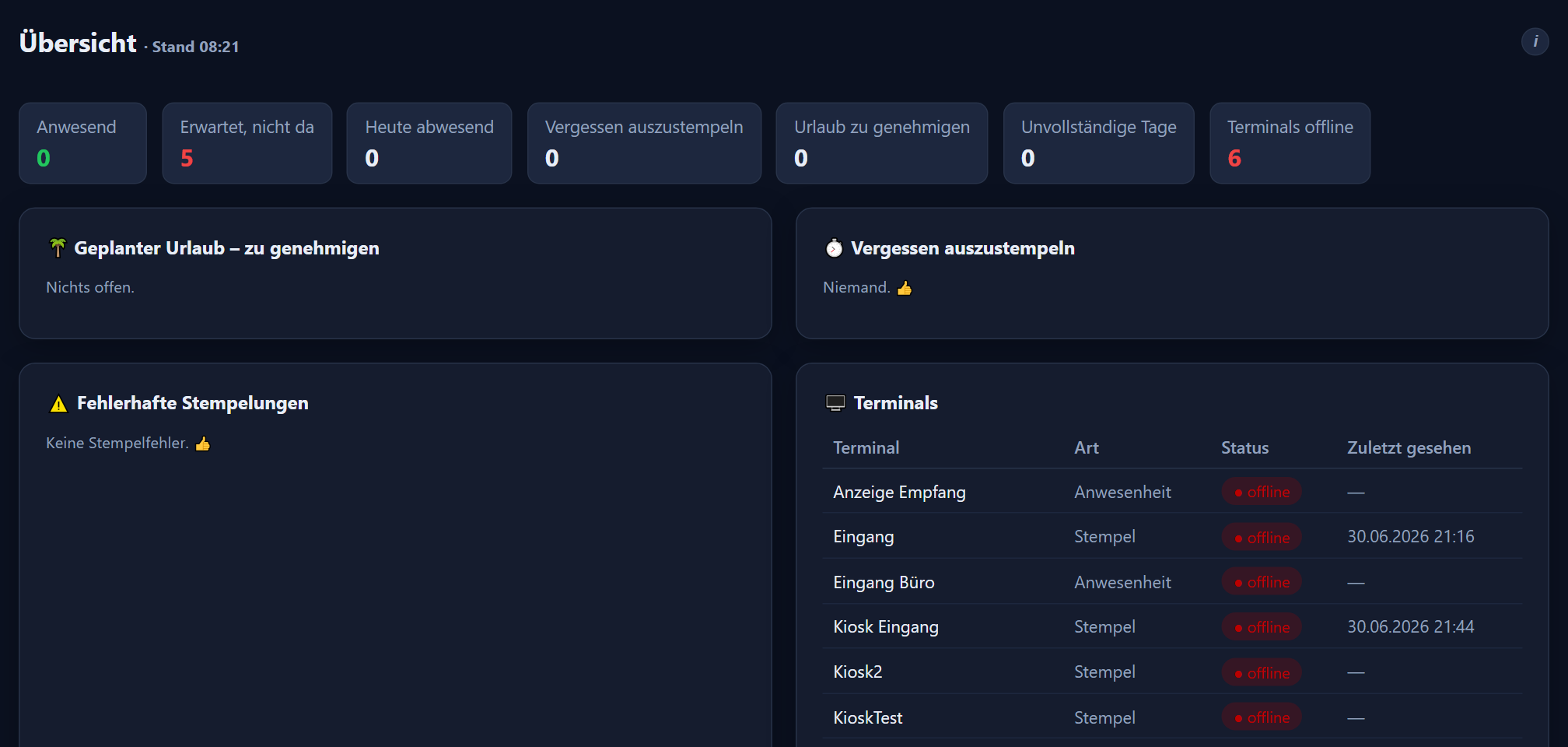
Outstanding tasks for administrators
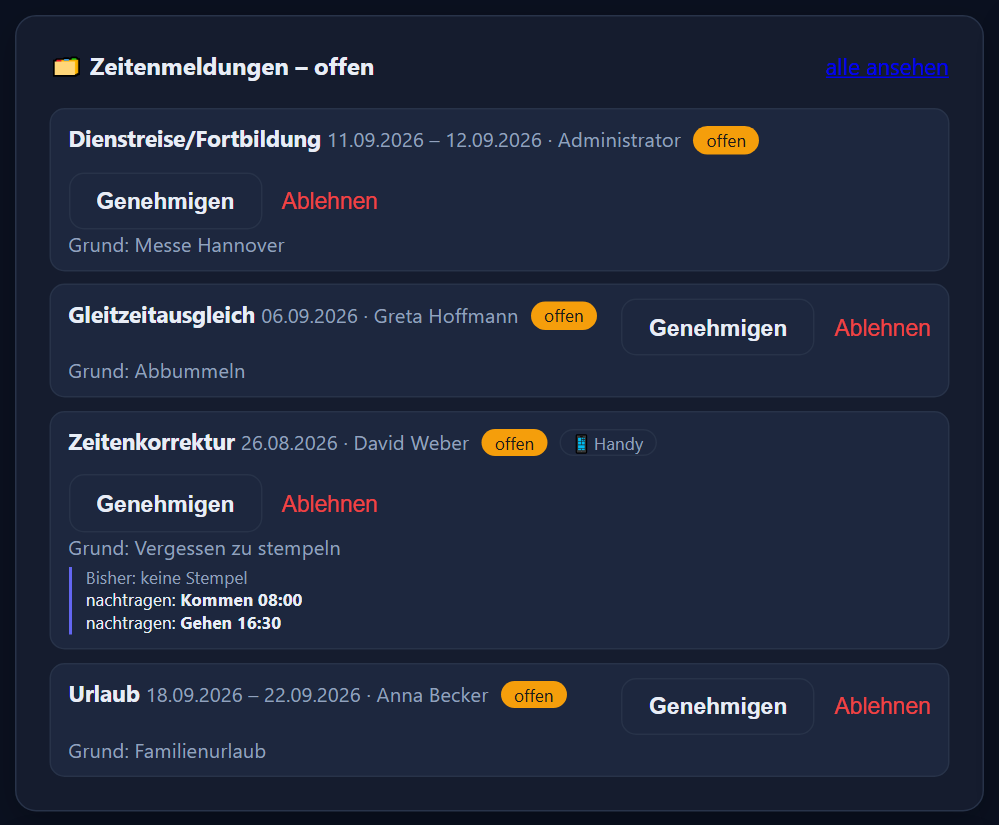
For administrators the dashboard adds an overview of the business. Open requests appear as a figure and a card and can be approved or rejected directly; planned leave becomes real leave with one click. Anyone who has forgotten to clock out shows up, as do incomplete days (arrival without departure) and anything odd in the balances. The status of the terminals (online or offline) and any upcoming dates round the picture off.
The two error lists are clickable: clicking „forgot to clock out“ or an incomplete daily row opens the time tracking view with the employee selected, the month set and the day highlighted — so the error is one click away rather than something to hunt for.
Attendance by group
An overview shows, per group, who is currently in. That makes it possible to see at a glance whether a department is complete.

Approved leave only disappears from the list after a short while, once the overview reloads.
Time tracking — the monthly view
In the time tracking view, editors check and correct an employee's hours month by month. Once a group and a user have been chosen, the current month loads; the arrows or the field at the top switch months. The principle of the page is a calculation you can follow: beside every daily row it says how a figure came about.
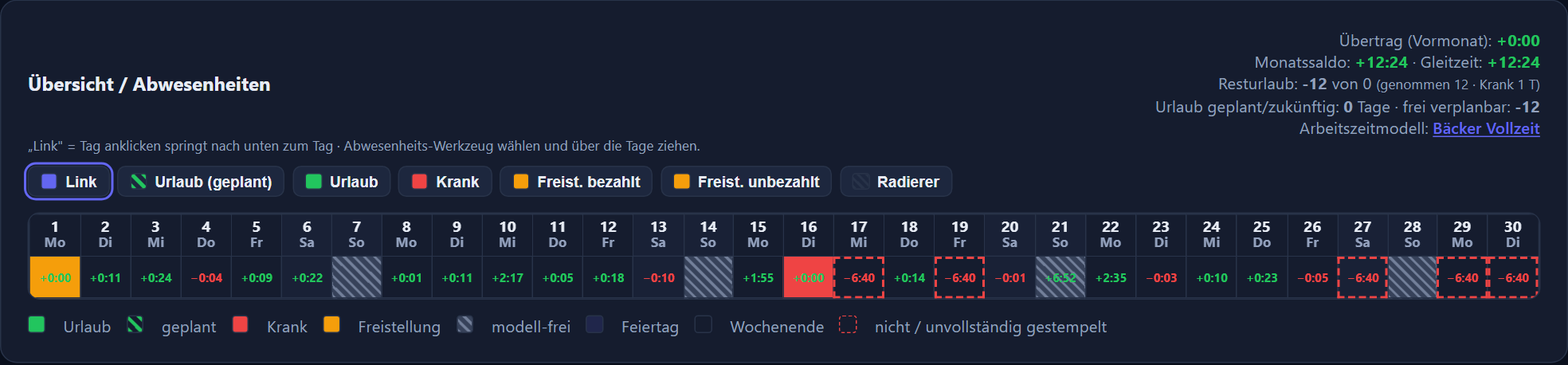
The account card in the month header
The account card summarises the time account. The monthly balance shows flexitime including the carry-over from the previous month, counting only the days up to today — future targets do not appear as a deficit. Remaining leave is what is available (entitlement + carry-over from last year + corrections) minus the days taken; a link leads to the working time model assigned.
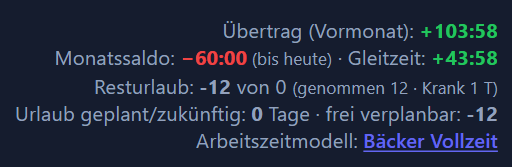
„Leave planned/future“ and the amount still free to plan follow from the remainder minus any planned leave not yet approved. Planned leave is only deducted from the account when it is approved.
The calendar bar — painting absences
A calendar bar sits above the list of days. After choosing a tool (leave planned, leave, sick, released from duty, or the eraser) you drag across the days with the mouse and enter absences as an area. Rarer types such as sick child, rehabilitation or parental leave are in the „weitere Arten …“ (further types) selector. Days with no model are skipped while dragging; „link“ jumps from the day you clicked down to the matching daily row.

A daily calculation you can follow
Every daily row shows the clocking entries and their source on the left, the calculation in the middle — the break deducted under the model's rule, the day's target, the actual hours and the difference — and corrections and reasons for absence on the right. Nothing is hidden: you can see which break rule applied and how the balance arose. The source of each entry is shown by an icon (🌐 web, 🖥️ PIN terminal, 📍 phone, ✍️ manual, ✏️ changed afterwards); incomplete entries are marked as clocking errors. If a departure shortly before the planned end of the shift was topped up to the end, the day says so as well: „Kurz vor Schichtende gegangen — gewertet bis 22:00 (0:20 angerechnet)“ (left shortly before the end of the shift — counted until 22:00, 0:20 credited) (chapter 9, „Tolerance before the end“).

Adding and correcting entries
For each day, entries can be corrected, deleted or added with „+ entry“. „+ reason“ enters a genuine absence — all day, and for release from duty and vocational school also with a time from–to. Leave can also be entered as a half day of leave with the „halber Tag“ (half day) tick box: it counts as 0.5 days of leave and credits half the day's value; the other half is clocked as normal. A forgotten day of leave belongs in as „+ reason → leave“, not as a balance correction.
If someone goes home sick during the day, „+ reason → sick“ (and likewise „sick child“) offers the tick box „Rest des Tages als „Krank“ werten“ (count the rest of the day as sick): from the last clock-out, the time up to the day's target is credited, so the day is fulfilled. An all-day sick entry, by contrast, would credit the full target on top of the time worked.

Balance corrections
„+ balance correction“ offers three kinds. Time posts ± hours and minutes, either for the day or for the month, and affects the actual hours and the balance. Leave posts ± days to the leave account (a payout, say, or additional special leave); such postings do not count as a day taken and do not appear in the payroll export. Sick posts ± counted sick days and does appear in reports and the export.
A recycle bin for deleted entries
The ✕ on an entry does not delete it for good but moves it to the recycle bin. Days with deleted entries show a yellow bar at the left of the daily row; clicking it opens the window for restoring them — individually or with „restore all“.

Deleted entries are only removed for good after the recycle bin period set in the settings (0 = never).
Leave & absences
Leave, sickness and release from duty are planned graphically in the calendar — for individual employees and for whole groups — and act directly on the account and the calculation. A leave account per employee records entitlement, carry-over and the remainder.
Entered graphically: just draw the absences
Entering them needs no forms: in the calendar bar you choose the tool you want — leave (planned), leave, sick, release from duty paid or unpaid, a type from „weitere Arten …“ (further types), or the eraser — and then drag across the days with the mouse. The span colours in immediately (leave green, planned hatched, sick red, release from duty yellow) and the account recalculates at once; the eraser removes a marking just as quickly.

The whole group at a glance: planning

The planning page shows the calendar for a whole group — one row per person, one column per day. Leave, planned requests and days of sickness for everyone lie side by side in colour, so that overlaps and gaps (two sales staff in the same week, say) stand out immediately. Here too, planning happens directly in the view rather than in lists. Alongside leave, sickness and release from duty, rehabilitation, phased return to work, maternity protection and parental leave have buttons of their own here as well; sick child and the other rarer types are in „weitere Arten …“ — including „½ Urlaub“ (½ leave) and „½ Urlaub (geplant)“ (½ leave, planned) for half days of leave, which appear half filled in the grid. Half public holidays and public holidays with a fixed number of hours off have a colour of their own; on those days work runs against a reduced target.
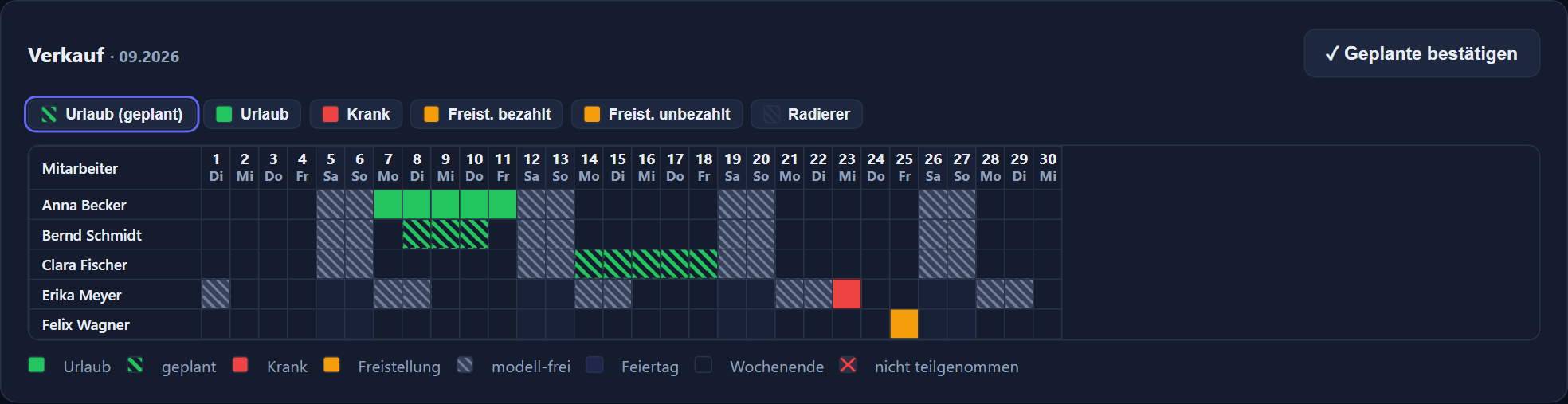
Requesting rather than shouting across the room
Staff can request leave and the other absences themselves — at a desk or on a phone. Nothing about the hours changes until a decision is made; requested leave merely appears as „planned“ in the grid. The whole process is in the chapter on requests.
Approving with one click
Planned leave appears as an open request on the dashboard. Whoever is responsible sees the employee, the group, the period and the number of days, and approves with one click — the provisional entry becomes counted leave.
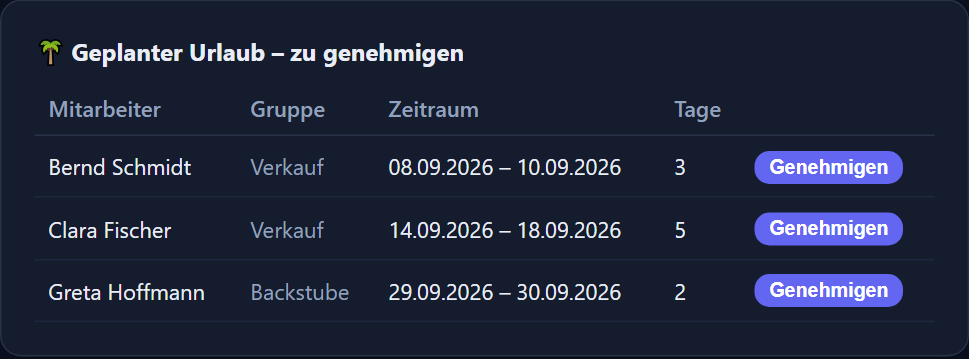
Exchanging leave data with your mail server
If the calendar connection to the company mail server is switched on, the application enters every absence automatically as an appointment in the employee's personal calendar — a whole day during the usual working hours from 8 am to 5 pm, a part day (half a school day, say) with its actual times. Planned leave appears there as a tentative appointment; on approval the same appointment is automatically set to confirmed — and when the absence is removed it is deleted from the calendar again. Employees see their leave directly in their mail program, on their phone or in webmail, with nothing maintained twice. The connection is optional and is set up per employee with an app password of their own, stored encrypted.
Data-minimising: the appointment names the type of absence, such as „Urlaub“ (leave) or „Dienstreise/Fortbildung“ (business travel/training). Sick, sick child, rehabilitation, phased return to work and maternity protection, however, all appear there simply as „Krank“ (sick) — the exact type and any note never appear in the calendar, because those are health data, and calendars are often shared with colleagues. If no type should be visible at all, an admin sets „Abwesend“ (absent) under Settings → Calendar connection: every appointment then reads only „Abwesend“ instead of the type, and the „tentative“ status for planned leave is dropped too; a part day remains recognisable by its times, a half day of leave by the addition „(halber Tag)“ (half day) in the title. The same rule applies to the personal calendar subscription (ICS) from the duty roster of the Projektzeit add-on module. After a change, the application renames the appointments already entered in a single background run (90 days back to one year ahead).
- mailcow / SOGo — the well-established open-source mail server; set up and in use with this.
- Open-Xchange — behind many hosting offerings, IONOS and mailbox.org among them.
- Kerio Connect, Zimbra, IceWarp — commercial groupware servers with CalDAV support.
- Nextcloud / ownCloud, Synology Calendar — calendars on your own cloud or NAS.
- Apple iCloud, Fastmail — cloud calendars with an app-specific password.
Microsoft Exchange and Microsoft 365 use a protocol of their own without CalDAV — the exchange is currently not available there. Get in touch if you need it.
Types of absence
- Leave planned: a provisional entry with no effect on the account, which becomes real leave only on approval.
- Leave: an approved, counted day of leave. As a half day of leave it counts as 0.5 days and credits half the day's value; the other half is clocked. Whole public holidays that are days off within the period are left out when it is entered.
- Sick: a day of sickness, all day or with a time from–to.
- Sick child: the employee is well but is caring for their child; paid and calculated like sick, but shown separately in the evaluations.
- Rehabilitation, phased return to work, maternity protection: paid, calculated like sick. If someone clocks in on a day of phased return, the time worked counts in addition.
- Parental leave: neutral — the day counts as fulfilled, producing neither a deficit nor working time in the payroll export.
- Release from duty, paid or unpaid: paid covers the day's target (balance 0), unpaid does not cover it and is merely documented.
- Business travel / training: paid, covers the day's target.
- Special leave: paid, covers the target — but does not count as a day of leave taken.
- Unpaid leave: the target remains, and the day is documented.
- Flexitime compensation: time off in lieu — the day's deficit draws down the flexitime built up.
- Vocational school: generated from the apprentice's school timetable (its own chapter).
With a paid all-day absence and no clocking entries, the day counts as covered: actual = target, balance 0, no break. If work was nevertheless done on such a day (leave entered afterwards on a day with entries, say), the time worked counts in addition, and the day of leave stays used up in the account.
Sick note check: has the certificate come in?
Whether a sick note (the German certificate of incapacity for work, „AU“) is on file is not a second status but an „AU“ tick on the period of sickness; ticked means „AU liegt vor“ (sick note received) and applies to the whole continuous period. The check is off by default and is switched on under Settings in the „Arbeitsunfähigkeit (AU)“ (incapacity for work) card. That is also where you set from which day of sickness a sick note is required — the default is the 3rd day, counted in calendar days. From that day on, „AU fehlt“ (sick note missing) appears in time tracking, in planning, on the dashboard and in the absence overview of the reports until the period is ticked. This applies to sick and sick child; sick notes imported from the payroll software (chapter 13) count as „AU liegt vor“ automatically.
Visible only to administrators and department heads — employees see nothing of it. The sick note check changes nothing about target, actual hours or pay.
The leave account
The leave account shows entitlement, carry-over from the previous year and the remainder. The remainder is the entitlement plus the carry-over minus the days taken; the carry-over runs recursively into the following year, and nothing expires automatically. Real days of leave are counted as taken, half days as 0.5.

A dated history of entitlement
If the entitlement changes — three days more from a particular year, say — the entitlement history is maintained instead of the simple annual figure („from year X: N days“). Each year then calculates with the value that applied at the time; previous years and carry-overs stay correct. Where a history is maintained, only it applies and the simple field has no effect. Individual days can be credited or deducted through balance corrections (special leave or a payout, for instance).
Requests — leave, corrections, approval
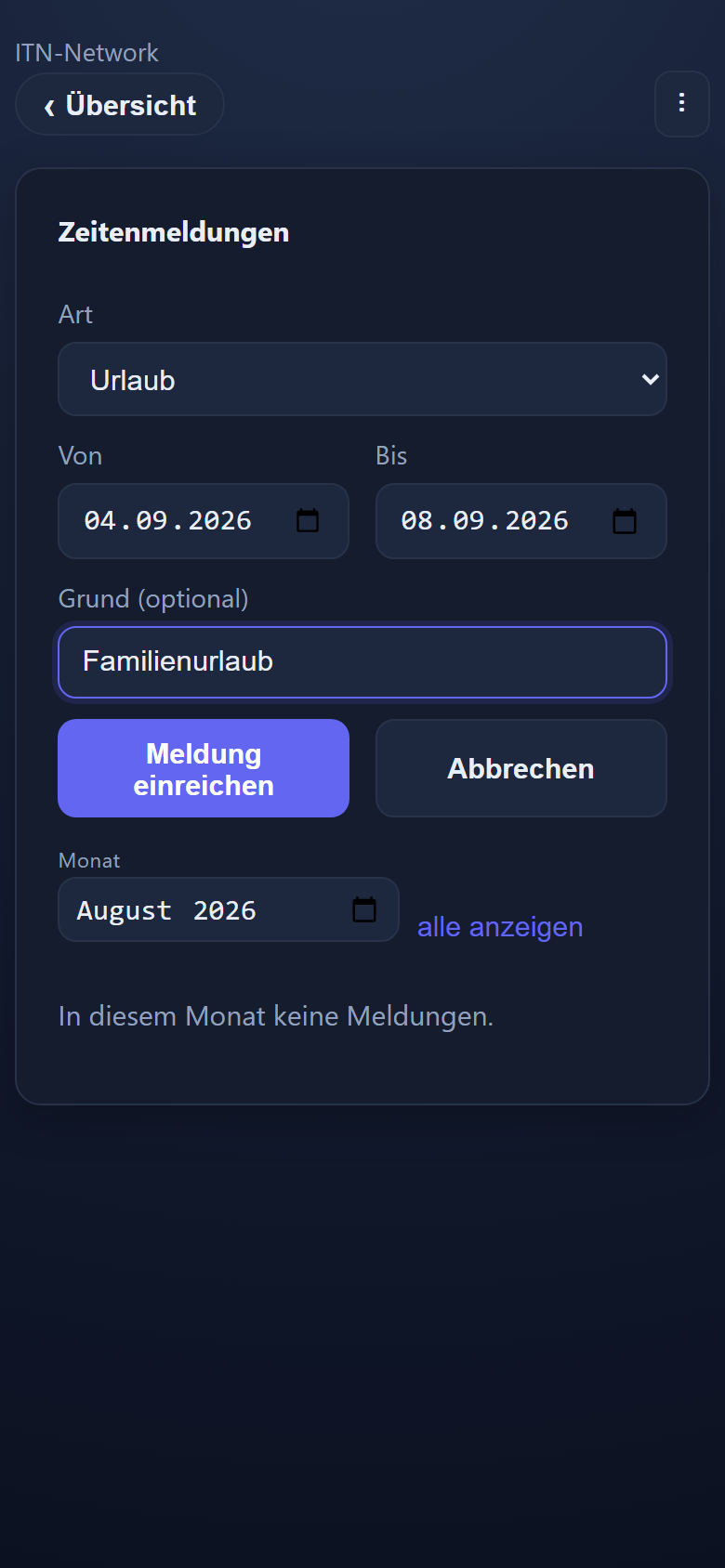
Leave, special leave, business travel, flexitime compensation, a forgotten clocking time or a cancellation: staff submit these themselves — at a desk or on the move with a phone. Nothing about the hours changes until a decision is made; once management approves, the program enters the change and records who decided it. The note on the desk and the question shouted across the room both disappear.
Submitting
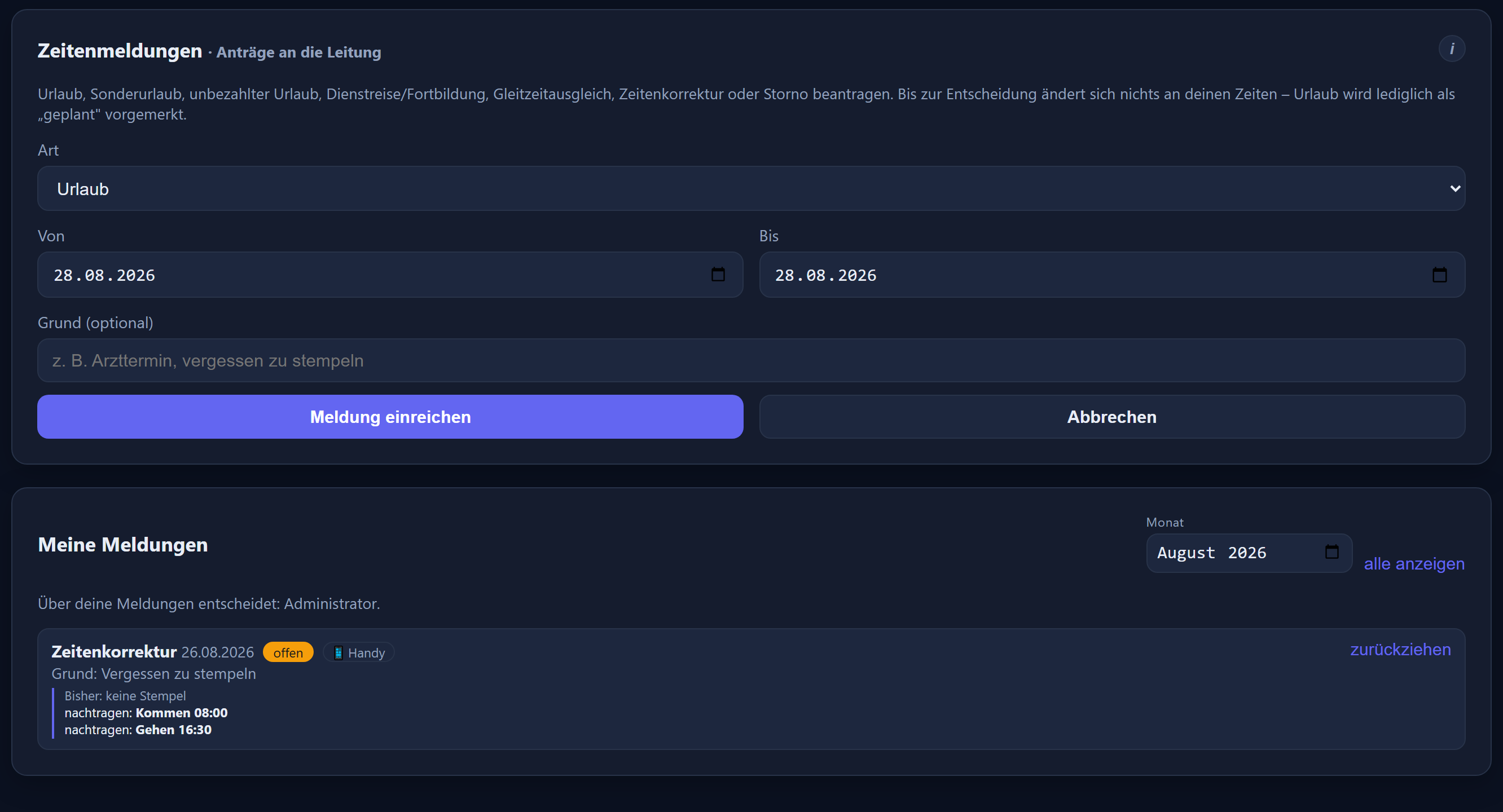
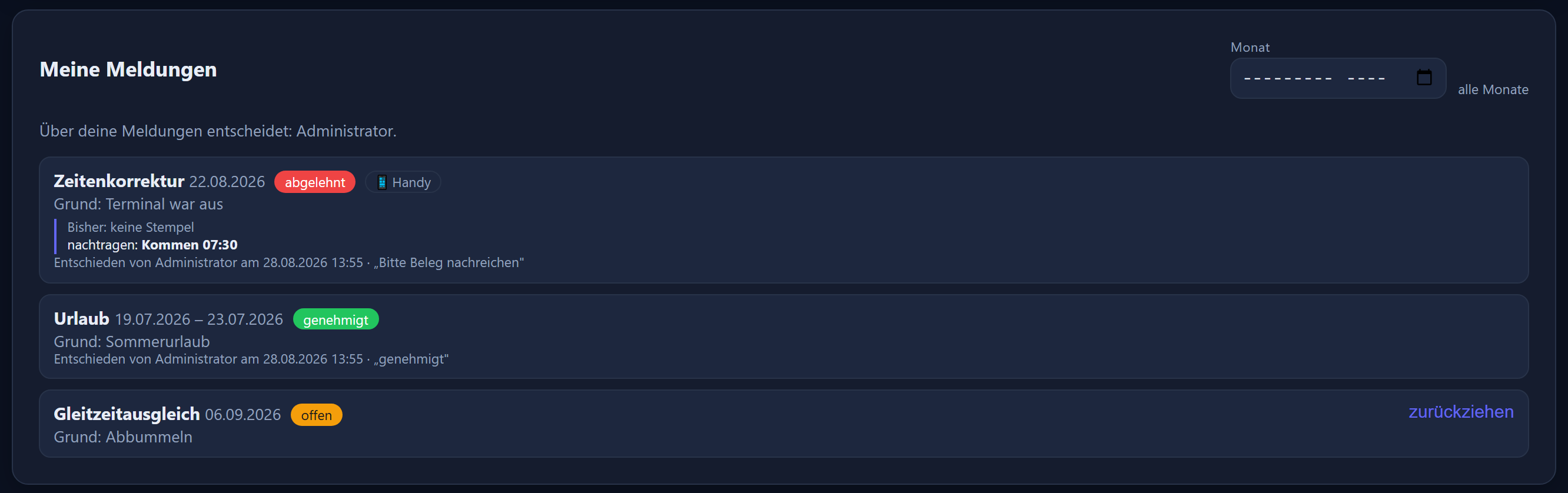
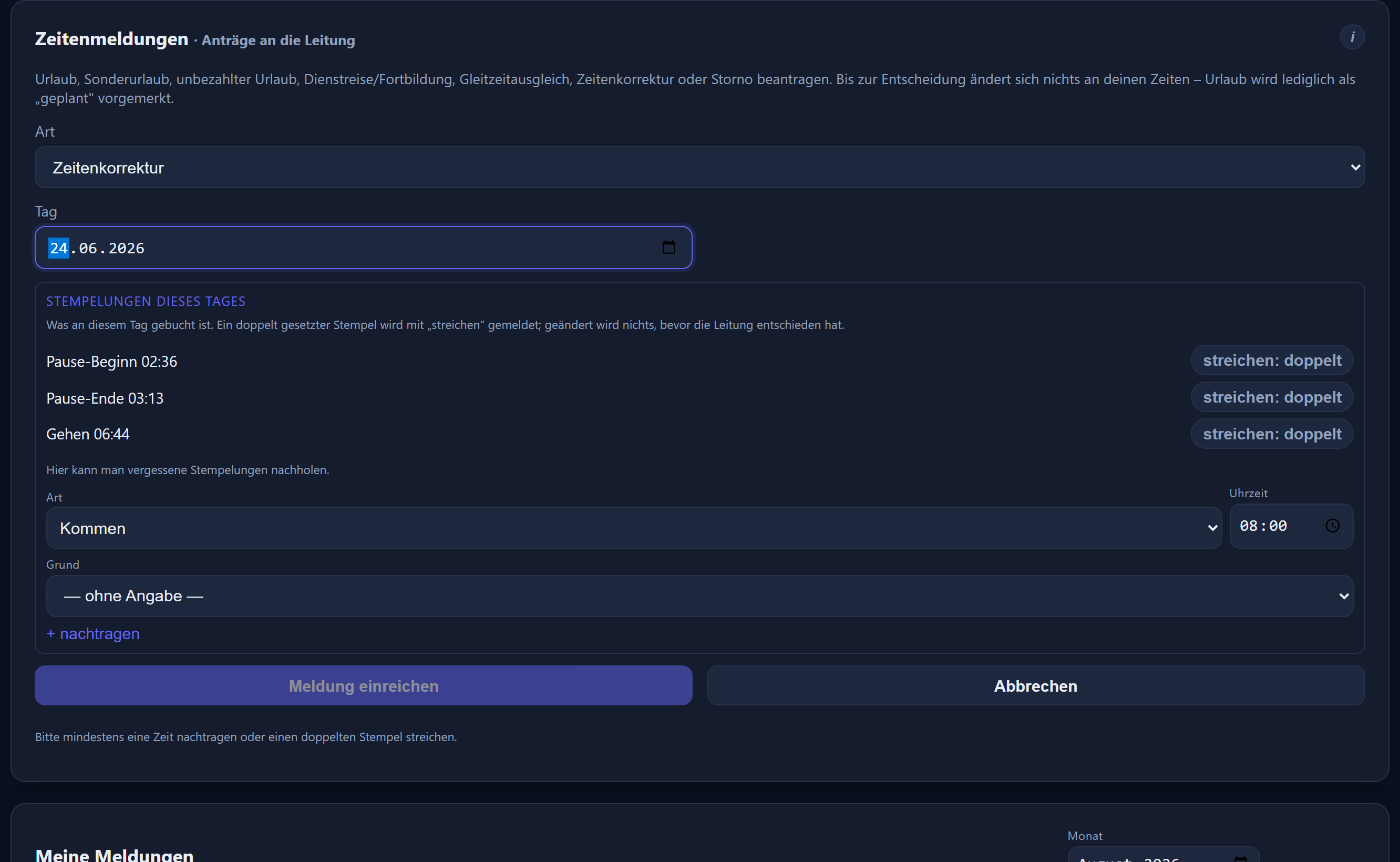
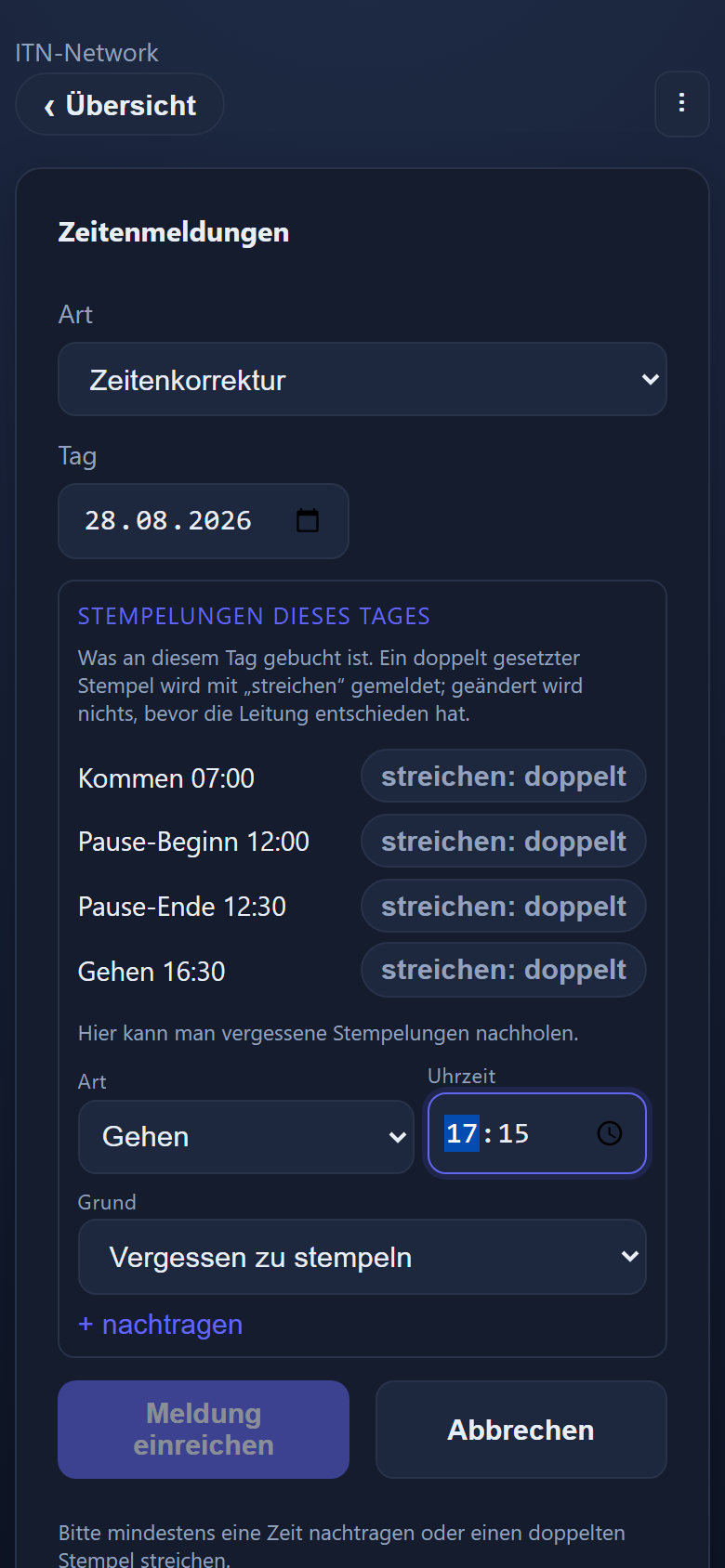
A submission consists of a type, a period and a reason. For the reason the common cases are offered (forgot to clock, wrong time, clocked twice, terminal unreachable, doctor's appointment, business errand); free text remains possible. For a time correction the form shows the entries for the day chosen: an entry made in error is struck out, and a missing time is added by type and time. Requested leave appears in the grid as „planned“ straight away — so the department sees early who would like time off, without anything being booked yet.
Deciding
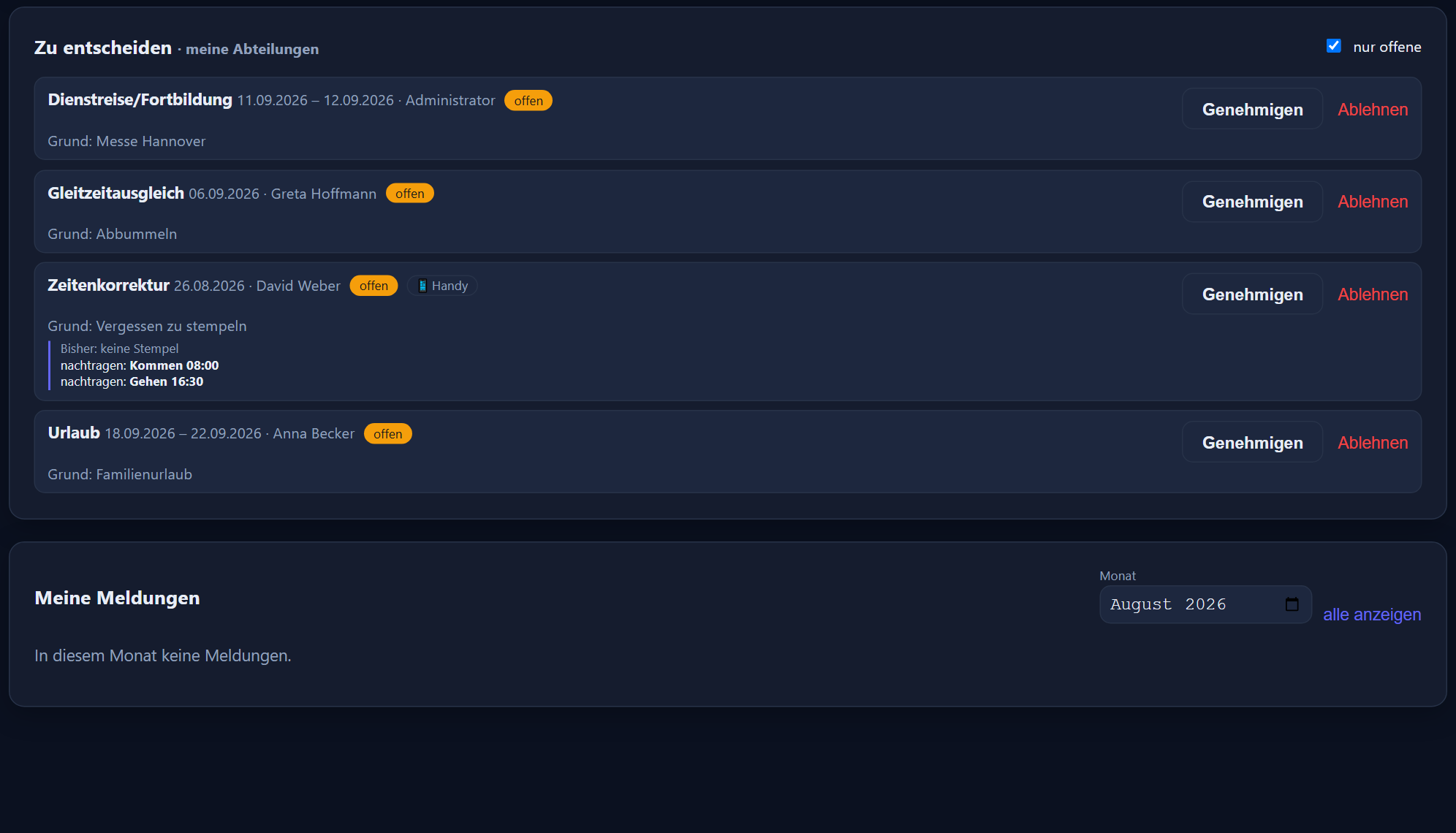
Responsibility lies with the person's named line manager; where none is stored, management decides, and otherwise the administrators. Open submissions appear as a figure and a card on the dashboard and can be approved there directly, or rejected with a reason. Nobody may approve their own submission — not even a department head; the button is simply not there.
Before an approved time correction is applied, the server checks whether the day has changed since the request was made. If it has, the approval is refused rather than pasting a stale correction over a newer change.
Who is responsible
The department head role maintains the hours of its groups and decides their submissions, but reaches no administration page. A deputy can additionally be stored per group so that nothing is left lying during a holiday. The management status — which any number of people may hold — decides every submission without a line manager of its own and grants no other rights: no administration, no other people's hours. Anyone who is only an employee cannot approve leave; so only those entitled to decide can be selected as a line manager.
On request the system sends emails in both directions: to those responsible when a submission comes in, and to the employee — as a confirmation of receipt on submitting, once it has been decided, and when planned leave is confirmed in bulk (one email per person listing the days entered). If no notification address is stored, the message simply appears in the web and mobile app — nobody needs a mailbox for it. All emails address the recipient with the formal German „Sie“.
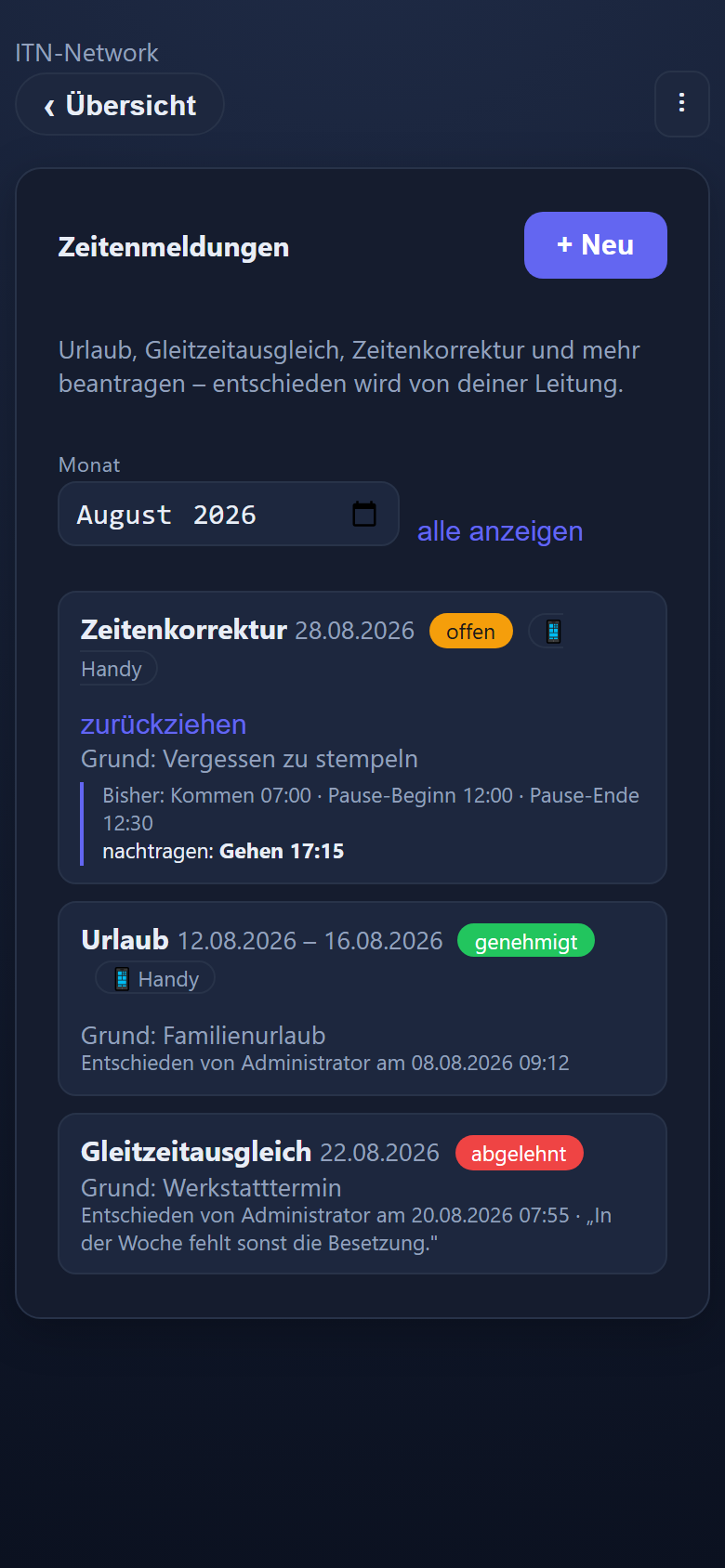
Each submission shows what happened to the emails: the employee sees, for instance, „Eingangsbestätigung verschickt“ (confirmation of receipt sent) and how many of those responsible were notified; whoever decides sees each recipient individually. „Verschickt“ (sent) means the mail server accepted the email — whether it arrives in the mailbox is something the application cannot see. For administrators there is also a send log covering the last 30 days; addresses and email texts are not stored in it.
On a phone
In the mobile app the submissions have a tile of their own: make them, follow their status, withdraw them. Decisions are deliberately made only at a desk. Every correction requested this way stays recognisable afterwards — in the time tracking view the entry carries the note „requested by phone“ along with the name of whoever approved it.
Messages to the workforce
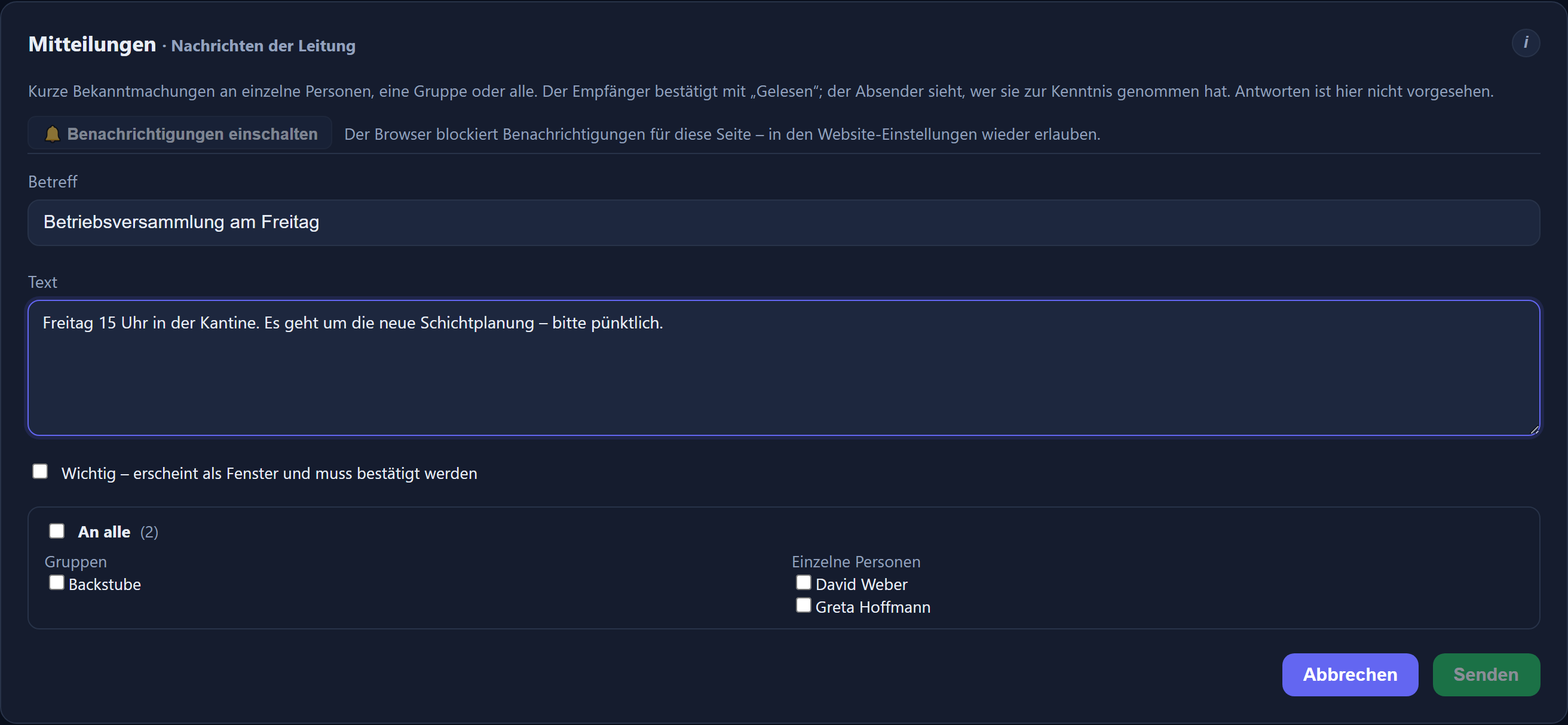
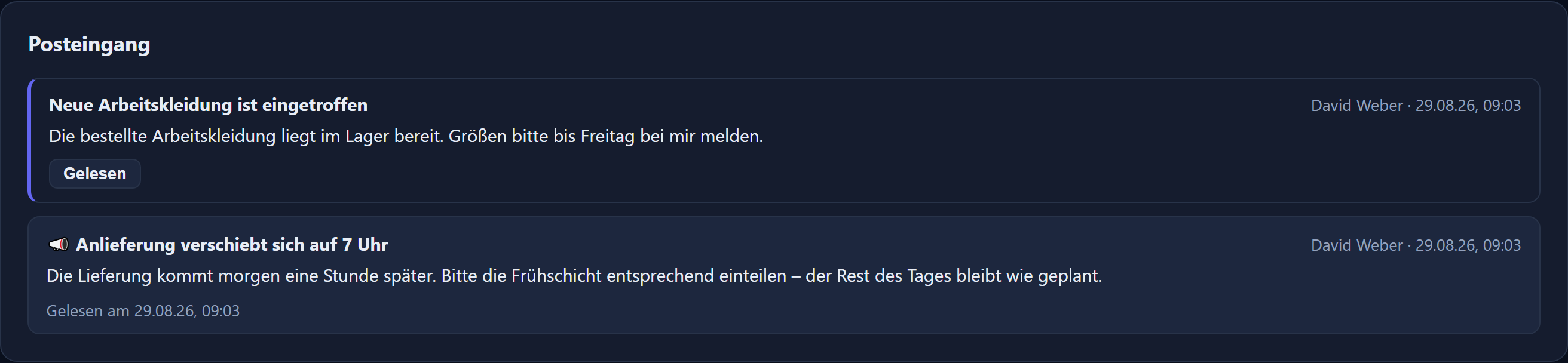
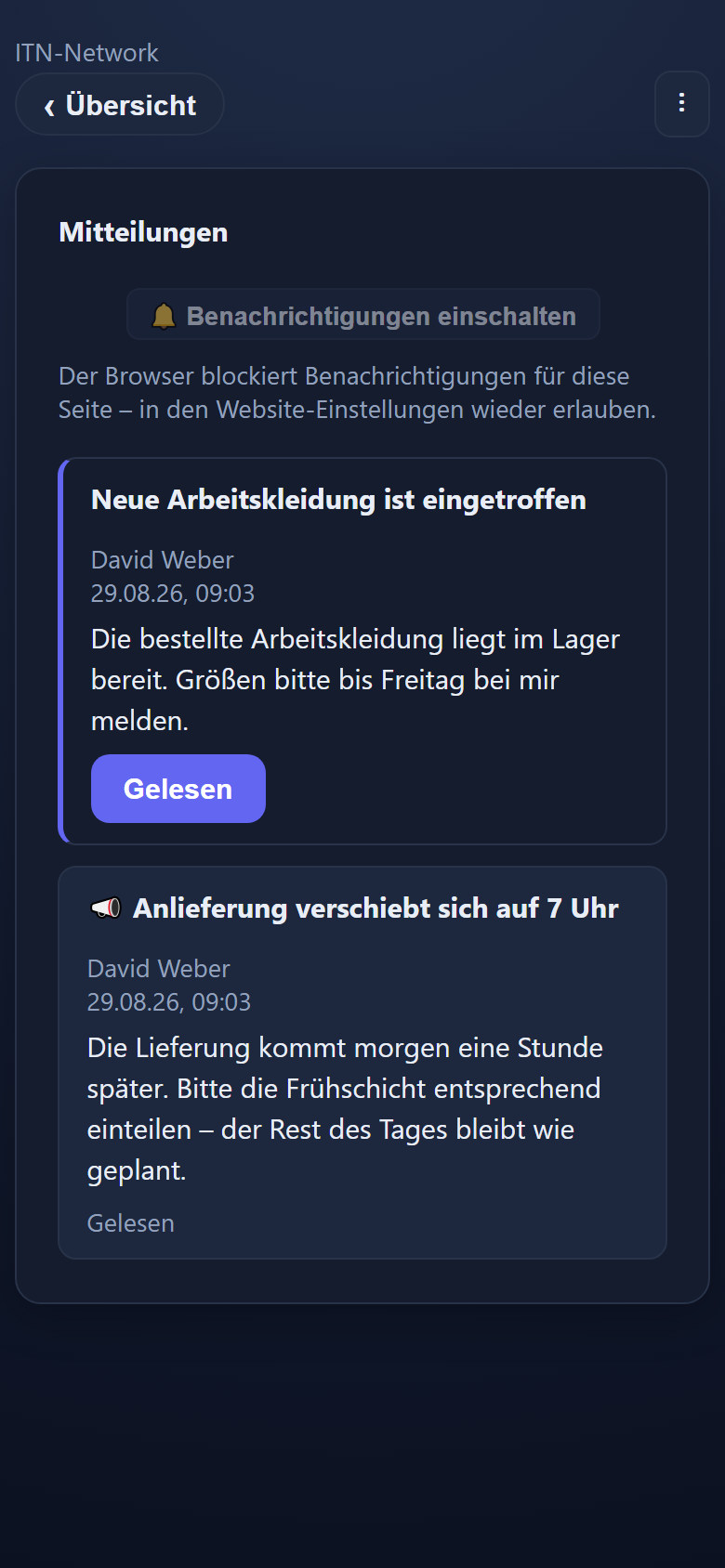
„The delivery will not arrive until 7 tomorrow“ — messages like that used to travel by phone chains and private messengers, past the time tracking system and with no record. Messages reach the same people in the same program: one person, a whole department or everyone. The recipient confirms with „read“, and the sender can see who has taken note. Deliberately one-way — no chat, no discussion; requests go through the request workflow.
Writing is for those who carry responsibility
Administrators and management reach everyone, department heads their own departments (with any stored deputy counted in), and a named line manager additionally the people assigned to them. Only the people and groups you are allowed to reach appear in the recipient selector. Everyone else has a mailbox but no write access.
Normal or important
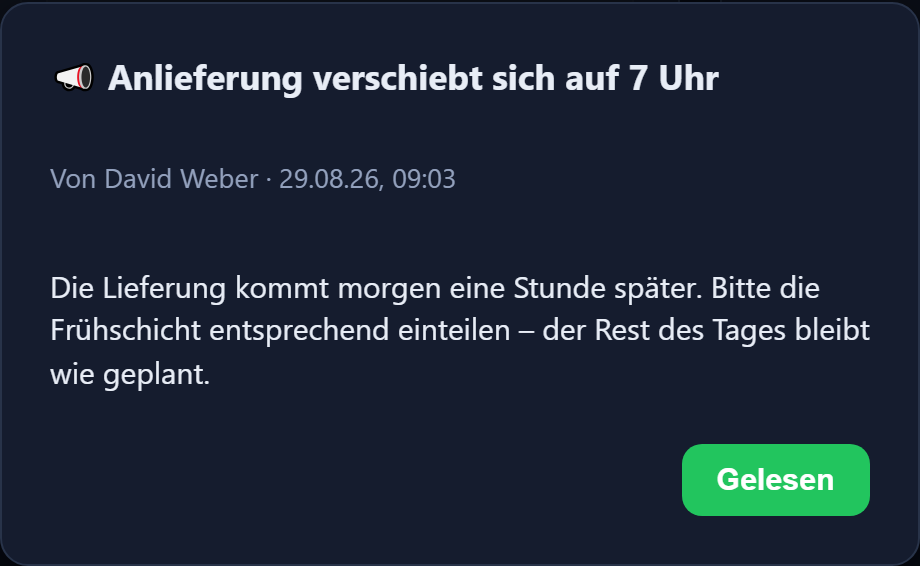
A normal message waits in the mailbox; the bell in the header and the tile in the mobile app show how many are unread. A message marked important opens as a window at the next start, which can only be closed with „read“ — for when a message really does have to reach everyone.
An important message reaches the time clock too: anyone who has not yet read an important message sees it in large type straight after entering their PIN, as an „⚠️ ACHTUNG“ (attention) window, and confirms it with „Gelesen und verstanden“ (read and understood) — so it also reaches colleagues who use neither the mobile app nor a PC. Normal messages do not appear there.
Also by email
Anyone who also wants to reach a mailbox outside the application ticks „Auch per E-Mail senden“ (also send by email) when composing (default: off) — at a desk, on a phone and with „Änderungen mitteilen“ (announce changes) in shift planning. Nothing changes in the app: the message appears in every recipient's mailbox just as it does without the tick. In addition, every recipient with a valid „E-Mail für Benachrichtigungen“ (email for notifications) in their master data receives an email of their own; nobody sees the others' addresses. Replies to the email go to the sender, provided they have such an address themselves. Confirmation still happens only in the app: an email that has been read does not count as „Gelesen“ (read).
Emails are sent through the company's own mail server (Settings → „E-Mail (SMTP)“); if none is set up, the tick box is greyed out. At most 200 email recipients per message and at most 10 messages with email per sender and hour. With the tick, the text leaves the application and lands in other mailboxes, possibly private ones — confidential personnel data therefore does not belong in it.
A record instead of asking around
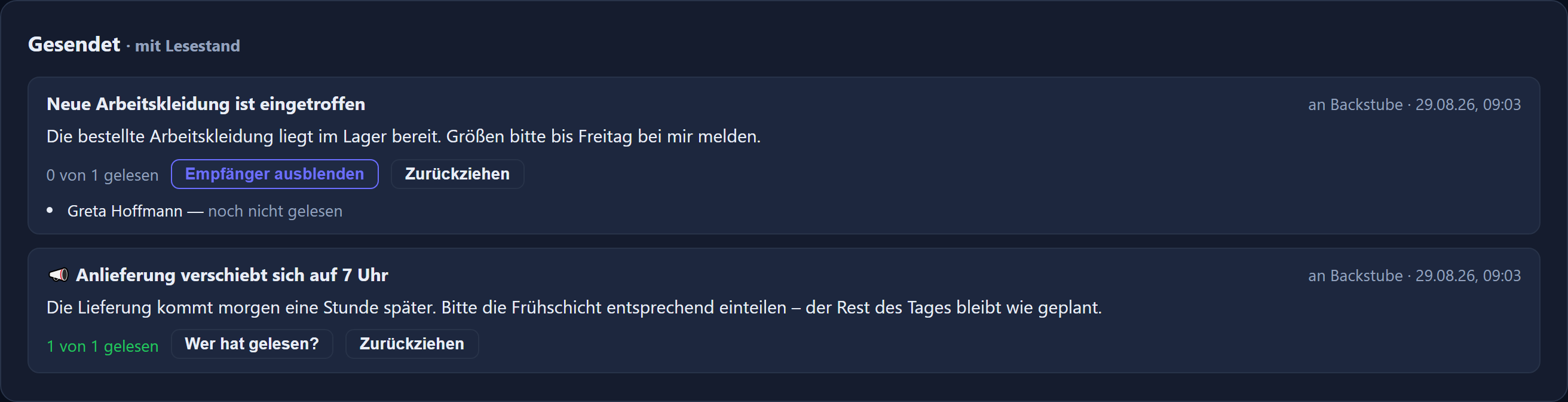
Under „sent“, each message shows how many recipients have read it — with names and times, if you want. That makes it demonstrable who had the information. If it also went out by email, it additionally shows how many emails were sent. A message can be withdrawn; it then disappears from every mailbox and remains under „sent“ marked as withdrawn — emails already sent, however, cannot be recalled. Every send appears in the log with the sender, the subject and the number of recipients.
On a phone
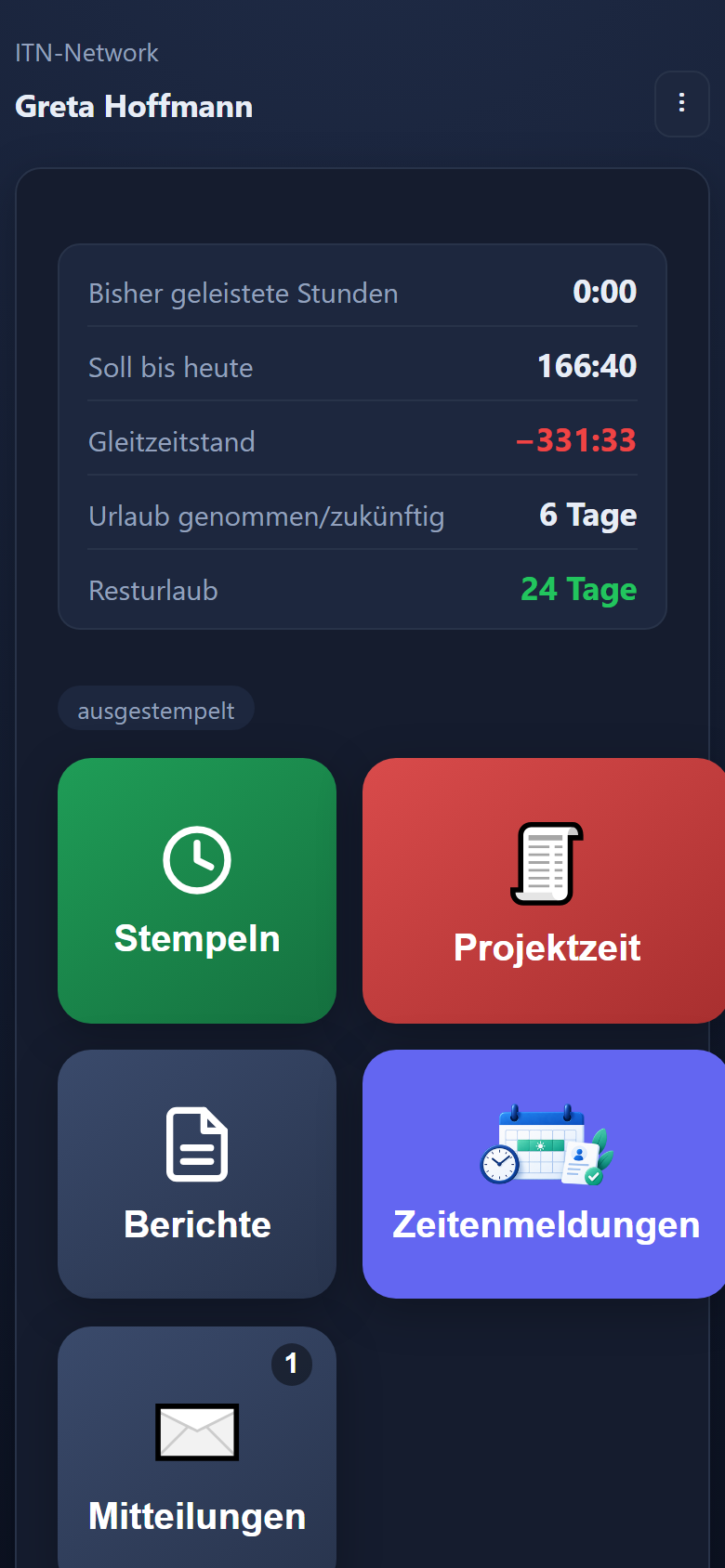
The mobile app has a tile of its own with a counter of unread messages. There is nothing to set up and nothing to switch on: the messages arrive in the app along with the rest of the data. Operating system notifications are deliberately not used — so there is no permission anyone could refuse, and nothing appears on the lock screen. The messages last loaded stay readable without a connection. At the sender's request, a message also arrives by email (see „Also by email“).
Working time models
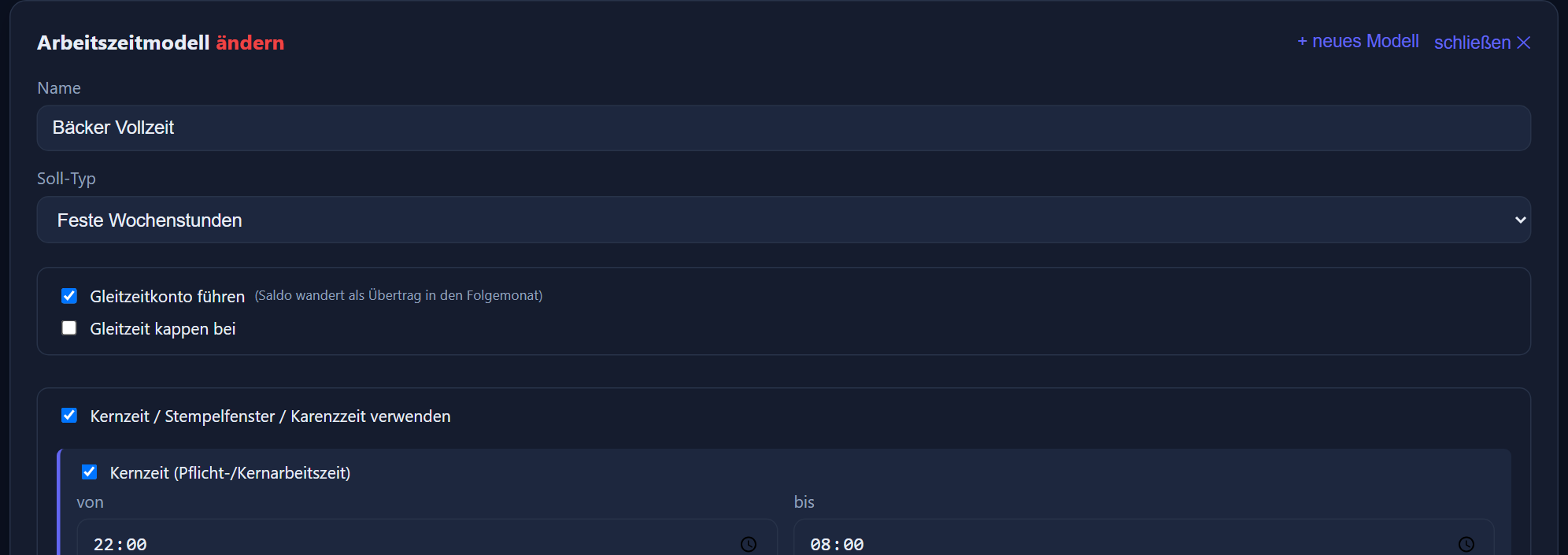
A working time model sets the target hours, the break deduction, the premiums and the public holiday rule — it is the backbone of every evaluation. Models are maintained under Time tracking → Models. Premiums attached to a shift are added to those of the model (chapters 9 and 11).
Target types
- Per weekday: a target of its own for each weekday (Mon–Thu 8.0 / Fri 6.0, say).
- Weekly target: a number of hours per week plus a choice of working days; optionally a daily target of its own, with the remainder distributed evenly across the other working days.
- Monthly flexitime: a monthly target, with the distribution across days left open.
- Free („Alle gearbeiteten Stunden zählen“ – all hours worked count): no target — all the time recorded counts. Without day cards there is no break rule and there are no premiums from the model; premiums attached to a shift still apply.
Casual staff without a fixed target can be mapped in two ways. „Alle gearbeiteten Stunden zählen“ (all hours worked count) knows neither leave nor flexitime compensation; sick, sick child, rehabilitation, phased return to work, maternity protection and parental leave can be entered as a record and count as days, but credit no hours. „Pro Wochentag“ (per weekday) with a daily target of 0:00 and an absence value on the usual working days, by contrast, does know leave and sickness: on those days a day of leave or sickness counts and credits the value entered. Whether and to what extent casual staff receive leave and continued pay during sickness is for the payroll office to clarify.
Free choice of days — the monthly goal is what counts
Some businesses let their people decide for themselves when they work; all that is binding is a number of hours per month. For this, the monthly target offers the tick box Freie Tageswahl (free choice of days): the monthly target is then not distributed across the days. Every day has a target of 0, no daily deficit arises anywhere, and anyone who does not clock in on a given day gets no „working day without clocking“ notice — after all, they have not missed anything. Instead, the header of the time tracking view shows monthly goal and achieved and, separately, overtime — 167 achieved plus 10 overtime means 177 worked. The monthly goal counts as the target for the period, so overtime is „actual minus goal“. A flexitime account is possible here too — without one, the surplus is shown as „for payout“.
Clocking errors are reported here too: an arrival without a departure (or the other way round) is outlined in red just as with every other model. Only a day on which there was no clocking at all is underlined in green. Work across midnight is fine as long as the departure on the following day comes at most 24 hours after the arrival; anyone still clocked in is only reported as a clocking error after 24 hours.
Public holidays with a free choice of days: what a public holiday off on a working day credits is set solely on the model's public holiday card (FE) under „Abwesenheit“ (absence) — 8:00, say; a half public holiday credits half of it, and 0:00 means no credit. The monthly goal stays as it is. There is no flexitime compensation with a free choice of days: additional and missing hours balance out over the monthly goal.
What a day of leave is worth
A whole day of leave, sickness or release from duty normally covers exactly the day's target — and rightly so, as long as there is one. With a free choice of days, though, that target is zero, and a day of leave would be worth nothing.
That is why every day card carries an absence value: how many hours a whole day of absence counts for on that weekday. Left empty, it still means „the day's target“. A calculator suggests the value — the monthly goal divided by the working days in the month. Because that figure varies from month to month, it recommends a fixed value: otherwise the same day of leave would be worth more in February than in October.
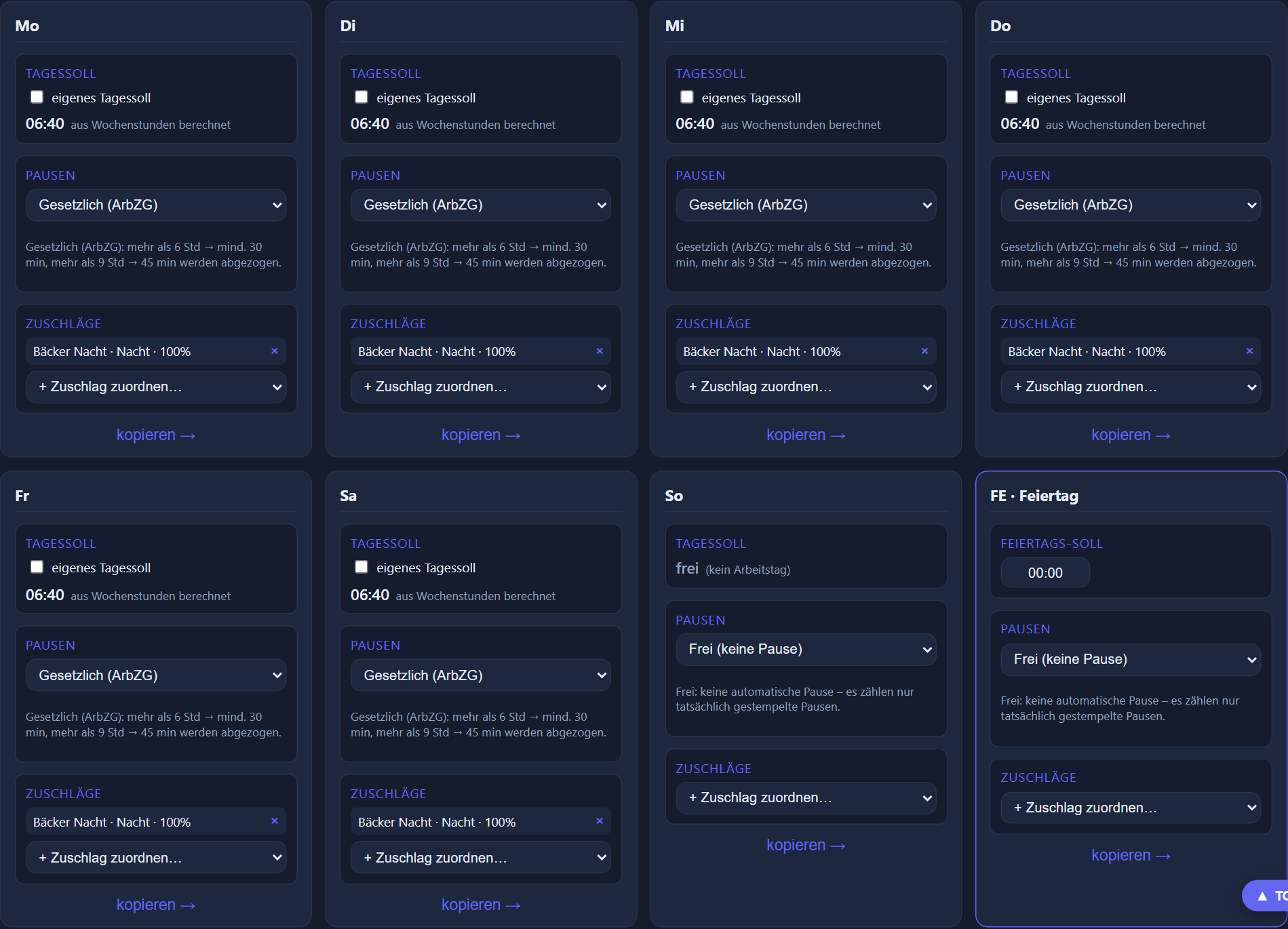
Break rules per weekday
The break deduction is chosen per day:
- Free / as clocked: only the break actually clocked is deducted.
- Statutory (German Working Hours Act): more than 6 h ⇒ at least 30 min, more than 9 h ⇒ at least 45 min.
- Flat rate: at least a fixed duration on every day with attendance.
- Tiered: a graded minimum break depending on how long the day was; the highest tier reached applies.
- Break windows (time of day): fixed breaks at fixed times, such as 15 minutes between 09:00 and 09:30 and 30 minutes between 12:00 and 12:30. For each window the break is only deducted if the person was on duty within it for at least as long as the break lasts; a break that touches the window counts towards it.
The deduction actually applied is always the greater of the break clocked and the break prescribed (with break windows, per window); with „as clocked“ only the break actually clocked counts. The thresholds measure attendance without clocked breaks, and no break is applied on days without attendance.
Leaving/returning as a break: anyone who clocks out and back in during the day instead of pressing „Pause Beginn“ (break start) and „Pause Ende“ (break end) was on a break during that time. With the model switch „Gehen/Kommen während des Tages als Pause anrechnen“ (count leaving/returning during the day as a break), the time clocked out counts towards the minimum break — only what is then still missing is deducted. A time span (08:00 to 17:00, say) limits which interruptions count: anyone who comes back again in the evening had no break in between. The switch is off by default.
Public holiday rule, core hours & clocking window
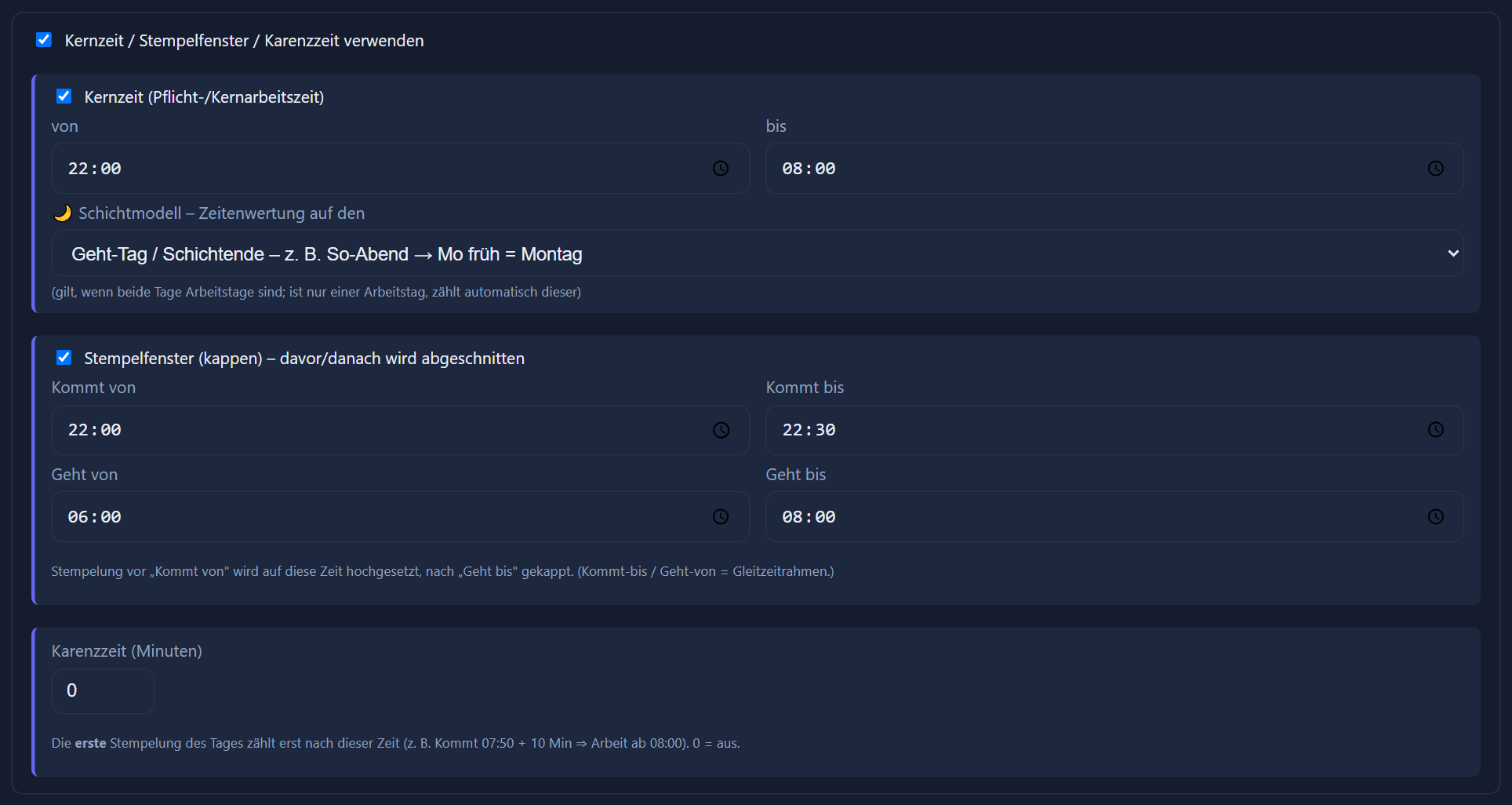
The public holiday card settles how public holidays are calculated — usually a target of 0 plus the public holiday premiums. Whether the public holiday target applies is decided by „FE“ in the working-day selection after Mon–Sun (for all target types except „Alle gearbeiteten Stunden zählen“ – all hours worked count): if it is not selected, every public holiday is a day off — a target entered on the public holiday card then does not count. If it is selected, the public holiday target applies on every public holiday — even one that falls on a Saturday; the weekly target is still distributed across Mon–Sun only. On a whole public holiday the break rule and premiums of the public holiday card apply instead of those of the weekday; the premiums of the day's shift are added on public holidays too. In addition, core hours, a clocking window (arrival–departure, limiting the attendance counted) and a grace period on the first entry can be defined.
Half public holidays and public holidays with hours: every public holiday carries a setting for how it counts — whole day, half day or a fixed number of hours off, such as Christmas Eve as a half day and New Year's Eve with 4:00 hours off. On a half public holiday the target drops to half the daily target, with fixed hours by those hours (never below 0); the break and premiums of the weekday apply, without a public holiday premium. An all-day leave entry counts only the remainder there; sick counts as a whole day.
Overnight shifts
Where a shift runs past midnight (22:00→06:00, say), a model setting determines which calendar day carries the shift — by default the day of departure, or optionally the day of arrival. The working time and the break of that shift lie entirely on that one carrying day; double counting is ruled out. If the carrying day is a non-working day under the model, the work still counts there as a credit (with a Sunday or public holiday premium where applicable).
The flexitime account & capping
The flexitime account can be switched on or off per model. When it is off, there is no carry-over: every month starts at 0 and a monthly surplus is shown as „for payout“. When it is on, the balance of every previous month moves into the new month as a carry-over. A cap can optionally limit the flexitime balance at the turn of the month — capping only works downwards from above.
Balance at month end 160 h, limit 100 h → 100 h are carried into the following month, 60 h are capped.
Assignment per employee
A model is assigned per user and with a date: it applies from a given day, and earlier periods keep their old model. The history is in the personnel record.

If no model is assigned to a user, no target hours are calculated for them. Deleting a model takes effect retrospectively on every period evaluated with it — which is why deleting one requires the administrator password.
Shift planning
„Who is on lates next week?“ — wherever people work in rotating shifts, the answer usually hangs on a notice board that one person keeps and everybody hunts for. Shift planning turns that into a monthly grid which fills itself from stored patterns: pick the shift group and the month, press „Automatisch vorbelegen“ (pre-fill automatically) — done. And because the clock-in reveals which shift somebody actually worked, reality always stands next to the plan.
Shift groups and shifts
Under Time tracking → Shift planning → Shift groups, one group bundles the shifts of an area, say „Produktion“ (production) or „Verkauf“ (sales). For each shift you set a long name and a short name, plus the start of the shift, a tolerance in minutes before and after that start — it gives the time window in which the shift is recognised on clocking in — and a colour. Optional extras: a „Geplantes Ende“ (planned end) with a „Geplante Pause (Min.)“ (planned break, in minutes), a „Toleranz vor dem Ende (Min.)“ (tolerance before the end, in minutes) and „Zuschläge dieser Schicht“ (this shift's premiums) — all three further down. Everything is written as „long name (short name)“; in the grid cell and on the printed plan the short name stands at the top with the start time beneath it.
An area runs several early shifts that differ only in their start: 5:00, 6:00, 7:00, 7:15 … All of them carry the short name F, with the time shown beneath it in the cell. The long name („Frühschicht 7:15“) keeps them distinct in lists and selectors.
Beneath that is who belongs to the shift group: „Nicht in der Schichtgruppe“ (not in the shift group) on the left, „In der Schichtgruppe“ (in the shift group) on the right. Employees are dragged across or added with „+“ — across department boundaries too. Exactly these members have a row in the planning grid. Nobody needs an assignment to a shift or a shift pattern for that; only the automatic pre-fill requires those.
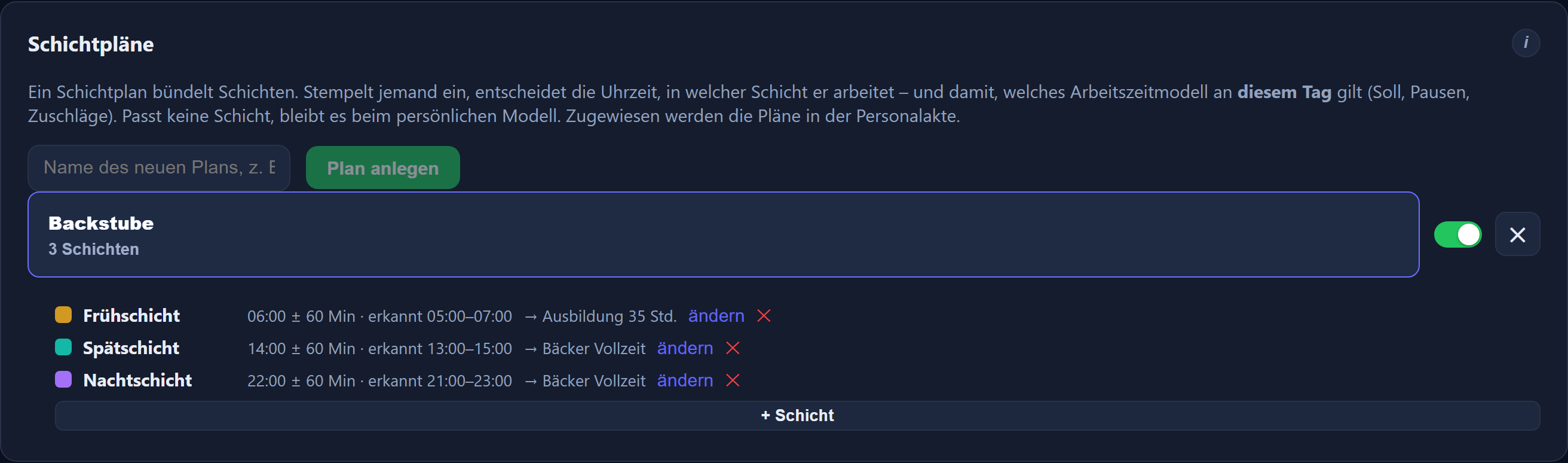
Time windows may overlap — with shifts a quarter of an hour apart there is no other way. Anyone clocking in within several matching windows lands in the shift they are rostered for. If the rostered one does not fit, it only counts as a deviation if the arrival is closer to the start of another matching shift than to the planned start — at equal distance the plan applies.
Activities: where instead of when
Alongside the shifts there are activities — office, warehouse, quality management, home working. A shift says when the work happens; an activity says where or what. It has no start time of its own and is not recognised on clocking in, but it sits in the grid on equal terms with the shifts.
Where the hours come from
A working time model on the shift is optional. If a shift has none — the normal case — the day is calculated with the employee's personal working time model; everyone therefore keeps their own hours, even when ten people work the same shift. If the shift does have one, it wins: target hours, break rule and premiums of the shift then apply for that day. Premiums attached to the shift itself („Zuschläge dieser Schicht“ – this shift's premiums) apply in addition in both cases.
That model is dated, just as it is for employees: „this one from 01.01.2026, that one from 01.10.2026“. A past day is calculated with the model that applied on that day — storing a new one from a future date changes nothing about the past.
A part-timer works 4:30 on Wednesdays, 4:00 on Thursdays and 6:30 on Fridays — always on the early shift from 8:00. The shift only says when she starts; the hours are in her personal model. Without that separation she would have the hours of the shift forced on her.
Count only from the shift start
Per shift you can switch on that an earlier clock-in counts only from the start of the shift. Example: shift 07:00, clocked at 06:45 — counted from 07:00. Anyone arriving later counts from their clock-in; the trimming only works forwards, never backwards. Switched off, the clocking time applies as it does everywhere else.
Planned end and planned hours
So that nobody has to work out while planning how many hours someone is rostered for in the month, every shift can carry a „Geplantes Ende“ (planned end) and a „Geplante Pause (Min.)“ (planned break, in minutes) — set via „ändern“ (change) on the shift; both optional. The result appears beneath the fields straight away, such as „= 8:00 Std. geplant“ (8:00 h planned) for 13:30 to 22:00 with a 30-minute break. If the end is before the start, the shift ends on the following day: 22:00 to 06:00 is 8 hours, or 7:30 with a 30-minute break.
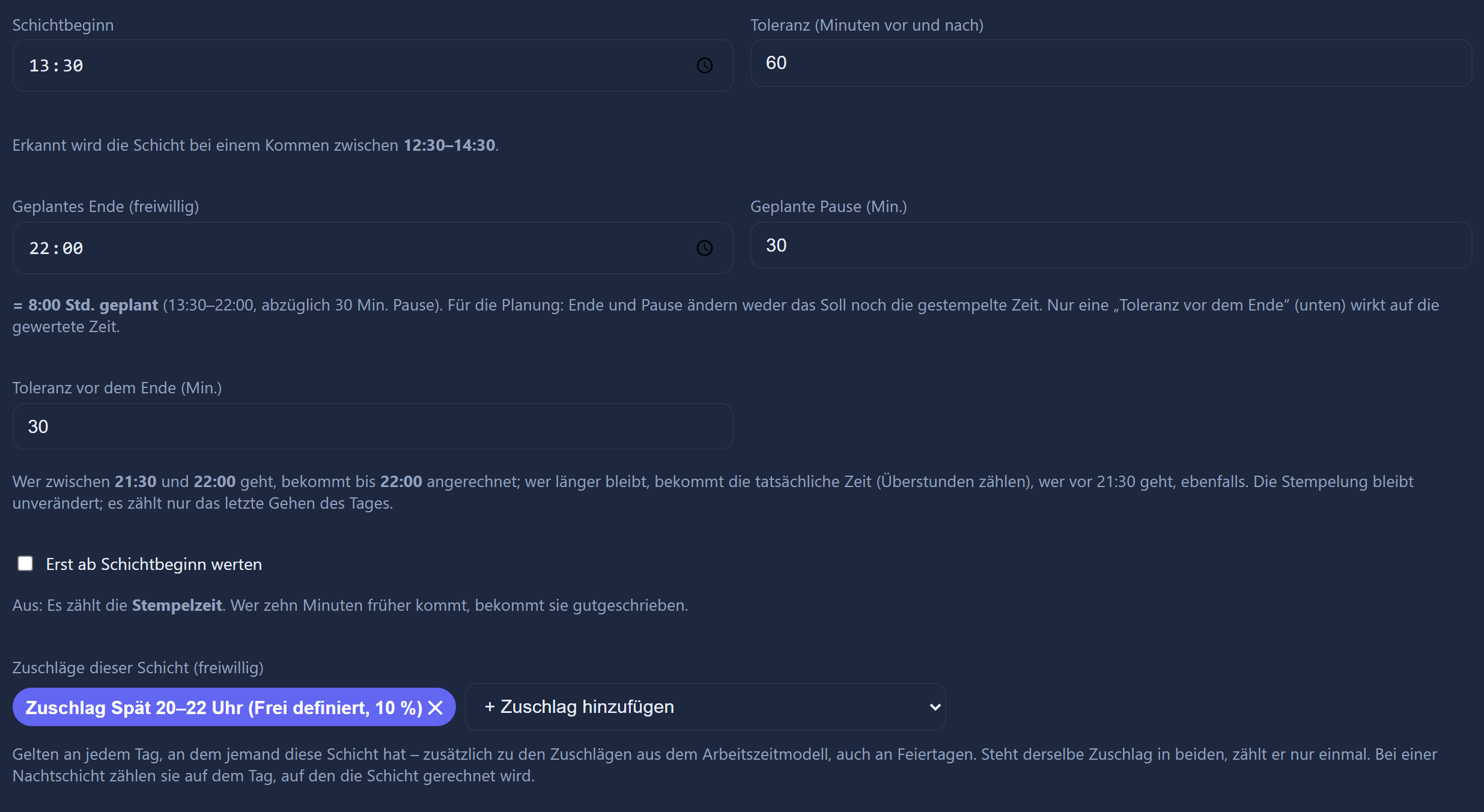
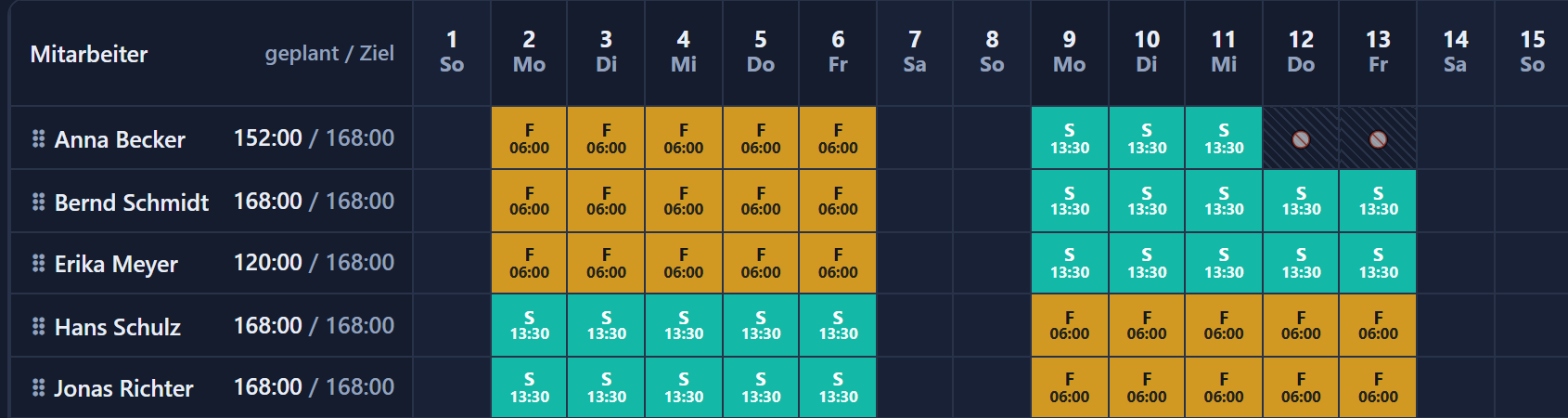
Shift planning then shows „geplant / Ziel“ (planned / target) next to every name, for example „152:00 / 168:00“: the hours rostered in the calendar month and the target — the month's target from the working time model, or the monthly goal with a free choice of days. Every day with a shift that has a planned end is counted, whether set by hand, taken from the shift pattern or recognised on clocking in. Not counted are „frei“ (off) days, activities and days on which someone is absent all day. „+ 3 ohne Ende“ (+ 3 without an end) beneath the figure means: three rostered days have a shift without a planned end. „gedeckt“ (covered) is the part of the target that leave, sickness and the like already credit; the speech bubble works out „noch … einzuplanen“ (still … to plan) without it and shows the totals per calendar week.
End and break are planning: they change neither the target nor the clocked time, and a shift is still recognised solely by the arrival time. Anyone who stays longer is credited with the time as before. Only planners see the figures, and only for the employees they are allowed to plan themselves; as long as no shift has a planned end, the display does not appear at all.
Tolerance before the end
If a shift has a planned end, it can additionally carry a „Toleranz vor dem Ende (Min.)“ (tolerance before the end, in minutes; default 0 = off). Anyone who leaves within those minutes before the planned end of the shift is credited with the time up to the end; the clocking entry itself stays unchanged. Anyone leaving at the end or later gets their actual time — overtime counts as before — and so does anyone leaving before the tolerance.
Leaving at 17:20 → counted until 17:20 (before 17:30: actual time)
Leaving at 17:30 → counted until 18:00 (within the tolerance: topped up)
Leaving at 17:59 → counted until 18:00 (within the tolerance: topped up)
Leaving at 18:00 → counted until 18:00 (on time)
Leaving at 18:20 → counted until 18:20 (stayed longer: overtime counts)
The tolerance runs from 17:30 to just before 18:00. Anyone leaving at 17:29 gets 17:29.
Only the last departure of the day counts: leaving and coming back in between stays as it is, and anyone still clocked in has nothing topped up. For a shift across midnight the end on the following day applies — night shift 22:00 to 06:00 with a 15-minute tolerance: anyone leaving at 05:50 is counted until 06:00. The day then shows, for example for the late shift until 22:00, „Kurz vor Schichtende gegangen — gewertet bis 22:00 (0:20 angerechnet)“ (left shortly before the end of the shift — counted until 22:00, 0:20 credited) — in the reports and in the mobile app, and, for everyone allowed to edit hours, in the time tracking view too.

The credited time counts like time worked, premiums included. Whether a statutory break is due, however, depends on the time without the top-up: anyone present from 11:50 to 17:40 (5:50) is credited up to 18:00 (6:10) and has no break deducted — so the tolerance never yields less than going without it. If a paid partial absence is entered within the window, such as a doctor's appointment, the top-up only runs up to its start; that absence is credited already, after all. If the working time model brings a clocking window with an end of its own, the top-up goes no further than that. Activities have no tolerance. Because the tolerance also affects past days, entering or changing it requires the admin password as soon as days are attached to the shift.
This shift's premiums
Every shift and every activity can carry premiums of its own from the catalogue (via „ändern“ (change) on the shift → „Zuschläge dieser Schicht“ – this shift's premiums). They apply on every day on which someone has that shift — rostered or recognised on clocking in — in addition to the premiums of the working time model and on public holidays too. If the same premium is on both the shift and the model, it counts only once. This includes the flat-rate allowance per shift, such as €20.00 for every early shift (chapter 11). For a night shift, the premiums belong to the shift of the arrival day and count on the day that carries the shift.
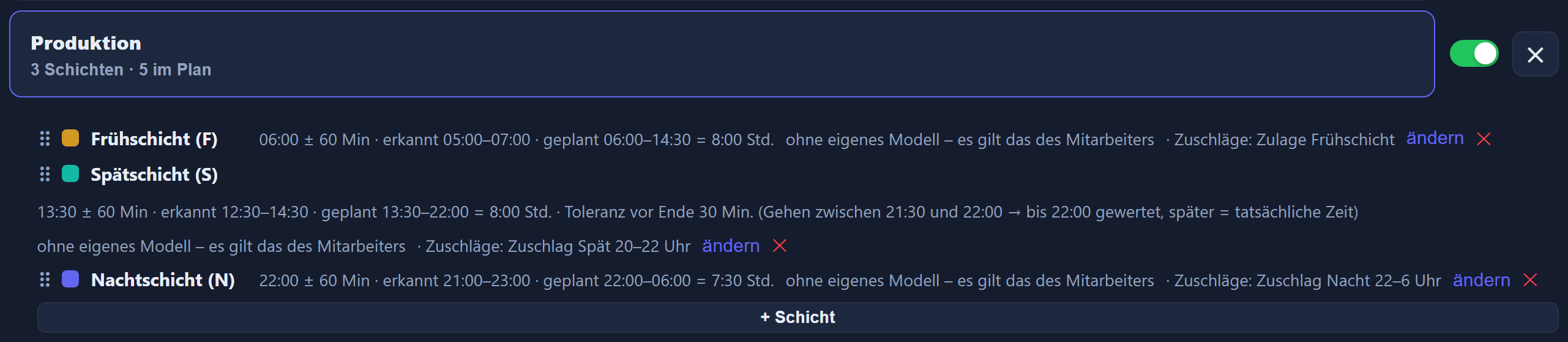
Changing a shift's premiums re-evaluates past days too; as soon as days are attached to the shift, the page asks for the admin password.
Assignments: the shift pattern
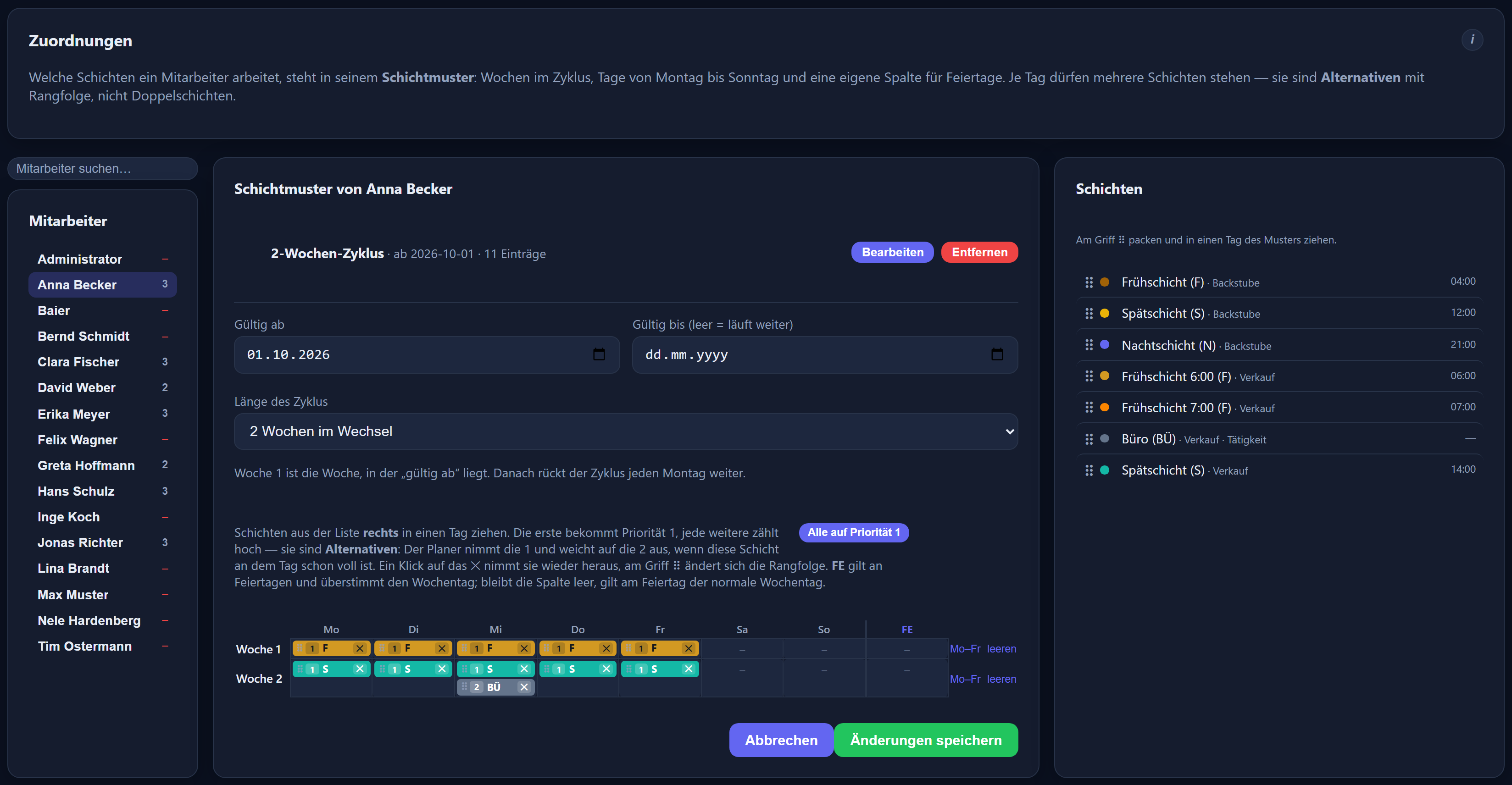
Under Time tracking → Shift planning → Assignments, every employee is listed on the left, all shifts on the right, and in the middle their shift pattern: a weekly grid from Monday to Sunday, plus a column of its own for public holidays. Shifts are dragged from the list on the right into a day. The cycle runs over up to twelve weeks and then repeats — a two-week alternation between earlies and lates is covered just as well as a fixed week that never changes.
- Several shifts on one day are alternatives with a rank, not double shifts: the planner takes priority 1 and falls back to 2 if that shift is already fully staffed on the day.
- The holiday column overrules the weekday — but only when it is filled. Left empty, the normal weekday applies on a public holiday; shift operations do, after all, work on holidays too.
- Without a pattern somebody is skipped by the automatic planning. Rostering by hand still works for every member of the shift group — the pattern only holds back the automation.
Planning the month
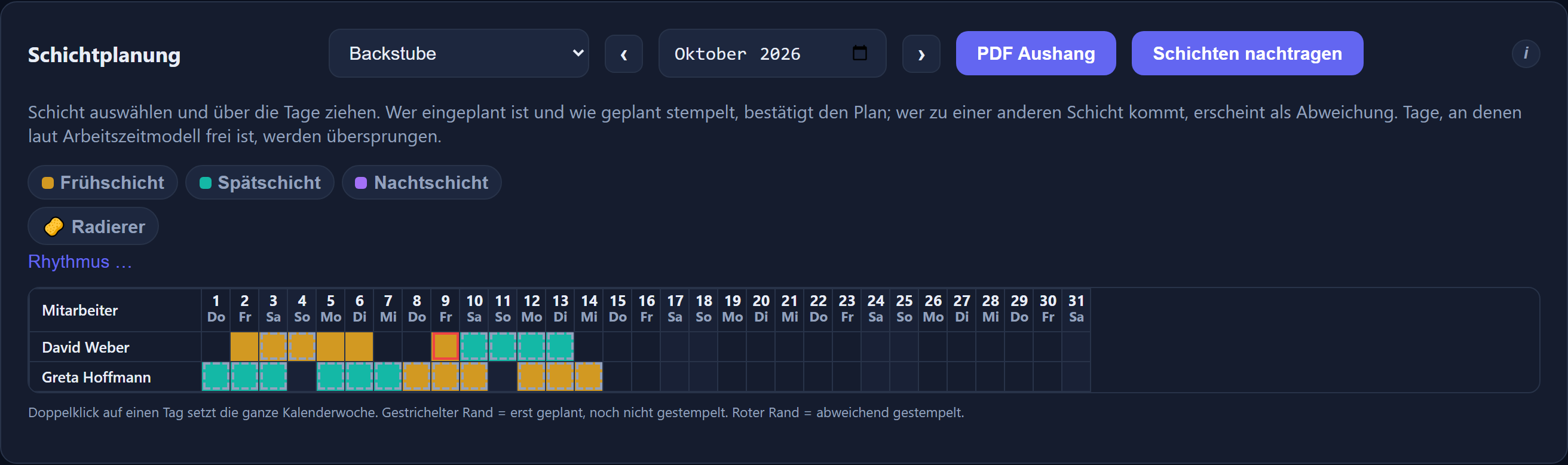
Planning is graphical under Time tracking → Shift planning: pick the shift group and the month, tap a shift at the top to use as a tool and drag across the days in the grid — exactly as in leave planning. A double-click on a day fills the whole calendar week, the eraser takes a planning back, and „frei“ (off) leaves a day expressly empty — unlike an erased day, it will not be proposed again by the next pre-fill. By hand, any day can be planned, Saturdays, Sundays and public holidays included.
With many shifts, the row above the tools helps: „Sortieren“ (sort) orders the shifts by time, by colour or alphabetically, and „Schicht suchen…“ (search shift) finds a shift by its long name or short name — if exactly one matches, Enter takes it straight on as the tool.
The grid shows whole weeks: if a week overlaps with the neighbouring month, it is still shown in full. The days added on are shown dimmed and can be edited quite normally. Beneath the employees is the „Termine“ (appointments) row: one appointment per day for the shift group, with a short name („TÜV“ for an inspection, say), a time and a longer text; the cell shows the short name and time just as it does for a shift. The appointments also appear on the „PDF Mitarbeiter“ and „PDF Alles“ printouts and on the whiteboard.
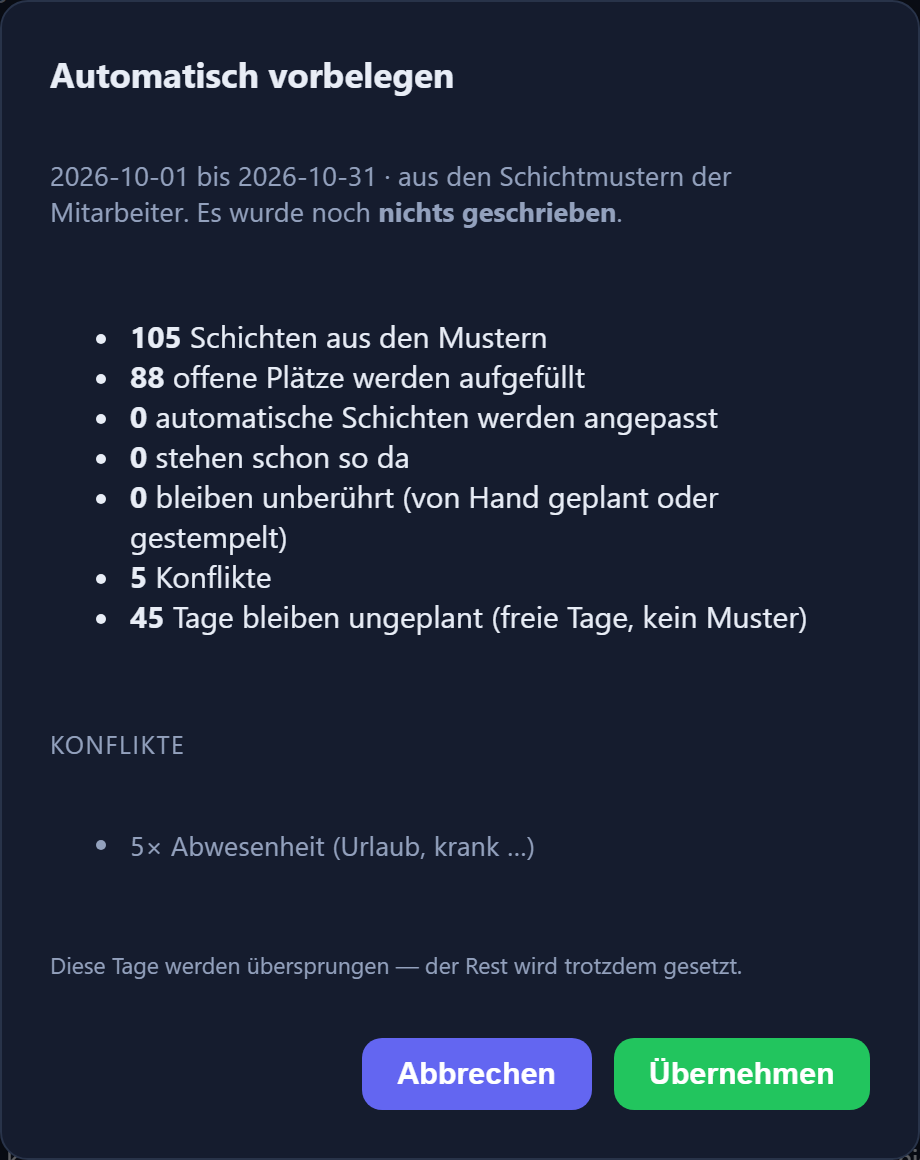
Most of the work, though, is taken off you by „Automatisch vorbelegen“: it builds the plan from the shift patterns, optionally across one to three months. A preview appears first — how many days are set anew, how many are changed, how many stay untouched and what conflicts there are. Nothing is written until you press the button, and days set by hand as well as days already clocked stay as they are.
Anyone storing a minimum and maximum staffing level per weekday gets two things: below the grid, each shift and day shows how many people stand there — red when understaffed, yellow above the maximum, green when it fits. And the pre-fill tops up open places to the minimum, distributed evenly by number of duties. If the minimum cannot be reached, it still plans what it can — and reports the rest.
The order of the employees can be dragged by the handle and stays as you leave it — which lets you group people into blocks that belong together. The printed plan uses the same order: the printout looks like the screen.
Staffing posts: when the headcount is what matters
The target staffing level is normally attached to the individual shift. But where an area runs several shifts that differ only in their start — 5:00, 6:00, 7:00, 7:15 — „four people on the early shift“ cannot be expressed that way: each start time counts on its own there, and anyone who switches from 6:00 to 7:00 leaves a gap in one row and overfills the other.
A staffing post therefore combines several shifts into one requirement: shifts are dragged into it by the handle, the total is what counts, and beneath the grid there is one row for the post instead of one per shift. The automatic pre-fill follows it too — and gives everyone the shift that suits them best: the member shift with their highest rank.
A shift without a post stays as it was. Its own requirement is not deleted inside a post either, merely ignored: once it is taken out again, its own figure applies.
What the markings in the grid mean
- Dashed border — planned but not yet clocked. A month in the future therefore consists entirely of dashed cells.
- Dashed in white — a planned activity.
- No border — clocked as planned; the duty is confirmed.
- Red border — clocked differently: somebody turned up for a shift other than the planned one.
- Dot in the corner — generated automatically from the pattern, not set by hand. The next pre-fill may overwrite such days, as well as automatically topped-up days that carry no dot.
- 🚫 — expressly left off. Stays empty at the next pre-fill.
Plan versus reality
If someone clocks in for the shift they were planned for, the plan counts as confirmed. If they turn up for a different one, the planning stays visible and the actual shift appears beside it — outlined in red in the grid, shown as ≠ in the mobile app, and outlined in red in the PDF as well. The calculation always follows the shift actually worked: whoever works at night receives the night premium, even if they were rostered for the early shift.
Anyone who is rostered and does not turn up receives the target of the planned shift, provided the shift has a working time model of its own — a missed day on a six-hour shift with its own model therefore means six hours minus, not eight. Without a model of its own (the normal case), the personal target remains. Anyone not rostered for a day continues to be calculated with their own working time model — shift planning does not touch them.
In time tracking the recognised shift appears next to each day in the right-hand column, in its colour. It can be switched to another shift from the selector or removed entirely with the ✕, in which case the personal model applies again for that day. A shift set by hand stays put; a further clock-in does not overwrite it.

If the clock-in time is changed afterwards, the shift does not switch by itself; it then has to be corrected separately.
Night shifts across midnight
A time window may run across the change of day, and the form always shows which period results from the start time and the tolerance. The shift is assigned to the day on which it begins: a night shift from 23:40 to 07:10 belongs to the day of the clock-in, even though it ends the following morning. Which calendar day the hours themselves land on is decided by the working time model — the carrier day from chapter 8.
Adding shifts retrospectively
Recognition happens at the moment of clocking in. Anyone who plans a month retrospectively, after clock-ins have already been recorded, therefore ends up with a lot of unconfirmed days. The „Schichten nachtragen“ (add shifts) button works through the existing clock-ins of the month on display and reconciles them with the planning. The current rule always applies: a deviation entered earlier is set back to the planned shift if the arrival is at least as close to the planned start as to the start of the shift entered. Days set by hand are left untouched, and a second run changes nothing further.
Three printed plans
The plan goes on paper in three cuts, all in landscape format with a colour legend:
- PDF Mitarbeiter (employees) — the grid alone, for the notice board. Who works when; the staffing figures are of no interest there.
- PDF Alles (everything) — grid and staffing levels, for management.
- PDF Besetzung (cover) — the staffing levels alone, without names: the view of the coverage.
The sheet carries the month in its title, and at the bottom of every page the time of printing and the page number — so anyone at the notice board can tell which version is hanging there. Alongside them there is a slip per employee listing only their own shift days with date, shift and start time.
As a spreadsheet for Excel
Next to the PDF buttons is „Excel (CSV)“: the same grid as a table, one column per day and one row per employee, with the appointments and the staffing levels beneath. The last column, „geplante Std.“ (planned hours), holds each employee's planned hours for the month — by the same rules as „geplant / Ziel“, as a decimal number (162.50 = 162 hours 30 minutes) so that Excel can calculate with it; the printed PDF plan shows no hours. The table is meant for reading and further calculation — a file changed in Excel cannot be loaded back; planning happens in ITN-Zeiterfassung.
Using a month as a template
„Monat kopieren“ (copy month) takes over the plan of another month — weekday to weekday, not date to date: whoever had the early shift on Mondays in the template has it on Mondays again in the new month. Only empty days are filled; whatever is already in the target month stays untouched. A preview first shows what will be taken over and which days drop off at the edges; nothing is written until you press the button.
Announcing changes
A changed plan is no use if nobody hears about it. „Änderungen mitteilen“ (announce changes) sends every person affected a message to their mailbox — with only their own days, each marked as new, changed or dropped, compared with the version last announced. It is sent only when you press the button, never by itself. A window first shows who would receive what; a remark can be put at the top, and the message can be marked as important. If everyone already knows the plan, „Stand übernehmen, nichts senden“ (adopt this version, send nothing) sets the point of comparison without sending anything.
What employees see
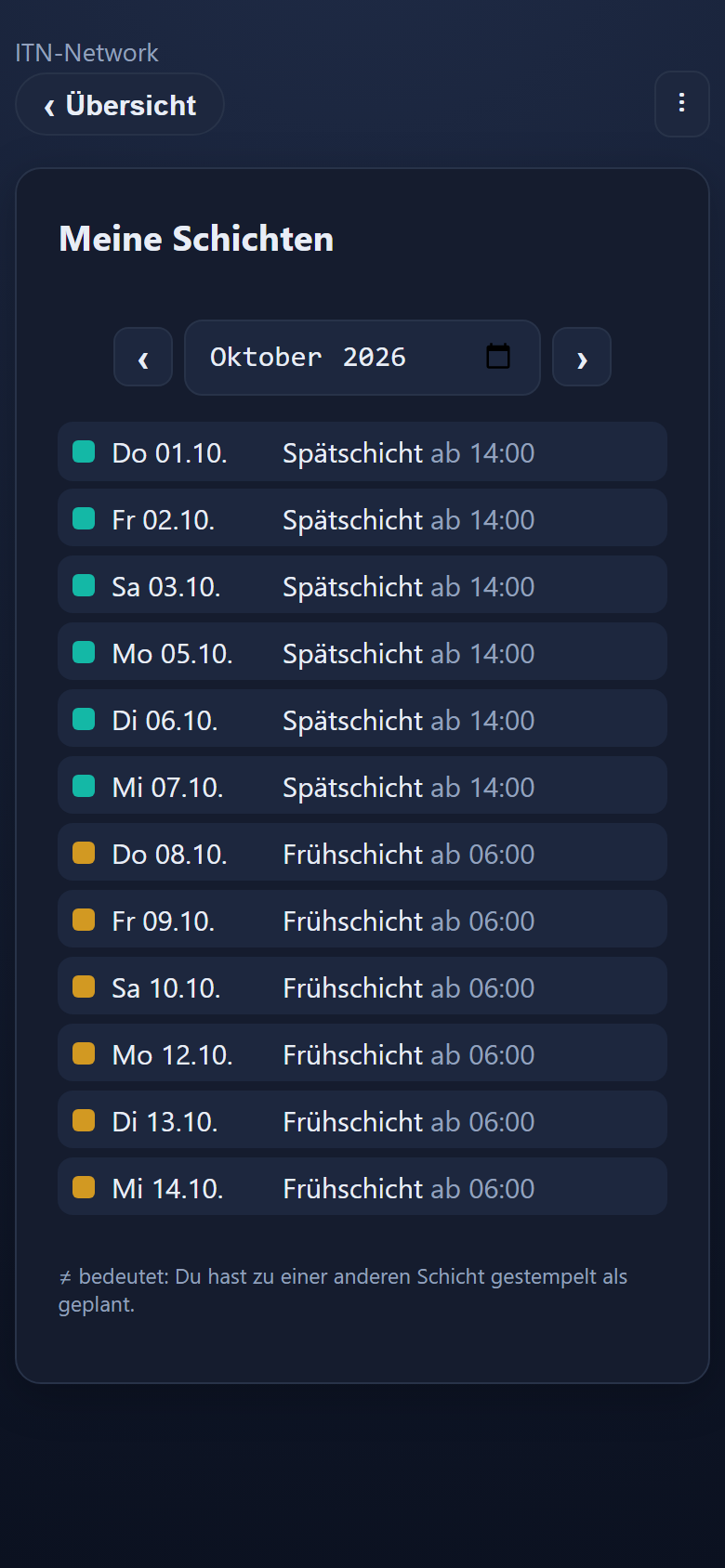
Under Time tracking → My shifts every employee finds their own shifts for the month and, beneath them, the grid of their department — for viewing only, so that people know when their colleagues are in. Another department stays closed to them. Department heads and admins plan under Shift planning instead. In the mobile app the „Meine Schichten“ (my shifts) tile leads to the coming weeks; it can be switched off per device (Administration → Settings → Devices), so a tablet used for clocking in in the workshop stays free of it.
If a shift has a planned end, the time from–to („13:30–22:00“) appears there instead of „ab 13:30“ (from 13:30), and beneath the list „Geplant in diesem Monat“ (planned this month) with the total of your own planned hours — at a desk as on a phone. It is only the planning: what counts is what is clocked. An employee does not see their colleagues' hours.
The plan on the wall: the whiteboard
A screen in the corridor shows a shift group's monthly plan in full screen — like a notice on the board, only always up to date. It needs no user sign-in: it is created in the administration as a terminal of the type „Whiteboard (Schichtplan-Anzeige)“ (shift plan display), opened in the browser at …/whiteboard, and identifies itself once with an ID and a secret. It shows the same rows as the planning grid, all-day absences with their short name, the „Termine“ row (there with short name and time only) and whole weeks.
The terminal list sets which shift group and which month appear — the current one, the next or a fixed one — along with the orientation, the zoom and how often the board refreshes itself. Nothing is planned on the whiteboard; every change made in shift planning appears by itself at the next refresh.
Who may do what — and what is protected
Planning is for whoever maintains the department's times: department heads for their own areas, the admin everywhere. The shifts and shift groups themselves are managed by the admin. Employees see the plan; they cannot change anything — not even for themselves.
Deleting a shift requires the admin password, and the dialogue first states what depends on it: how many planned days would lose it, how many of those fall in months already closed, and how many shift patterns refer to it. Past days remain afterwards — they are the record of what happened — and go on calculating with the personal model; future planning on that shift disappears. The page also asks for the admin password when the „Toleranz vor dem Ende“ (tolerance before the end) or the „Zuschläge dieser Schicht“ (this shift's premiums) are changed on a shift that already has days attached — both re-evaluate past days.
Emptying a whole month at once is possible too, but only while it has not yet begun. From the first day onwards people are working to that plan and clocking against it; individual days can still be taken back with the eraser at any time.
Vocational school for apprentices
School days, block weeks and school holidays are stored once per school year against the person — not against the working time model. From that the system generates the school days automatically, eight months ahead on a rolling basis, and enters them in the calendar too where one is set up.
A whole school day counts as meeting the daily target, leaving the balance at 0. For a half school day the class time is credited; work done afterwards is added on top as normal. Public holidays, days with no model and days already occupied are skipped. In the planning view school days are recognisable by a colour and symbol of their own — half days only half filled.
If a class is cancelled, the day is simply erased and does not come back by itself; an additional school day can be set by hand at any time. At the turn of the school year a new entry from a date is enough: the pre-calculated days of the old rhythm disappear from that day onwards, calendar appointments included, and are rebuilt to the new timetable — with no duplicates. The working time model is untouched by all this, so no separate model is needed per year of training.

Premiums
Premiums — also called allowances, bonuses or supplements — are a company-wide catalogue of payments in time or money: night, Sunday, public holiday, overtime, freely defined types or a fixed amount per shift. They are assigned in the working time models and to shifts. The catalogue is maintained under Time tracking → Models → Premiums.

Types & eligibility windows
- Night and „Frei definiert“ (freely defined): apply within a from–to time window, which may run past midnight (22:00–06:00, for instance). Only the net working minutes within the window are counted. From and to must differ — 00:00–00:00 would be an empty window that never counts; the form therefore does not allow it, and older entries of that kind appear in the catalogue with „⚠️ Zeitfenster leer – zählt nie“ (time window empty – never counts). To restrict a premium to certain weekdays, assign it only to those day cards.
- Sunday and public holiday: also with from–to; from = to here means „whole day“.
- Overtime: instead of a window, the basis „täglich (über Tagessoll)“ (daily, above the day's target) or „wöchentlich“ (weekly: whatever lies above the target in the calendar week).
- Flat-rate allowance per shift: a fixed amount instead of a percentage (see below).
Several premiums per type are possible, such as night 25 % and night 40 % with different wage types. Every premium with a time window and every flat-rate allowance can additionally carry an eligibility window by clock-in time („Kommt“): it then applies only if the day's first counted arrival falls within that window — otherwise it lapses entirely for that day. With „Erst ab Schichtbeginn werten“ (count only from the shift start), the first counted arrival is the start of the shift if the clock-in was earlier.
Paid out or credited as time
For each premium the effect is set — paid out as wages or credited as time to the time account — along with the percentage. A premium only takes effect once it is assigned to a day card in a working time model or to a shift (chapter 9, „This shift's premiums“); that way different weekdays and different shifts can carry different premiums. If the same premium is on both the day card and the shift, it counts only once. On a public holiday, only the premiums of the public holiday card (FE) apply from the day cards; the shift's premiums are added even then.
Flat-rate allowance per shift
The type „Pauschale je Schicht“ (flat-rate allowance per shift) pays a fixed „Betrag je Schicht (€)“ (amount per shift) instead of a percentage — such as €20.00 for every early shift, at most €999.99. It has no time window; an eligibility window by arrival time is possible. It is counted once per day on which the flat-rate allowance applies (through the shift or through the day card) and working time was counted — even if it is in both places. A day of leave or sickness without clocking entries does not count. The effect is always wages; there is no time credit for a flat-rate allowance.
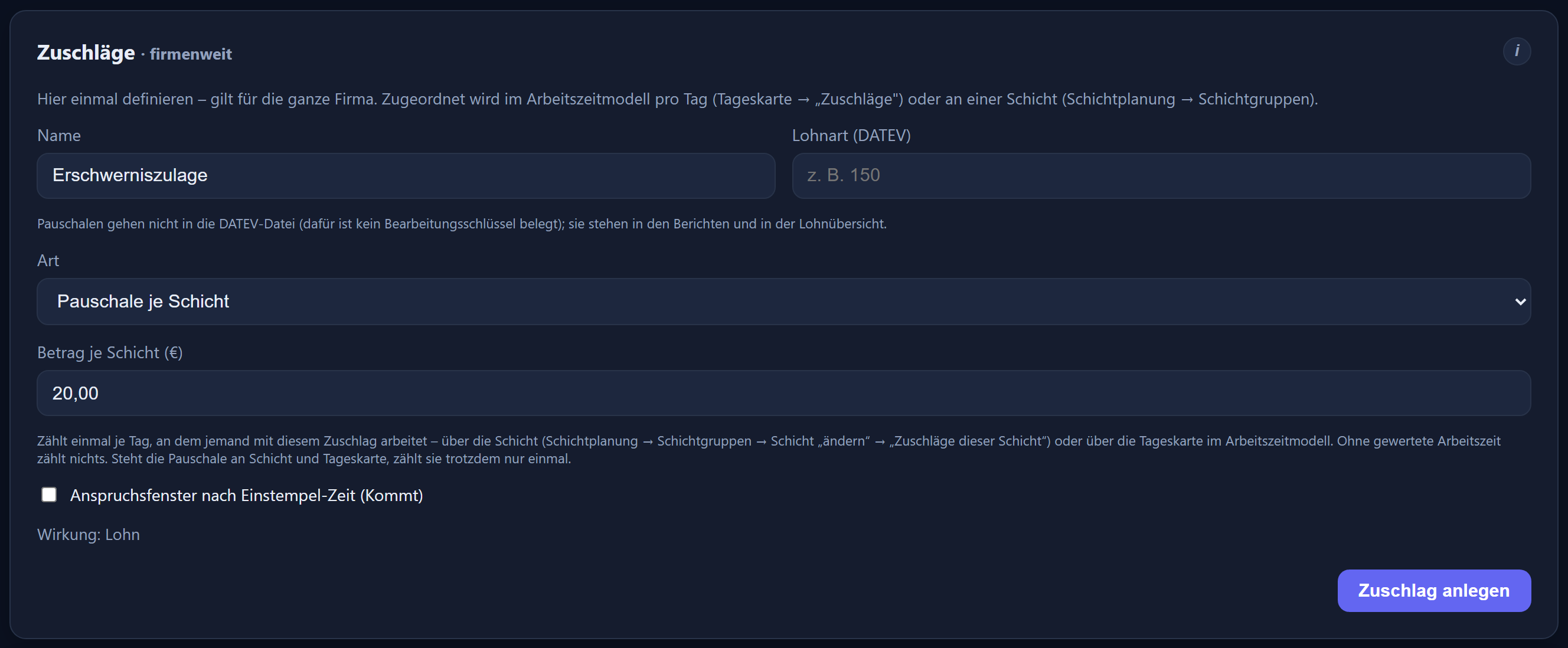
Reports show a flat-rate allowance per day as a count and in the total as count × amount = total, such as 5 × €20.00 = €100.00 (chapter 12); the payroll summary has the columns count and total (€) for each flat-rate allowance (chapter 13).
The number stored on a premium is its DATEV wage type — it is maintained only there, not under Settings → DATEV. Without a number, the premium does not appear in the DATEV export; the export page warns about this. What is exported is the hours that fall under the premium. Flat-rate allowances never go into the DATEV file: no processing key (Bearbeitungsschlüssel) is assigned there for count and amount. The export page points this out; they are transferred from the payroll summary. Changes to the catalogue take effect retrospectively on all evaluations — including past months and an export produced again.
Reports
Reports evaluate hours per person or group — for a month or a free from–to span, as a table, a PDF and a CSV file. The month or a „period …“ is chosen right at each report, next to the PDF buttons; the choice applies to every report on the page.
The period also determines who can be selected: a person appears only if they took part in time recording during the period — what counts are „Eintritt Zeiterfassung“ (start of time recording) and „Austritt Zeiterfassung“ (end of time recording) in the personnel record, or „Austritt Firma“ (leaving the company) if „Austritt Zeiterfassung“ is empty. Anyone who left on 1 September still appears in the September report, but in no report from October onwards; anyone who only joins in November appears from November.
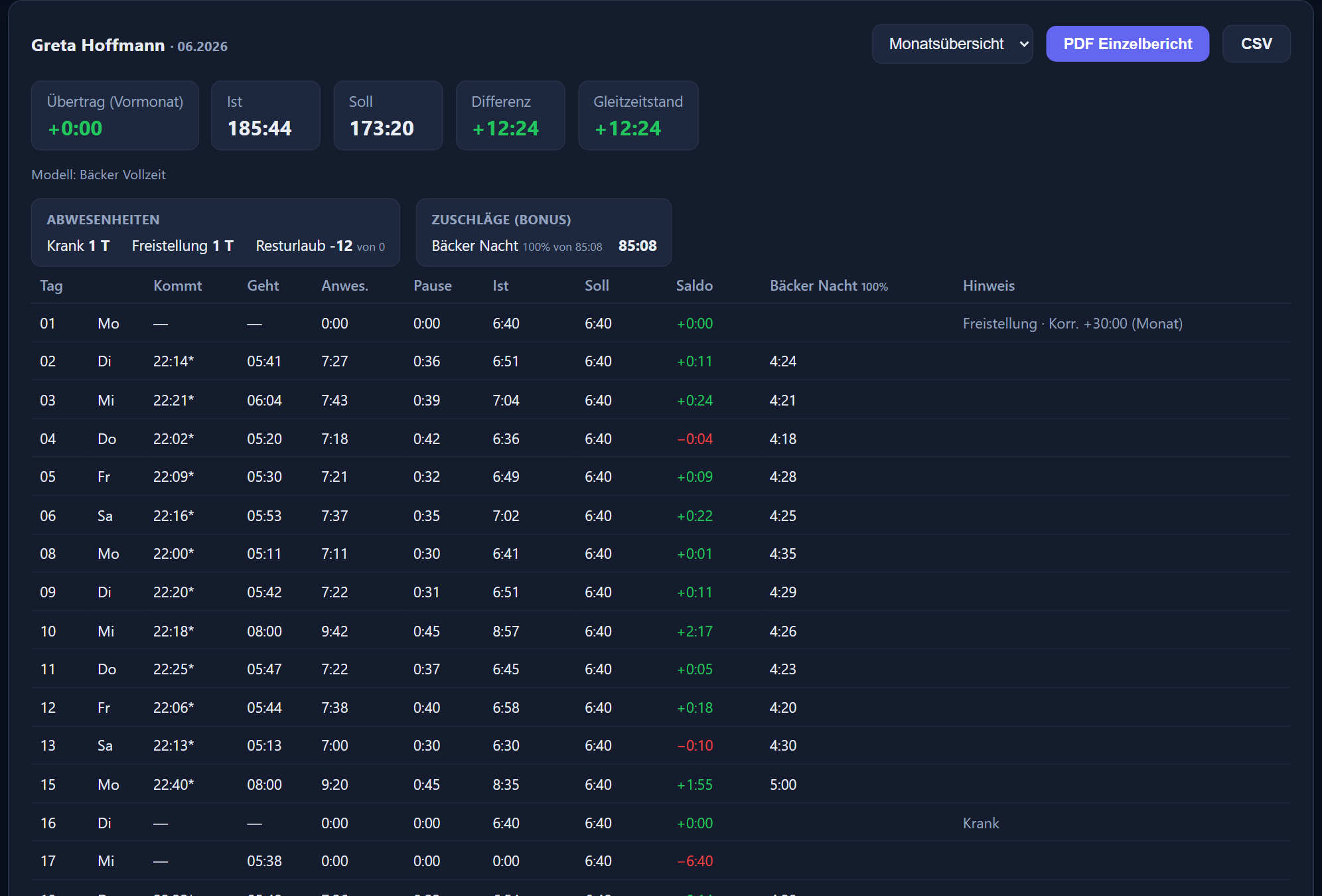
Monthly overview
The individual report in its monthly overview form shows daily rows with totals, plus the figures for carry-over, actual, target, difference and flexitime balance. Premiums are also shown as a bonus, flat-rate allowances as count × amount, along with days of absence (half days as 0.5, sickness including sickness corrections). The flexitime balance applies to date; any capping is shown where it exists. The accompanying CSV file has one row per day and gives attendance, break, actual, target and balance as decimal hours (8.50 = 8 h 30 min) — Excel calculates with them directly.
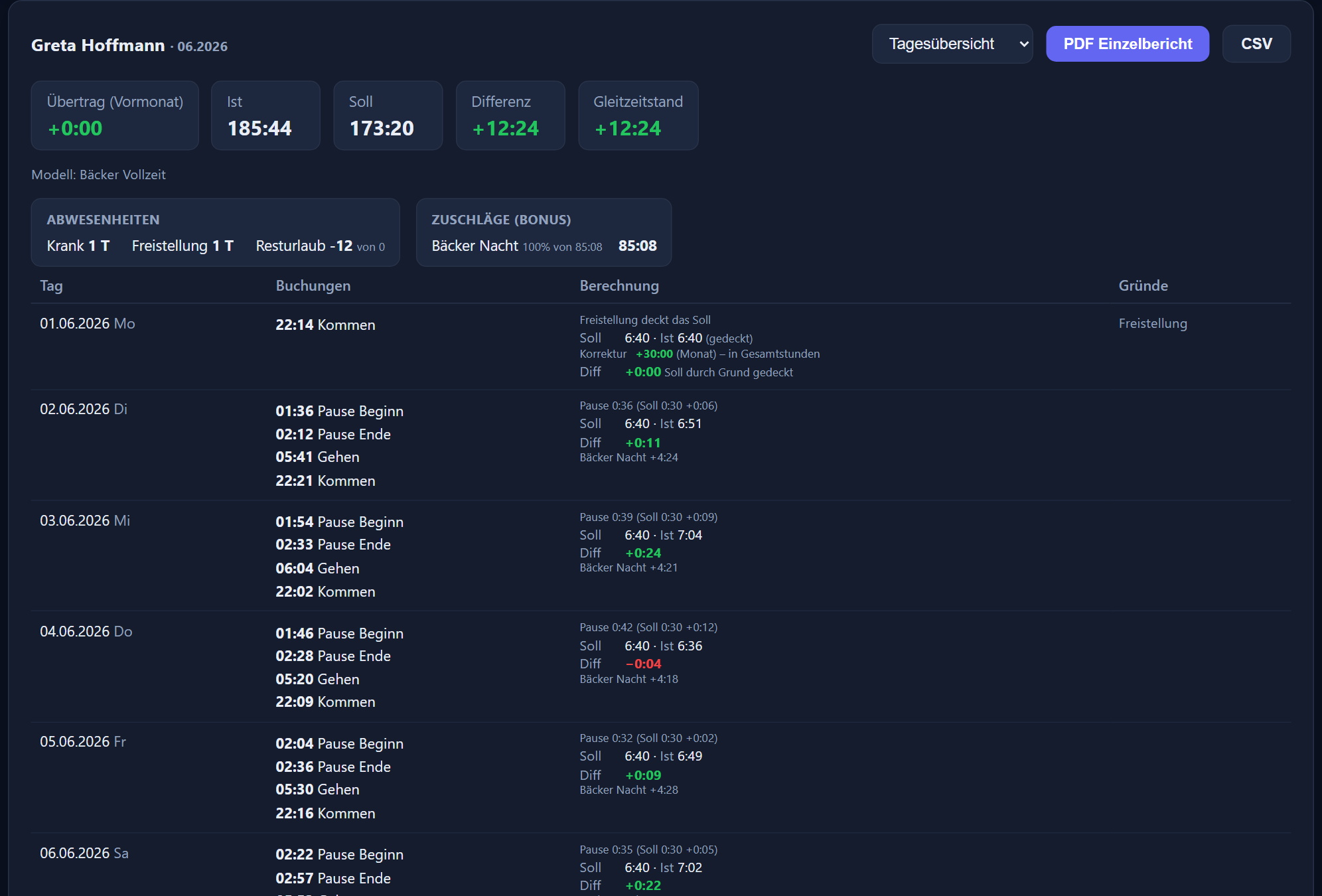
Daily overview
The daily overview form lists the individual entries along with the calculation. In the daily PDF, the arrival of a shift running past midnight is attributed to the day of departure.
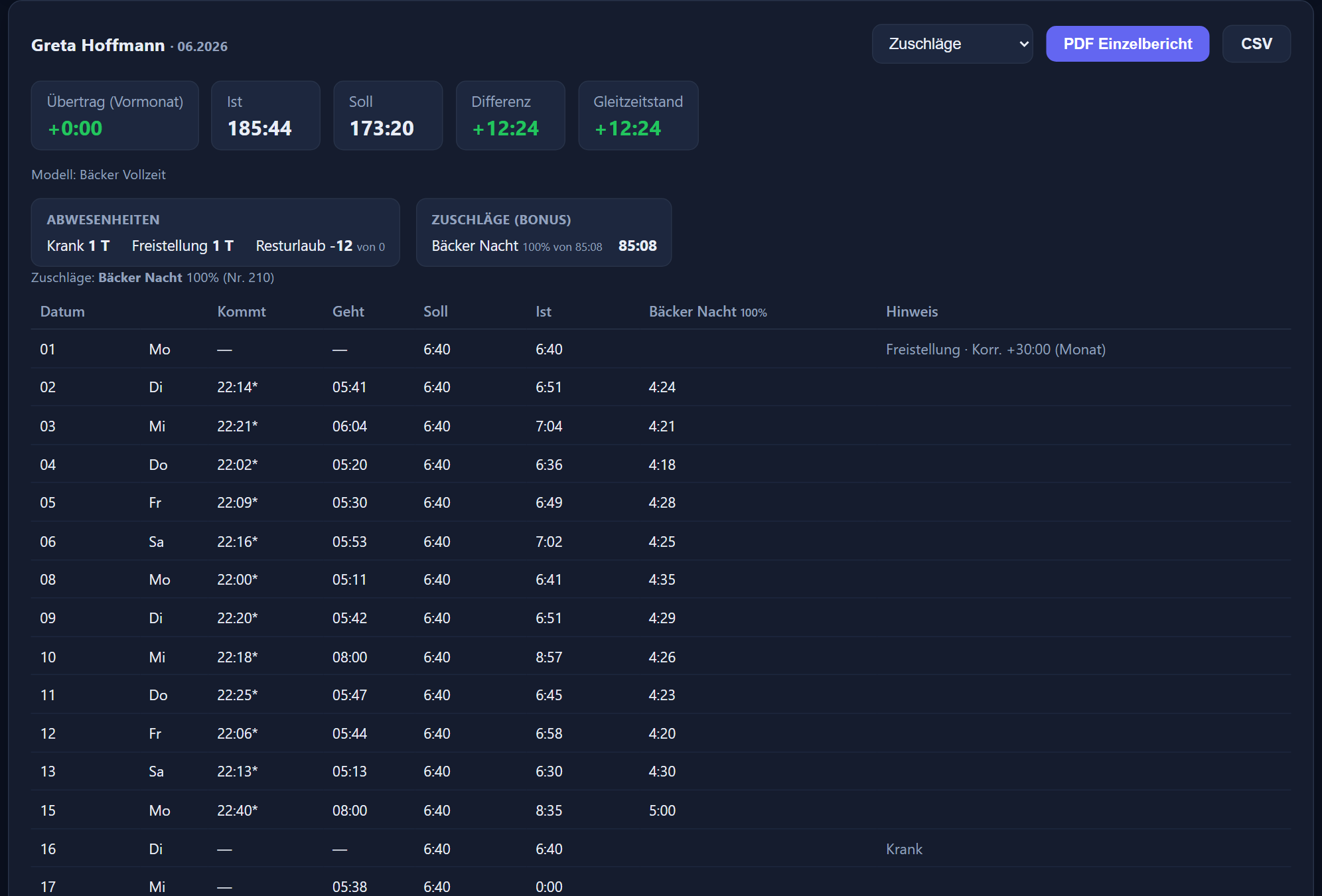
Premium report
The premium form shows arrival, departure, target and actual per day, and then a column for each premium with the time eligible for it (not the bonus). The column header gives the name and rate, „night 25 %“ for instance; a legend at the top lists every premium in the period, and the totals are at the bottom. Arrival and departure are the first and last entry of the shift; where the departure of a night shift falls on the following day, it is marked with „*“. The CSV export contains the same columns, with the times as decimal hours. A flat-rate allowance per shift has a column of its own with the amount in the header („je 20,00 €“ – each €20.00): each day shows the count there, and the total shows count × amount.
Group report
The group report sets every employee in a group side by side with their actual, target, difference, carry-over and absences. „PDF overview“ summarises the group; „PDF full report“ bundles everyone's individual reports together.
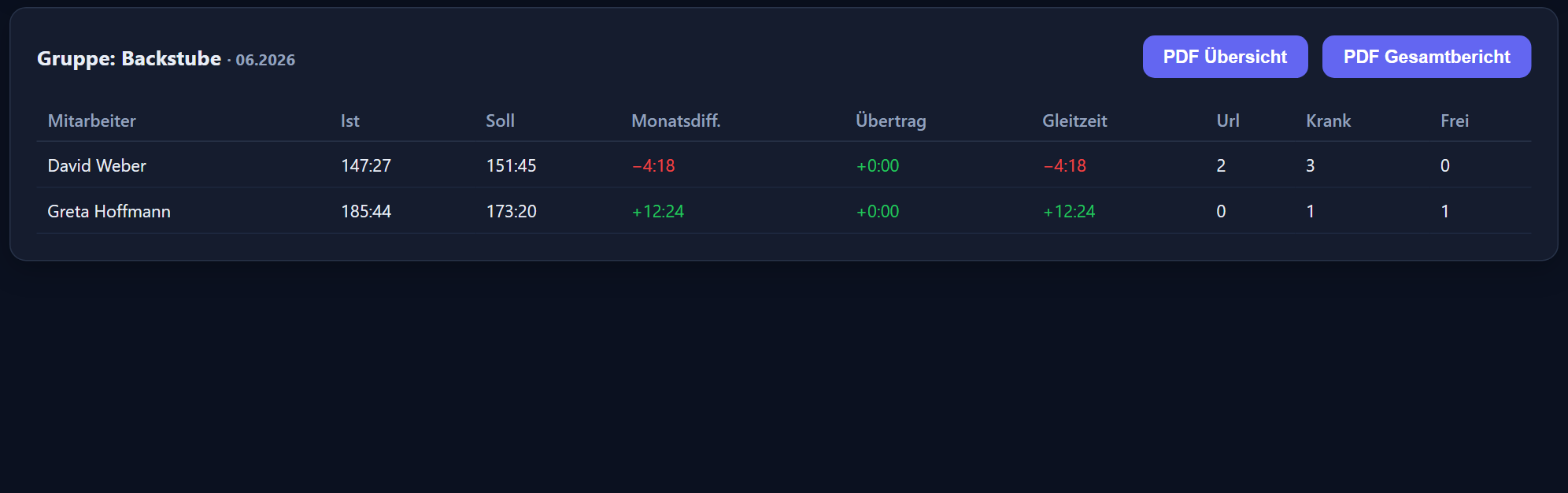
System groups (inactive / former employees) allow individual reports only, not a group report — and those only for periods in which the person still took part in time recording.
Sending a report by email
Next to the PDF buttons is „✉ Per E-Mail senden“ (send by email): the report currently set — report type and month or free period — goes as a PDF attachment to up to three addresses, such as the payroll office. Subject and text are pre-filled, and „Kopie an mich“ (copy to me) sends a copy to your own address. If an address lies outside your own company, a yellow note points this out, and before sending a check step shows what goes to whom — with „PDF vorab ansehen“ (preview PDF). Only „Jetzt senden“ (send now) sends the email; every send appears in the log.
Anyone allowed to open the report as a PDF may send it; employees without management rights send only their own report to their own stored address. The PDF header shows the personnel number instead of the login name.
Absences – all reasons
At the top of the reports page, „📋 Abwesenheiten – alle Gründe“ (absences – all reasons) opens a list of every absence entered within your own area: admins see all employees, department heads those of their groups — former and inactive employees included, as far as they still took part during the period chosen, so that the list is complete in retrospect too. It can be filtered by period, group and type; consecutive days appear as one from–to row, with the total per type beneath. The list goes out as CSV or PDF. With the sick note check switched on (chapter 5), an „AU“ column is added, along with a filter for the periods where the sick note is still missing.
Payroll & DATEV
At the end of the month the export page produces a DATEV import file for payroll — for Lohn und Gehalt (LuG) or for LODAS, built according to DATEV's interface descriptions. The month, the scope (everyone, one group or one person), the format and the level are chosen before downloading. Beneath it, the payroll summary is available as CSV or PDF for all other payroll programs.
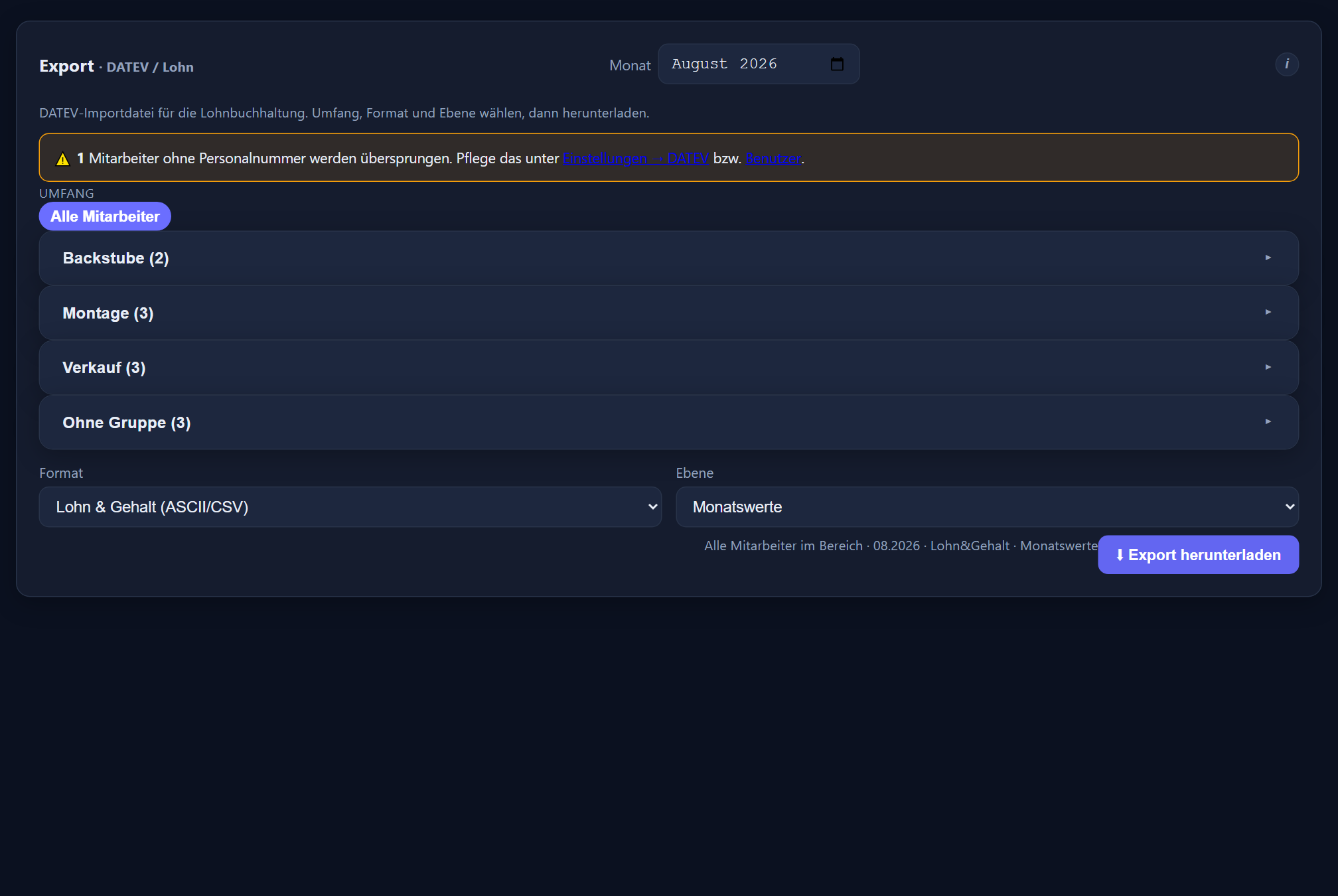
What gets exported
- Actual hours, overtime and premiums — in hours as a decimal number (7.50 = 7 h 30 min). A flat-rate allowance per shift does not go into the file, because no DATEV processing key is assigned for count and amount; the export page points this out, and it is transferred from the payroll summary.
- Every type of absence as days (half days 0.5): leave, sick, sick child, rehabilitation, phased return to work, release from duty, vocational school, business travel/training, special leave, maternity protection, parental leave, unpaid leave and flexitime compensation — each as a wage type with days.
- The level either as monthly values only or as „Arbeitsstunden je Tag, Rest als Monatswerte“ (working hours per day, the rest as monthly values): the file then holds the actual hours per calendar day — instead of the monthly total, not in addition (LODAS: Kalendarium; Lohn und Gehalt: Kalendererfassung); overtime, premiums and absences remain monthly values.
LODAS and Lohn und Gehalt
Both formats are ASCII files (.txt) in the Windows character set, one client and one month per file. LODAS reads the file through its ASCII interface; the description of the records is in the file itself. Before the bookings, a section [Entfernen] (remove) deletes the bookings of the same month for every person in scope — so a second import replaces the first instead of booking everything twice. Because this also removes bookings that the tax adviser's office entered by hand for these people in the same month, it can be switched off in the settings.
Lohn und Gehalt needs a format description once: next to the download is the „INI-Datei“ (INI file) button. The payroll office adopts it in the ASCII import assistant of Lohn und Gehalt; after that the program reads every monthly file. A month already imported is not simply read in there a second time — the file has no [Entfernen].
Agreeing the details with the tax adviser
Some things are not fixed by the DATEV documentation but by the tax adviser's office for its client. For these, ITN-Zeiterfassung comes with defaults under Settings → DATEV in the „Feinheiten der Importdatei“ (details of the import file), which the tax adviser confirms or changes: the processing keys (Bearbeitungsschlüssel) for hours and for days in LODAS, the absence key (Ausfallschlüssel) for working hours per day (LODAS and Lohn und Gehalt) and the switch for [Entfernen]. A test import belongs before the first real month: its check log shows whether LODAS or Lohn und Gehalt accepted every line.
Wage types & personnel numbers
The adviser and client numbers, along with the wage type numbers for actual hours, overtime and every type of absence, are in the settings under DATEV; a premium's wage type is set only on the premium itself (Models → Premiums, chapter 11). An empty wage type means: this value is not exported. Without a valid adviser and client number the download stays locked — DATEV would not accept the file. The export page warns about wage types that the chosen program does not know.
Personnel numbers are maintained per user and are unique within the tenant. For purely numeric ones, leading zeros do not count — „00471“ and „471“ are the same number — and when a number is entered, the user administration names the person who already holds it. Duplicate numbers from before this check are marked with ⚠️ in the user list, and the export page names them. DATEV only accepts personnel numbers from 1 to 99999: anyone with none or a different one is missing from the file, and the export page says so beforehand.
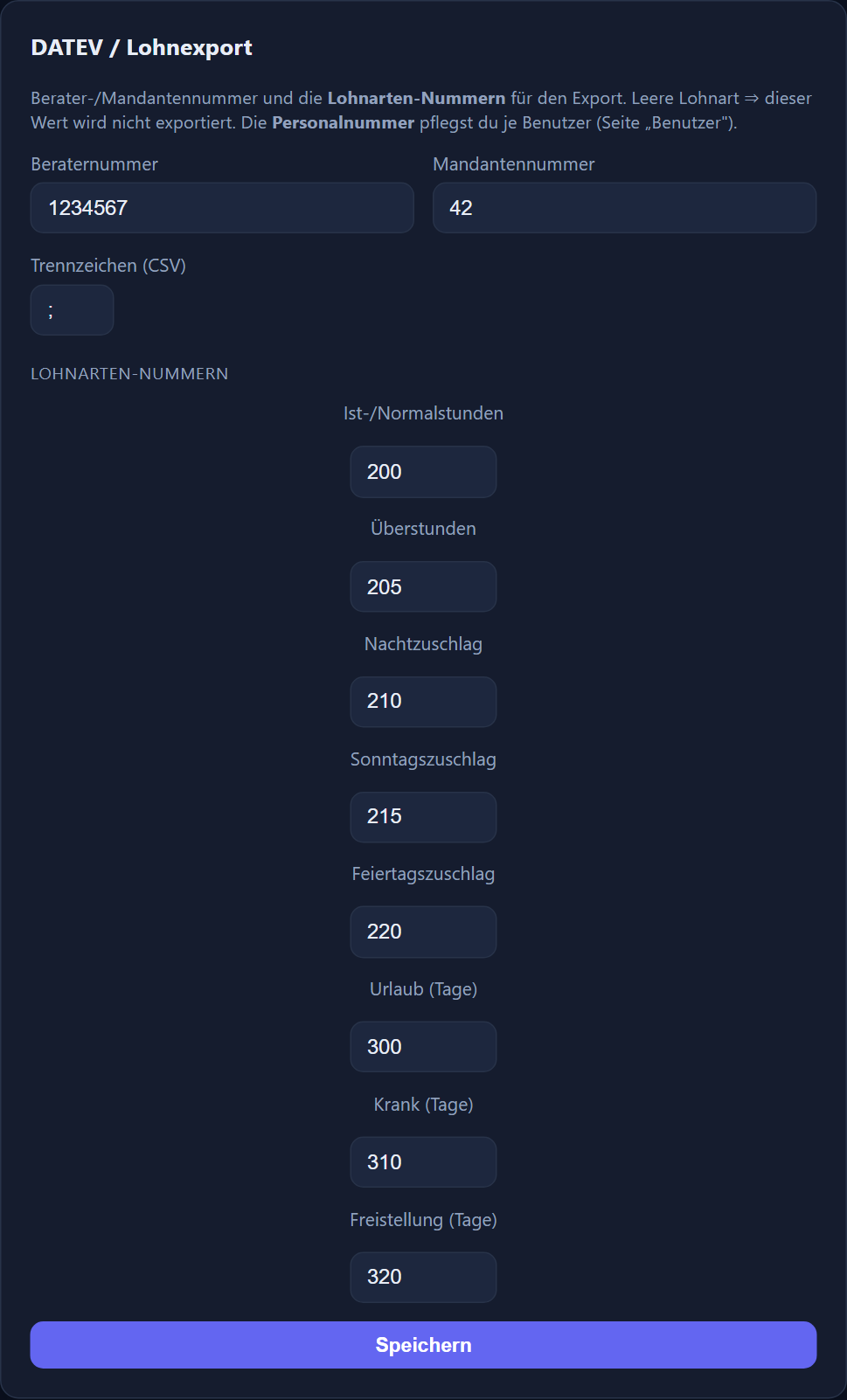
Only admins produce the payroll export and the payroll summary. Anyone who did not take part in time recording in the month is never included — not even as an active account in a normal group: what counts are „Eintritt Zeiterfassung“ and „Austritt Zeiterfassung“ in the personnel record, or „Austritt Firma“ if „Austritt Zeiterfassung“ is empty. Anyone leaving on 1 September appears in the September export, but no longer in October's; active accounts missing for that reason are named on the export page above the download. Members of the system groups (inactive / former employees) are only included in their last month — anyone leaving on the 15th who was moved there beforehand therefore still appears in the export for their last month. „Urlaub (geplant)“ (leave, planned) is not included, nor are corrections to the leave account — only real days of leave; sickness corrections, by contrast, are.
Payroll summary for all payroll programs
For payroll offices without DATEV and for Lexware Office Lohn, where the values are transferred by hand, the „Lohnübersicht“ (payroll summary) card beneath the DATEV card produces a table for the same month and scope with one row per employee — as CSV for Excel or as a PDF for typing up. It contains the personnel number, name, target, actual, the month's plus/minus, the flexitime balance at month end, the time eligible for each premium, the count and the total in euros for each flat-rate allowance, and the days for each type of absence. The figures come from the same monthly evaluation as the DATEV file and the monthly report; the overview needs no wage types.
Hours appear as a decimal number (7.50 = 7 h 30 min), absences in days, half days as 0.5. Unlike the DATEV export, anyone without a personnel number stays in the overview with an empty number — so that the payroll office overlooks nobody.
Sick notes from the payroll software
It works the other way round too: the payroll software retrieves the electronic sick note (eAU) from the health insurance fund. Its absence records are exported there as CSV and uploaded under Settings in the „Krankmeldungen aus dem Lohnprogramm“ (sick notes from the payroll software) card. The first time, the columns (personnel number, from, to, optionally the type) and the types are mapped once; after that, uploading is all it takes. A preview first shows what is new, what is already there and which rows cannot be matched — nothing is written until you press the button.
Uploading again creates no duplicates, existing absences are never overwritten, and leave in the file is left alone — leave is requested and approved in ITN-Zeiterfassung. Sick notes imported this way count as „AU liegt vor“ (sick note received) for the sick note check.
Mobile app
The mobile app runs as an installable PWA in the browser at …/app — without an app store and without a rollout by IT. It is aimed at staff who clock in where the work happens.
Installation & pairing the device
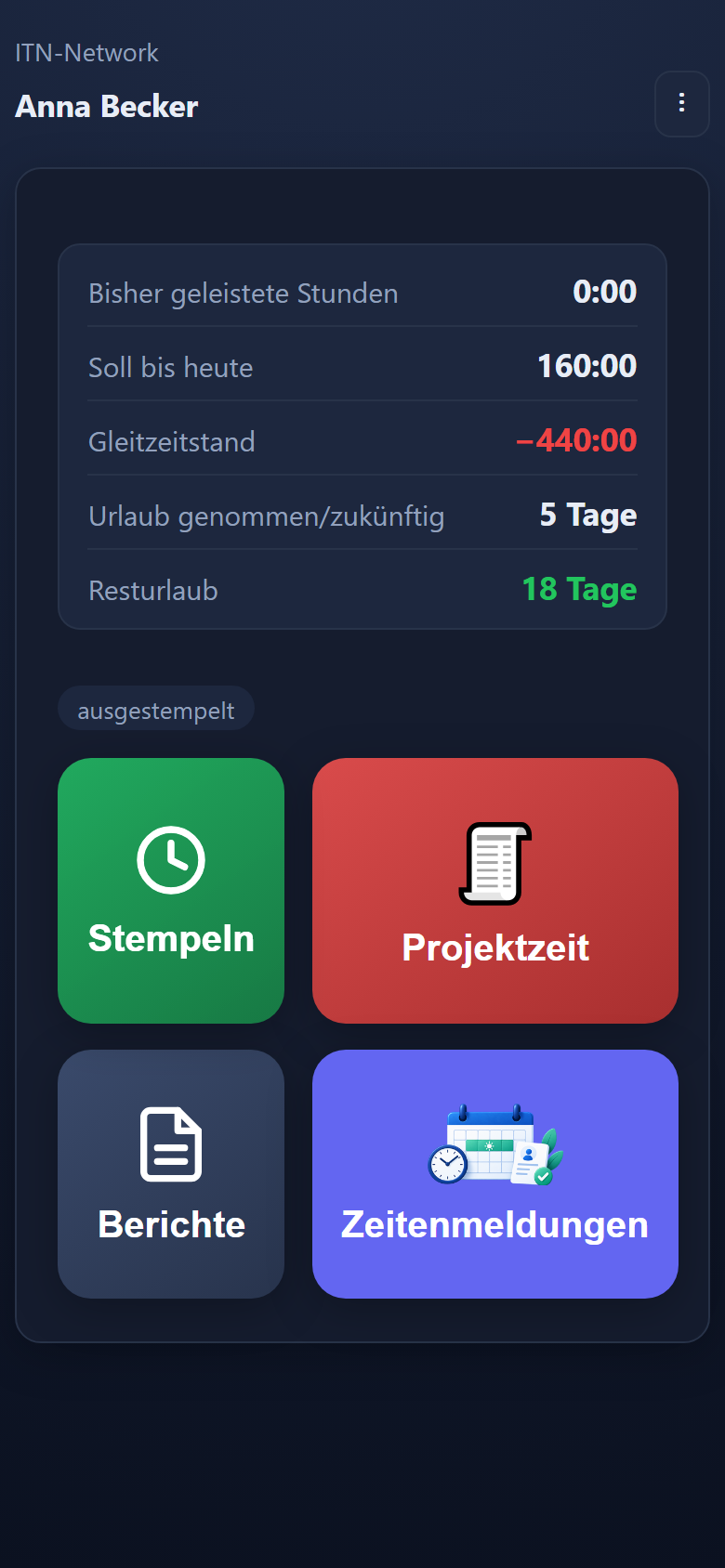
The app is opened in the browser and added to the home screen. After the first sign-in the device registers itself and shows a device number. The employee gives that to an administrator, who assigns the phone to a user under Administration → Settings → Devices and approves it. Only after approval do the tiles the person is entitled to — for clocking and for reports — appear.
GPS required
Location is mandatory when clocking; the first time, „precise location“ has to be permitted. If the positioning is too imprecise, the entry is rejected with a note — wait a moment and try again.
On an iPhone, location has to be set to „allow“ in the settings for Safari or for the website, otherwise every attempt to clock will fail.
The offline queue
Without a connection, entries are stored locally and transmitted with their original time once a connection returns. That works even if the app was closed before the location fix arrived — it catches up by itself. Every entry shows its status: transmitted ✓ or waiting ⏳.
Requests on the move
A tile of its own leads to the requests: applying for leave and other absences, adding a forgotten clocking time for a single day, or cancelling an absence already entered. The status of every submission is visible there, open ones can be withdrawn, and the month selector reaches older ones. Decisions are deliberately made only at a desk.
The account card & your own reports
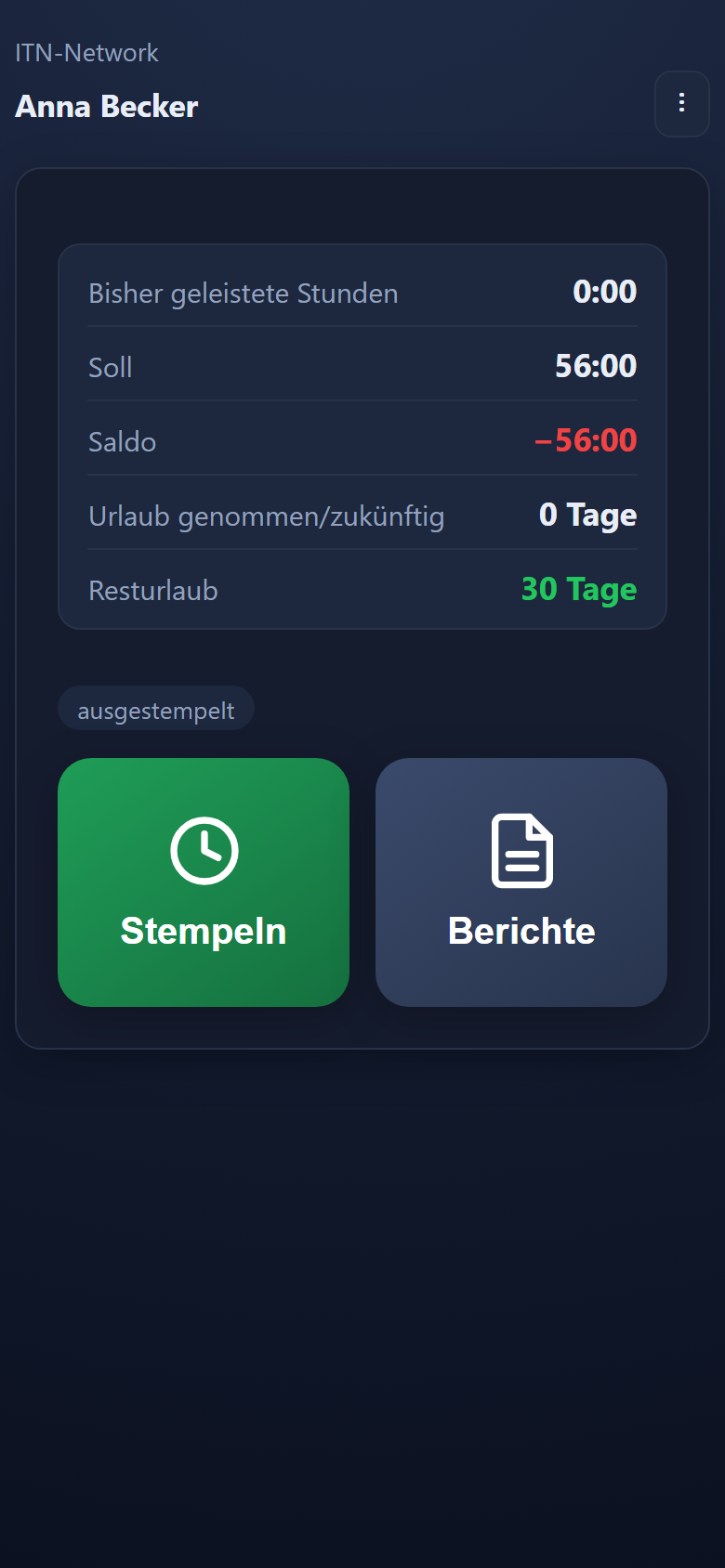
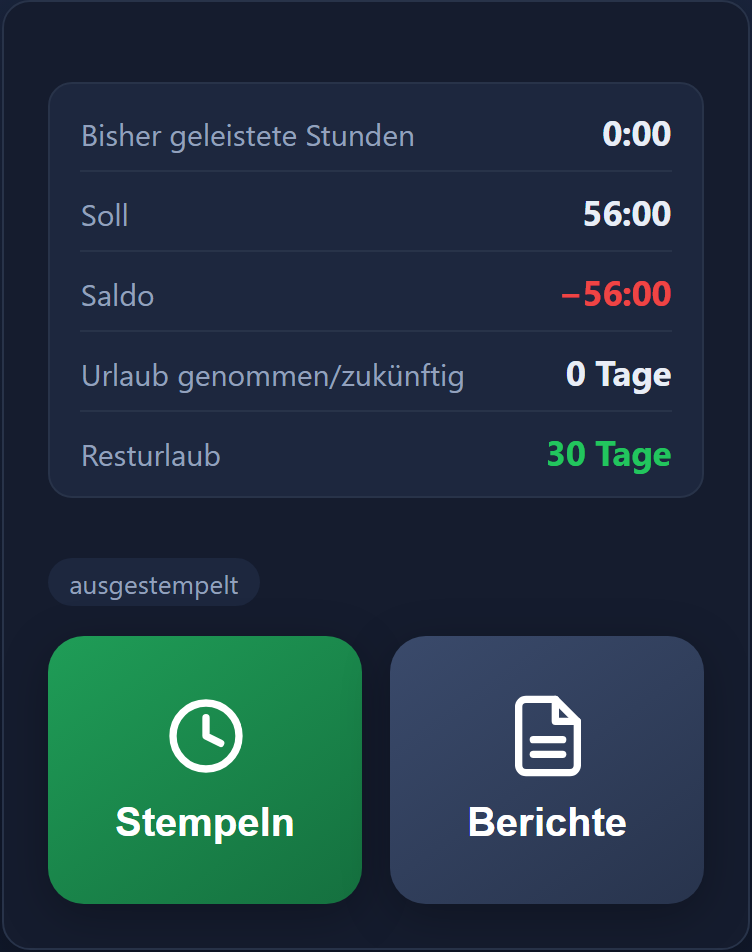
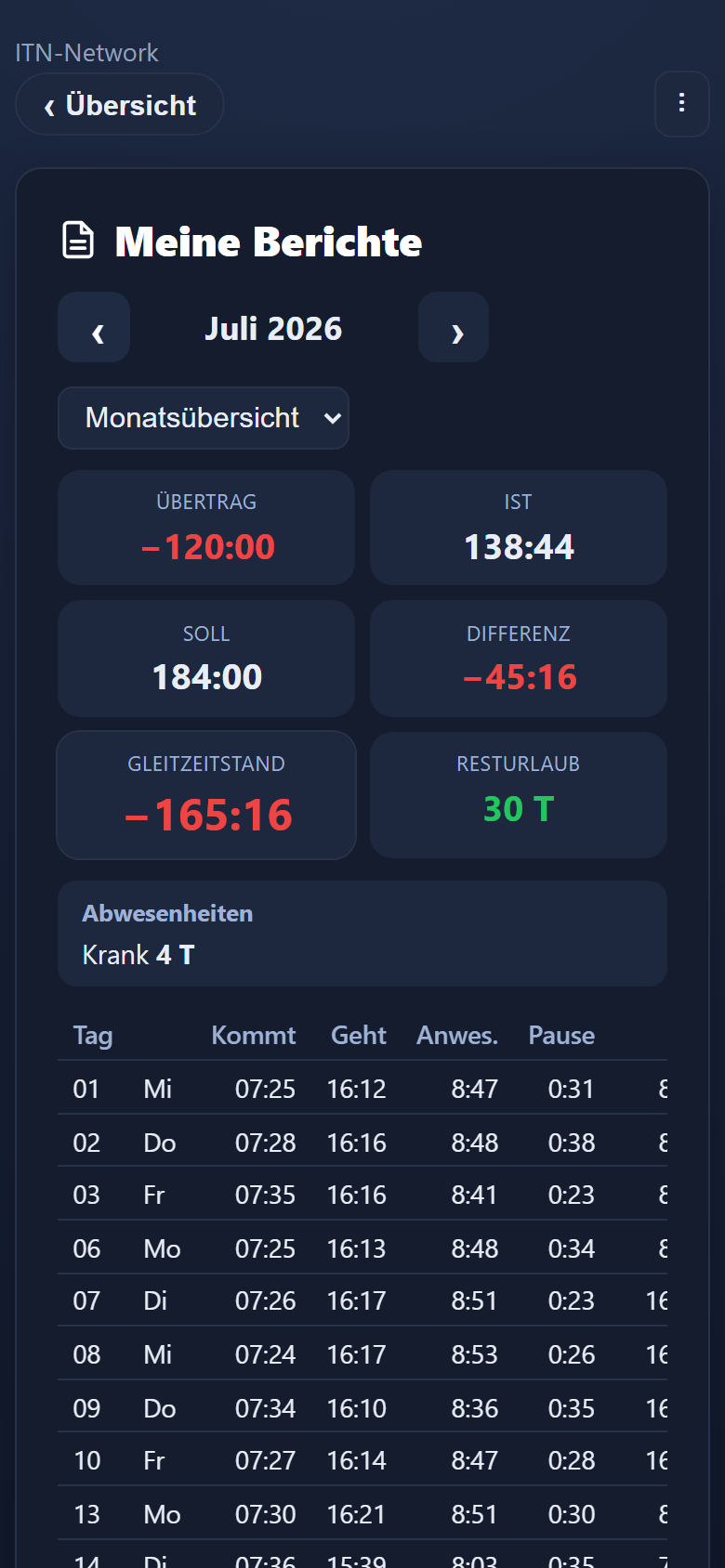
The home screen shows hours worked, target, balance, remaining leave, leave planned or upcoming, and the amount still free to plan. Through „reports“ an employee calls up their own monthly report straight on the phone; it also shows when a departure shortly before the end of the shift was counted up to the end („Kurz vor Schichtende gegangen — gewertet bis …“ – left shortly before the end of the shift, counted until …). The „Meine Schichten“ (my shifts) tile shows your own shifts with the time from–to and the month's planned hours (chapter 9).
For buffered entries to arrive, the app should occasionally be opened with an internet connection and location active.
Time clock / PIN terminal
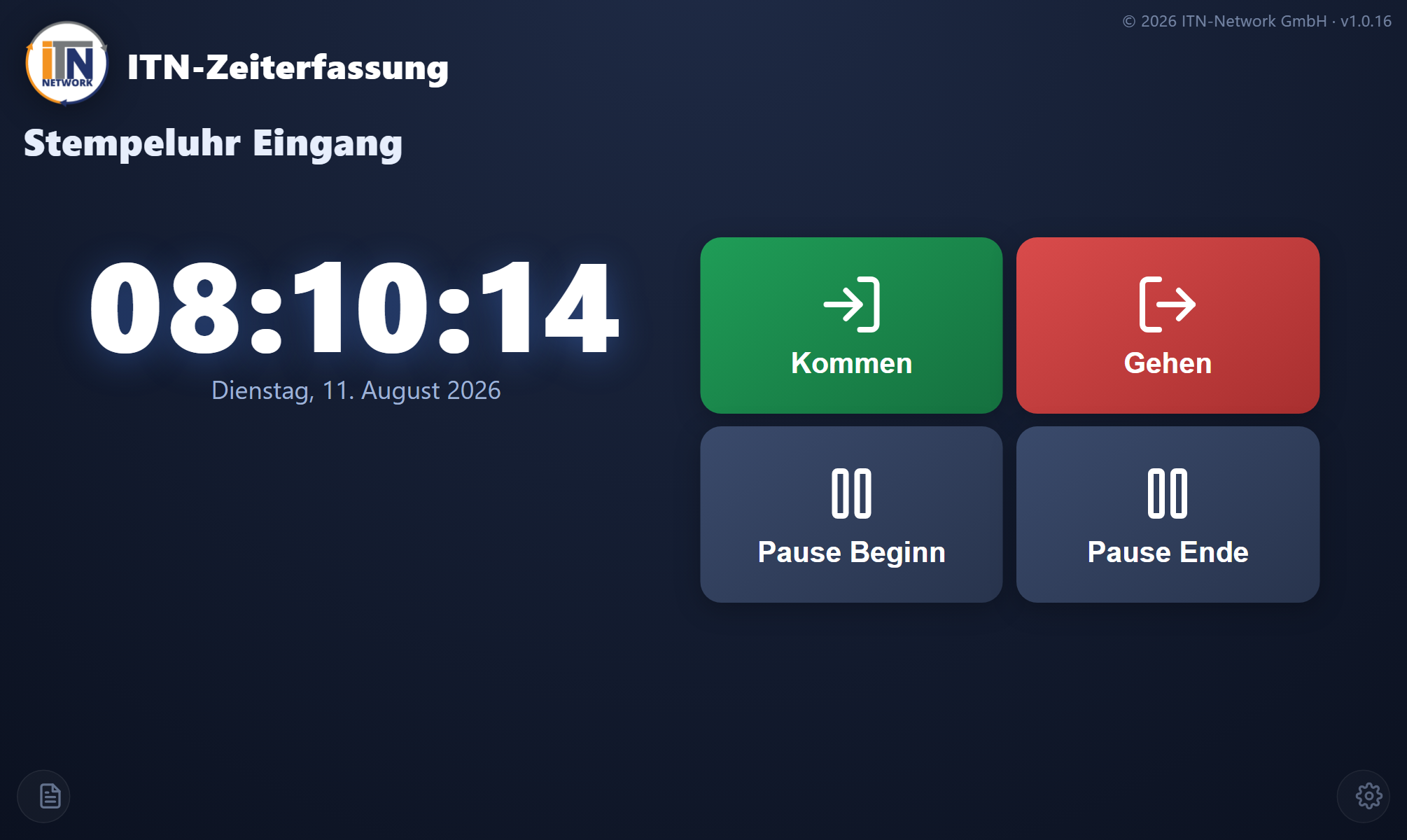
The PIN terminal turns a tablet into a fixed time clock for the whole team. It is opened in the browser at …/kiosk: tap the action, enter your personal PIN, done — the PIN identifies the person clocking and takes the place of signing in.
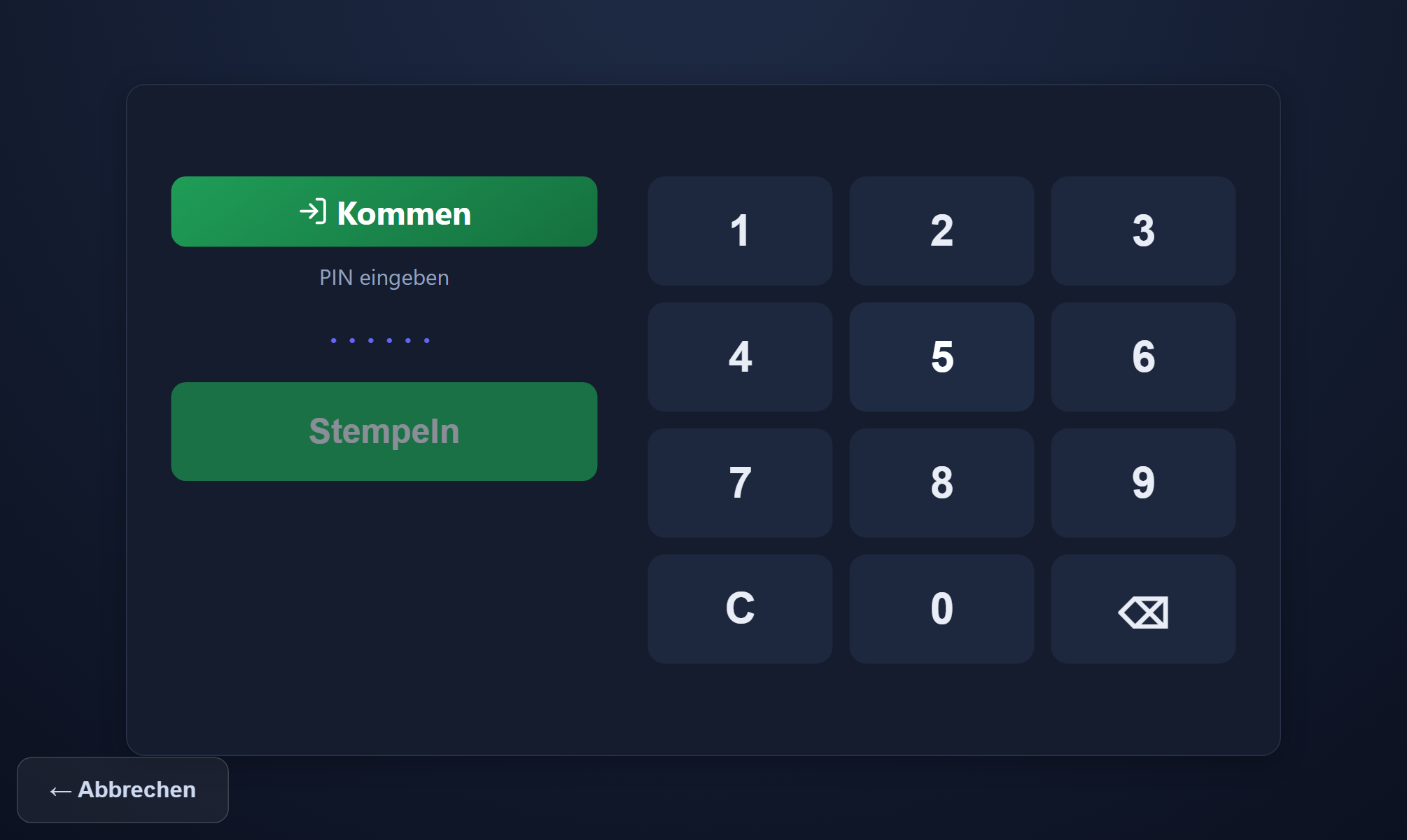
Operation & confirmation
After clocking, a confirmation fills the screen: a greeting with the first name, the action recorded with its time, and cards showing „your overtime“ (when negative, „still to make up“, as of the previous evening), „to work today“ and „your remaining leave“; on leaving, „worked today“ is added. It stays for about eight seconds, and a tap hides it at once. If an unread important message is waiting, it appears straight after the PIN as an „⚠️ ACHTUNG“ (attention) window and is confirmed with „Gelesen und verstanden“ (read and understood). The company logo is shown in the branding corner. The display size scales the whole PIN terminal display, from small to extra large, and takes effect immediately — „standard“ is tuned for 8- to 9-inch tablets.
Your own reports by PIN
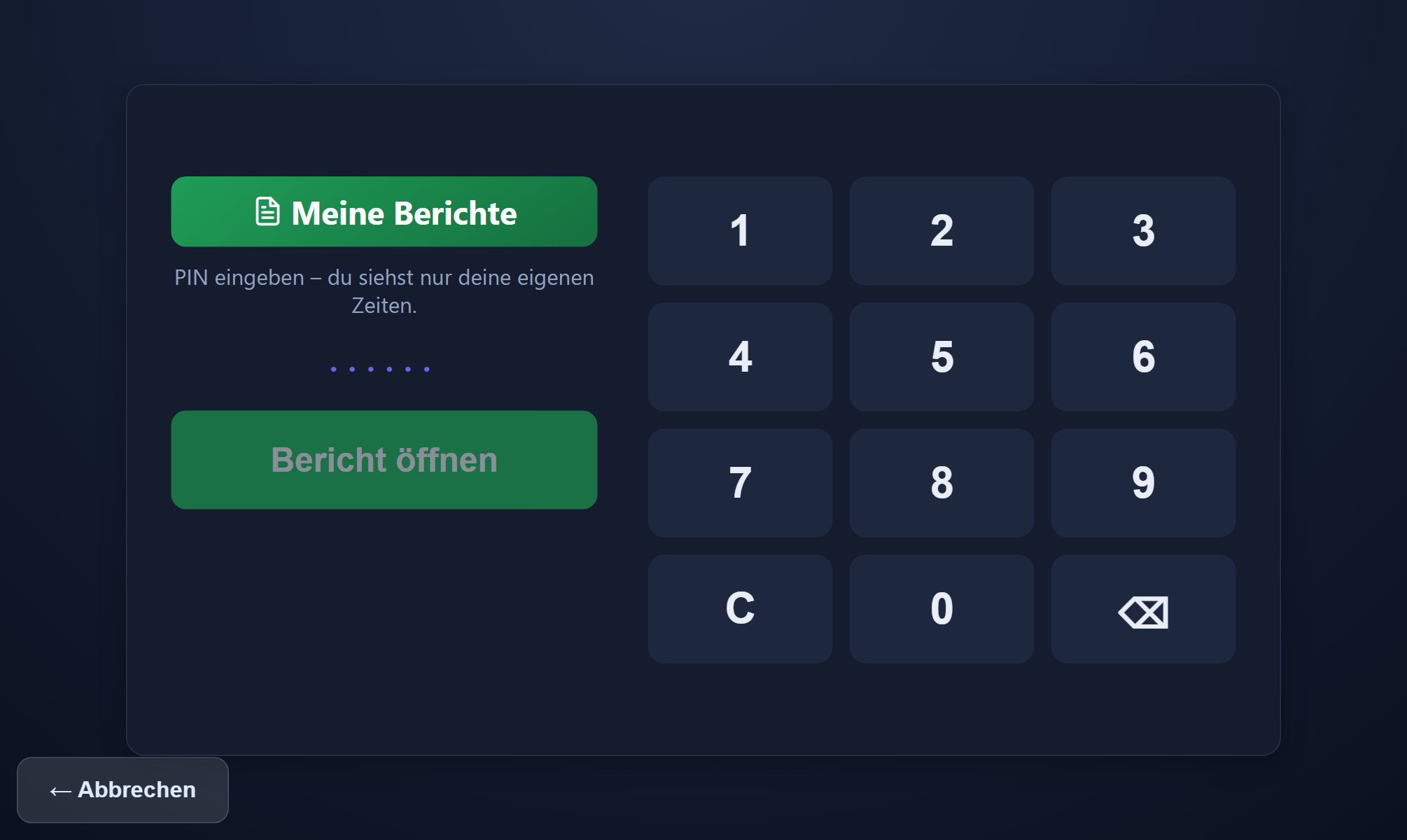
Through the reports icon and their own PIN, each person sees their own monthly or daily report; only their own hours are shown. A flat-rate allowance per shift appears there as count × amount, just as in the reports.
The offline buffer & settings
If the network drops, clocking carries on working: the entry is stored on the device with its original time, and the confirmation says „saved · no connection“. Once the connection returns, the PIN terminal transmits every entry by itself; a line on the home screen shows how many are still waiting. On first start the terminal ID and secret from the administration are entered; the cog opens the settings after the administrator PIN, including the full-screen lock.
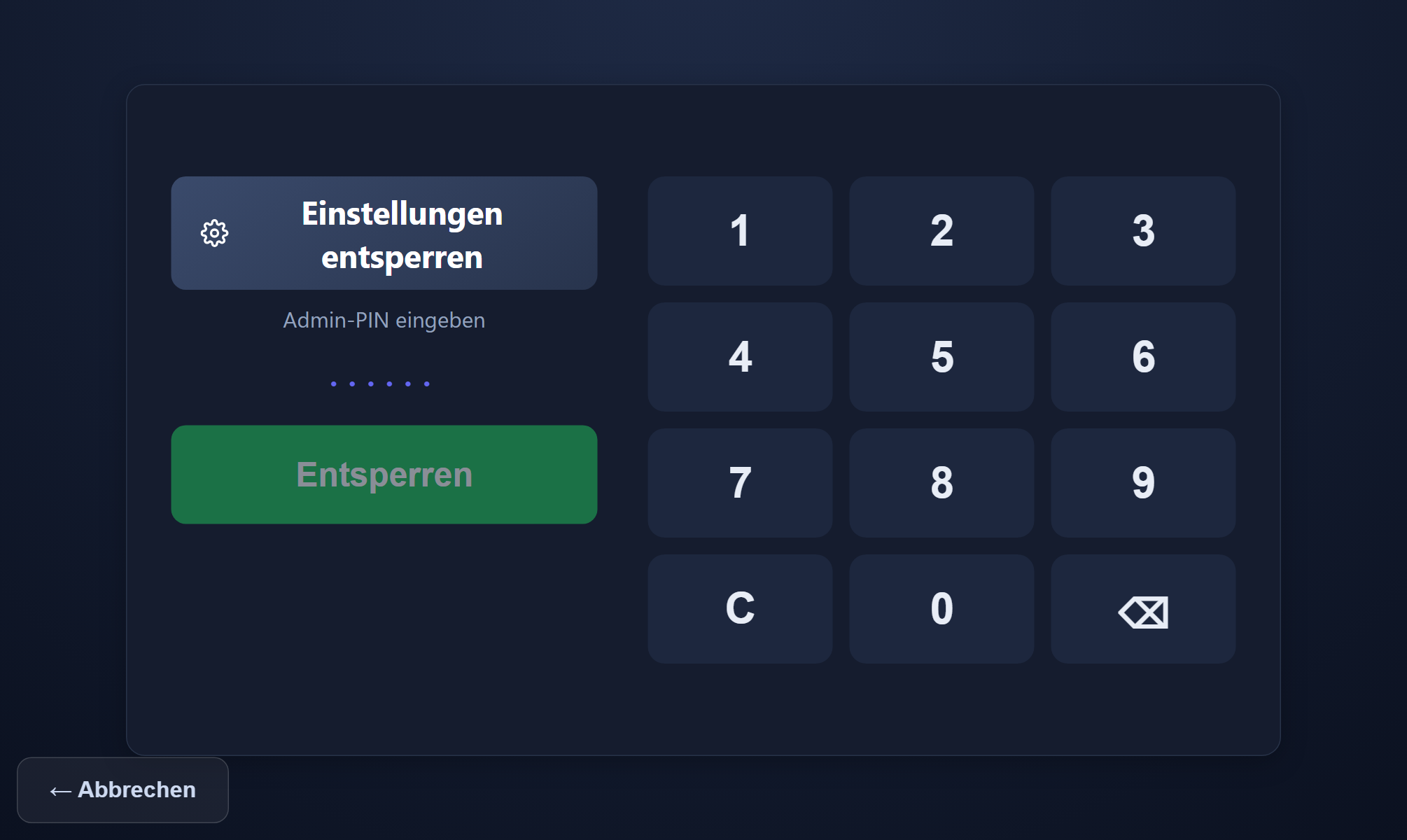
For unattended continuous operation there is additionally an Android PIN terminal app of our own with autostart, which locks the tablet straight into the time clock after switching on.
RFID terminal: clocking with a chip
The time clock is also available as an RFID terminal: a Raspberry Pi with a 7-inch touch display and a chip reader beneath it; an arrow on the screen points to the reader. To set it up, the hardware type in the terminal list is switched from „Tablet (PIN)“ to „RFID-Terminal (Chip)“. On the Pi, the „Startadresse für den Raspberry Pi“ (start address for the Raspberry Pi) is entered as the browser's start page — it contains the pairing, so no keyboard is needed for it.
- Holding up the chip is enough: with no button pressed first, the terminal records the matching action — anyone signed out arrives, anyone present leaves, anyone on a break ends it.
- Button first for a break, an errand or another clocking reason, then the chip. Only after the button does the number pad appear: anyone who has forgotten their chip clocks in there with their PIN.
- No double entries from the automatic mode: if someone holds up their chip a second time within 20 seconds without pressing a button first, nothing is recorded — the terminal shows „already recorded“ with the time of the first entry. Anyone deliberately pressing a button is not affected.
- Teaching in new chips: an unknown chip is not recorded. Its code appears in large type on the terminal and shows up in the personnel record under „Zuletzt am RFID-Terminal unbekannt“ (last unknown at the RFID terminal) — one click takes it over.
- Without a network the terminal stores entries just as the tablet does, but only if its clock has been synchronised with the server since its last start: the Raspberry Pi has no battery-backed clock. Otherwise it reports „no connection“ rather than storing entries with the wrong time.
„My reports“ and confirming important messages work with the chip too.
Datafox hardware terminals
For entrances, production floors and outdoor areas, robust RFID terminals of the Datafox EVO series are available. They read RFID chips — and, depending on the model, fingerprints — and report every entry directly and encrypted to the server; the browser is not involved, and no server of your own is needed on site.
Chips, biometrics & assignment
Chips are stored per employee as transponders in the personnel record (the number being the chip's UID); several chips per person are possible, and „active“ controls whether they may be used for clocking. On models with a fingerprint sensor the biometric mapping stays in the device — no fingerprint leaves the terminal. If the network drops, the device buffers the entries and sends them on later with their original time.
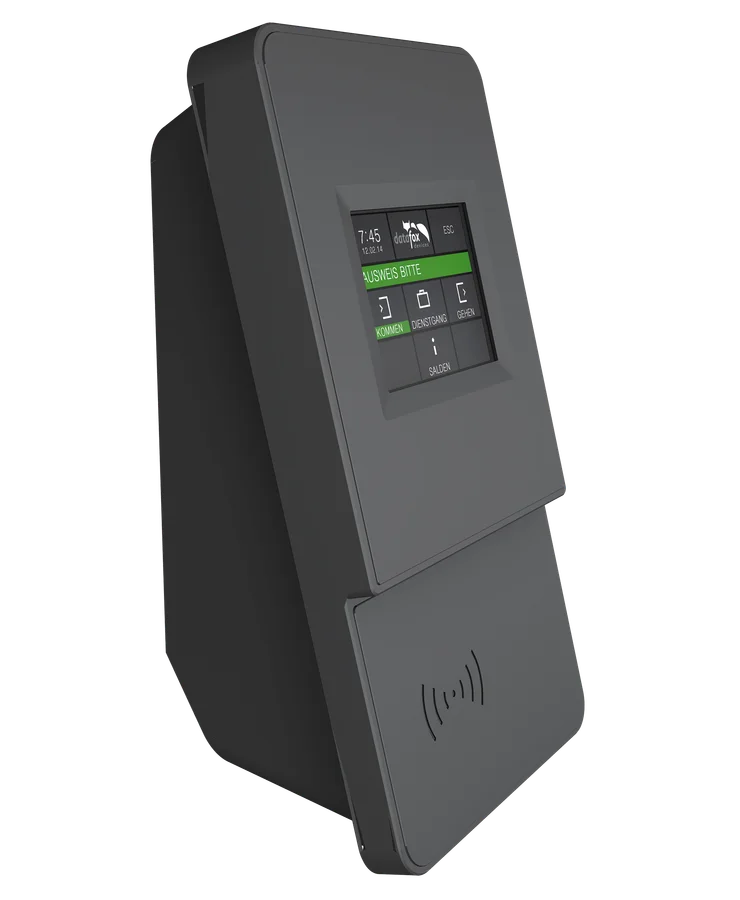
EVO 2.8
The compact classic for arriving and leaving: a 2.8-inch colour display, robust keys and an RFID reader — the slim option beside the door.
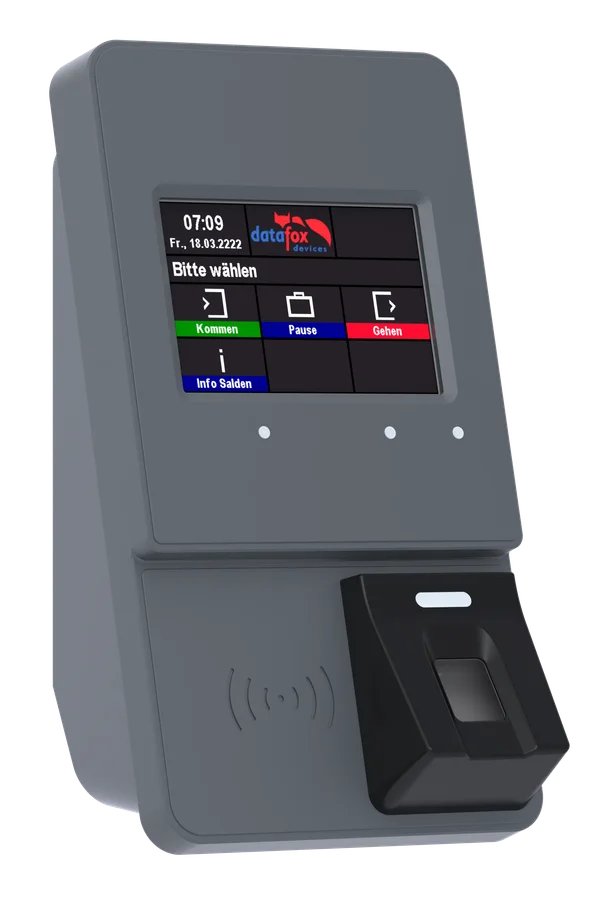
EVO 3.5 Pure Fingerprint
A 3.5-inch touch display with RFID plus biometric identification by fingerprint — clocking with no chip and no PIN.
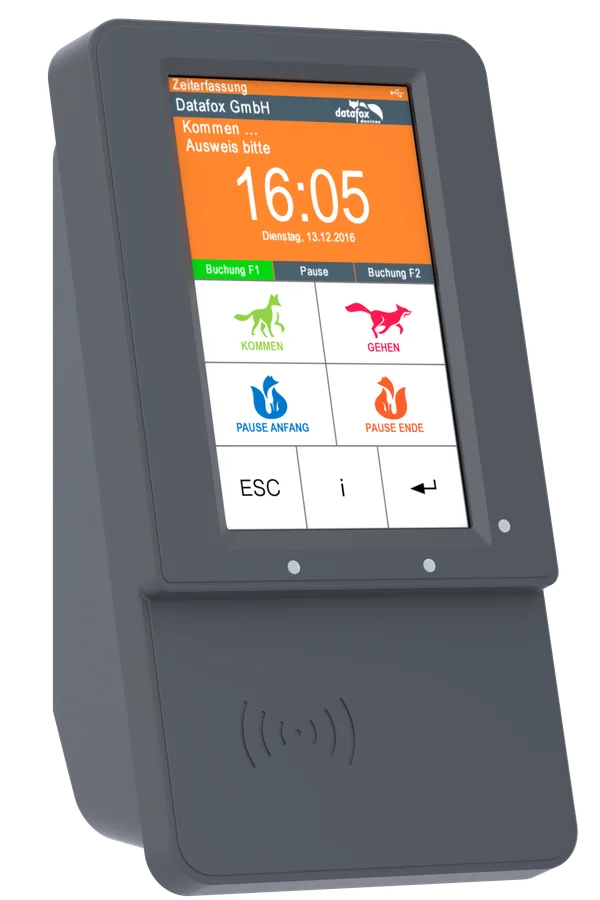
EVO 5.0 Pure
A generous 5-inch touch display with freely configurable buttons — plenty of room for clear labelling, and glove operation on request.
Setup
Setup happens in two steps: the terminal is created in the application under Administration → Settings → Terminals and is given an ID and a secret. On the device, HTTP(S) with basic authentication is set as the access method — the username being the terminal ID and the password the secret — and /terminal/datafox with the tenant ID is entered as the send path. The serial number appears automatically in the terminal list as soon as the device has reported in for the first time.
Clocking by chip is possible without a Datafox device too: with the RFID terminal on a Raspberry Pi (chapter 15).
Live attendance
The attendance board shows in real time who is currently in. It suits attendance terminals and refreshes itself.

The board is divided into three columns:
- Present: currently clocked in, with the time since when.
- Missing (should be here): a target above 0 today, but not present.
- Away (no target): no daily target today — a day off, leave or sickness.
„Group“ narrows the display down. The visibility of individual people can be switched off per user.
Location checking / geofencing
Locations define permitted places (a geofence) at which clocking by phone or desktop widget is allowed. The check is opt-in and off by default; without it being switched on, locations serve only as information.
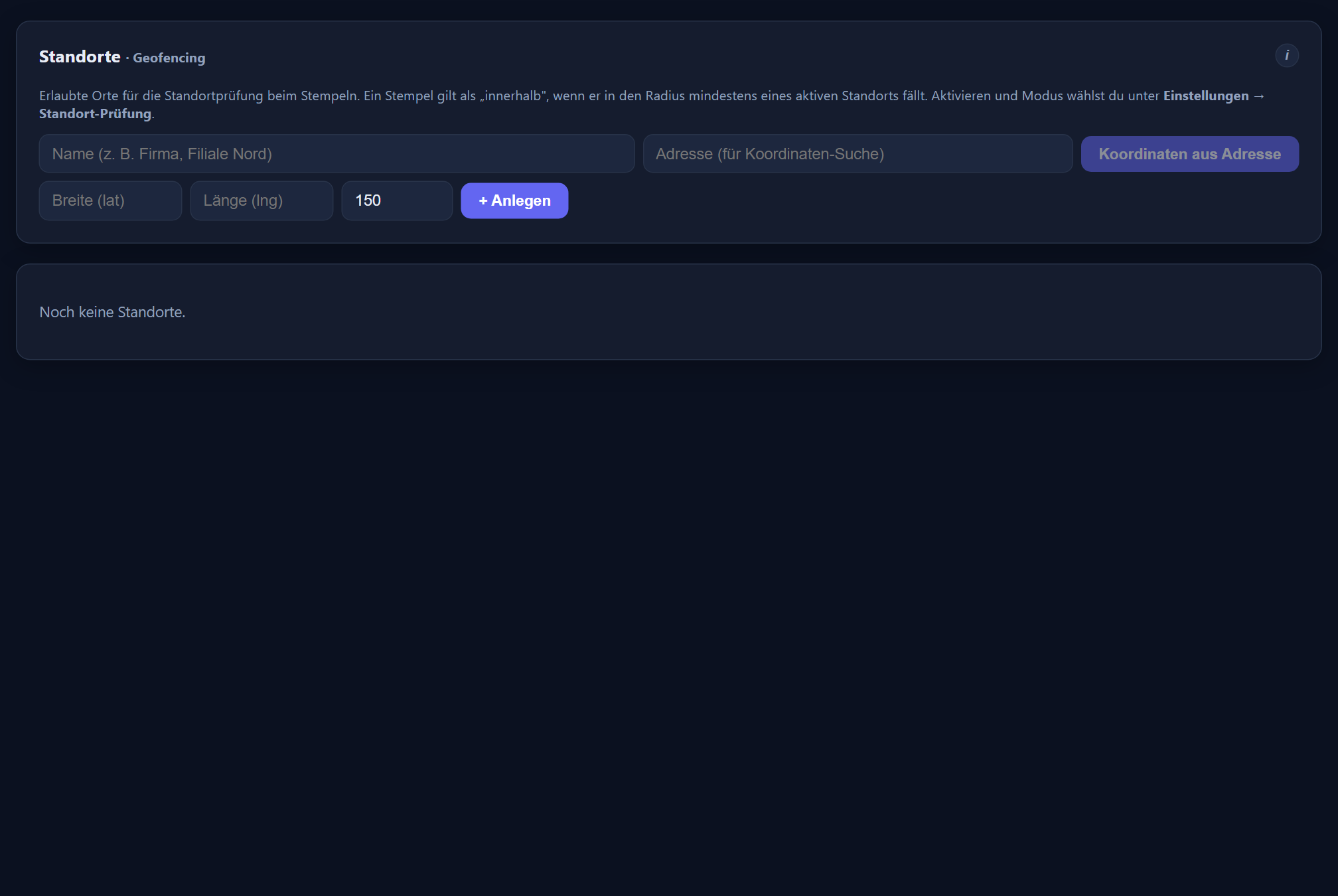
Creating permitted places
A location consists of a name, coordinates and a radius. The coordinates can be derived from an address (a server-side query to OpenStreetMap/Nominatim) or taken from a real entry made on a phone (➕📍 in the time tracking view); clicking the coordinates opens them in Google Maps. The tolerance is the radius plus the current GPS accuracy (capped at the top), so that imprecise positioning is not rejected out of hand.
Levels & assignment
The check is switched on under Settings → Location check, separately for the phone and the desktop widget. For each channel there are three levels: off (no check), mark only (the entry is allowed but flagged with ⚠️) and block (an entry outside is prevented). For each device it can be set whether it is exempt from the check (field service, say) and which permitted locations it is restricted to.
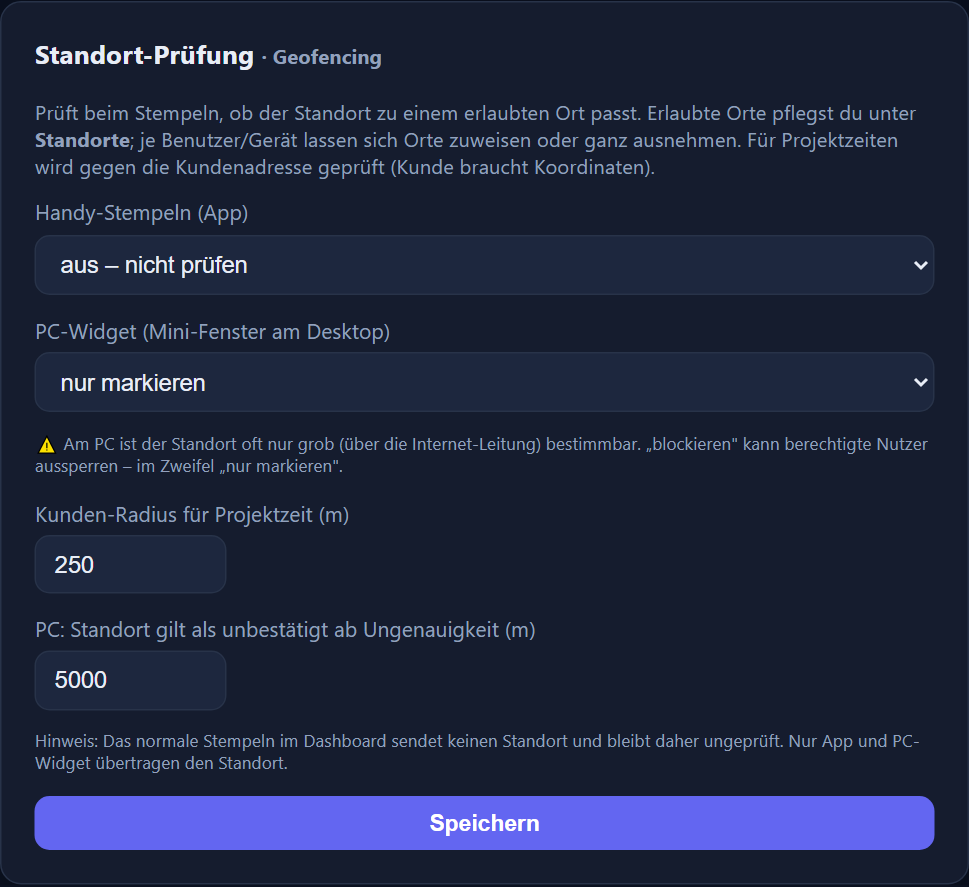
Entries captured offline and submitted later are never blocked, only flagged. Ordinary clocking through the dashboard is not checked at all.
Log — who changed what
Every change to hours, absences, master data and settings is written down. The log shows the time, the person responsible, the operation and the employee affected — and, on a click, the details, which for a corrected entry includes the value it had before.
It can be filtered by period, by area (clocking entries, absences, requests, users, settings …) and by person; the filtered list can be exported as CSV. Operations with no person named come from automatic runs, such as emptying the recycle bin once its period has expired.
Who sees what is narrowly drawn: administrators see every operation in their company, department heads only those of their own groups, and employees nothing at all. The log is a record view — entries can be neither changed nor deleted. Deleted clocking entries are brought back through the recycle bin in the time tracking view.
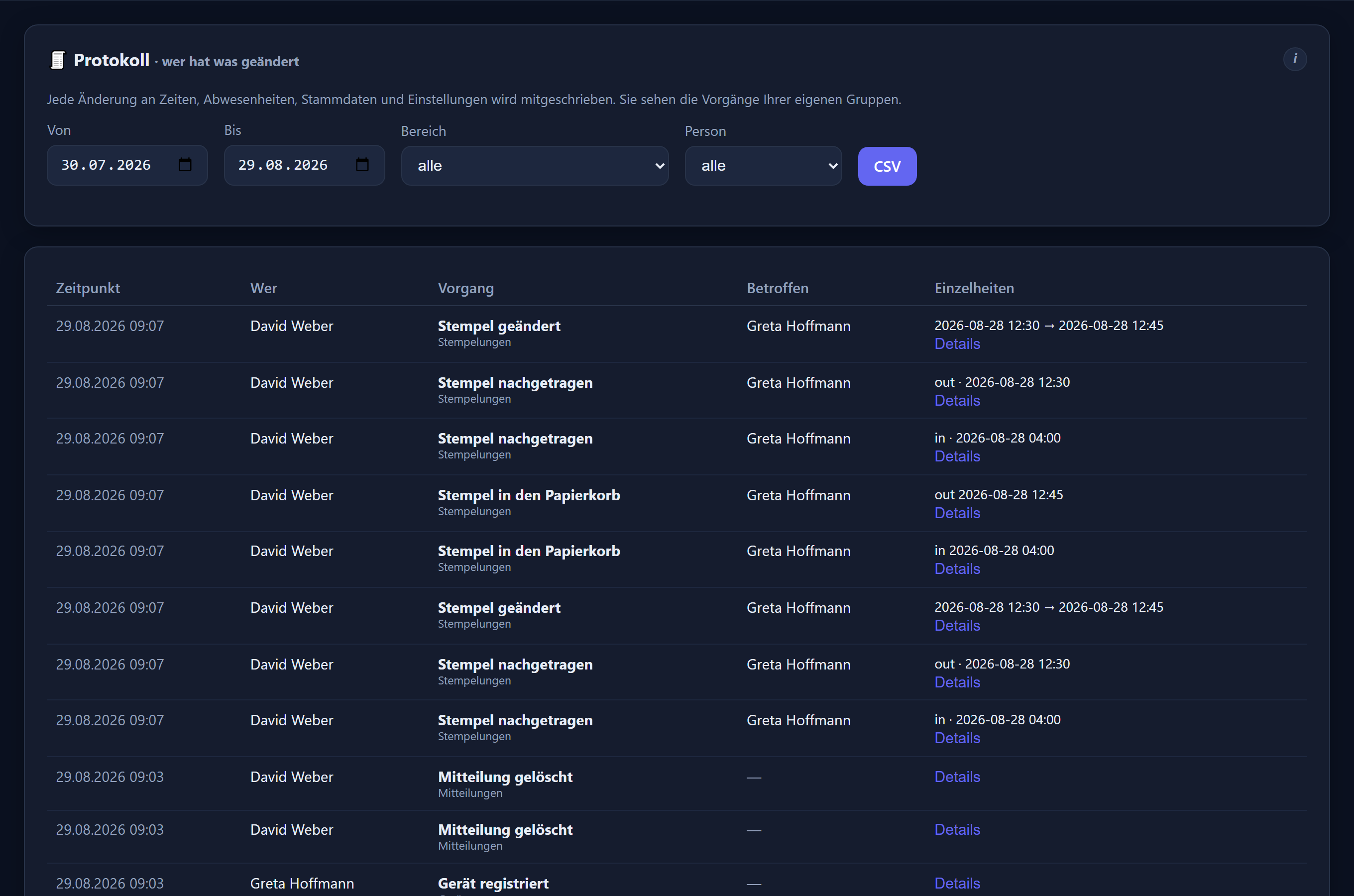
Administration & security
Administration brings together users, groups, devices, terminals, public holidays, settings and licences. The application runs as a hosted cloud service accessed over HTTPS in Germany.
Roles & responsibilities
There are three roles: employee (clock in, see your own hours, make submissions), department head (additionally maintain the hours of their own groups and decide their submissions, with no access to administration) and administrator. Additional rights come on top, such as „edit hours“ (which can be limited to particular groups), „see the duty roster“ or visibility of the project costing.
For requests, the management status can be granted independently of all that — to any number of people. It decides the submissions of everyone for whom no line manager of their own is stored, and grants no other rights. A line manager can be named per person; only those entitled to decide can be selected.
The personnel record
Clicking a name opens the personnel record. Above everything sits a row of core data (active, role, group, working time model, remaining leave, responsibility), and below it five tabs: master data (address, the start and end of time recording, leave entitlement including its history, the internal hourly rate), account & access (role, rights, password, PIN terminal PIN), requests & school (responsibility, school timetables), recording (locations, transponders, calendar) and documents (a memo, a file store). Every card carries an (i) with an explanation of its fields.
The start and end dates determine when someone takes part in time recording: before „Eintritt Zeiterfassung“ (start of time recording) and after leaving, clocking is impossible by any route — neither at a desk nor on a phone, at the time clock, at terminals or by adding entries afterwards — and no project time can be booked; a night shift begun on the leaving day can still be ended. What counts is „Austritt Zeiterfassung“ (end of time recording), or „Austritt Firma“ (leaving the company) if that is empty; the target, however, only ends with „Austritt Zeiterfassung“. Whatever has already been recorded remains, and the person can still be found in time tracking, planning and the personnel record. They disappear from the overview (dashboard) from the day after leaving; in reports, the payroll export and the payroll summary they appear only up to the month in which they left.
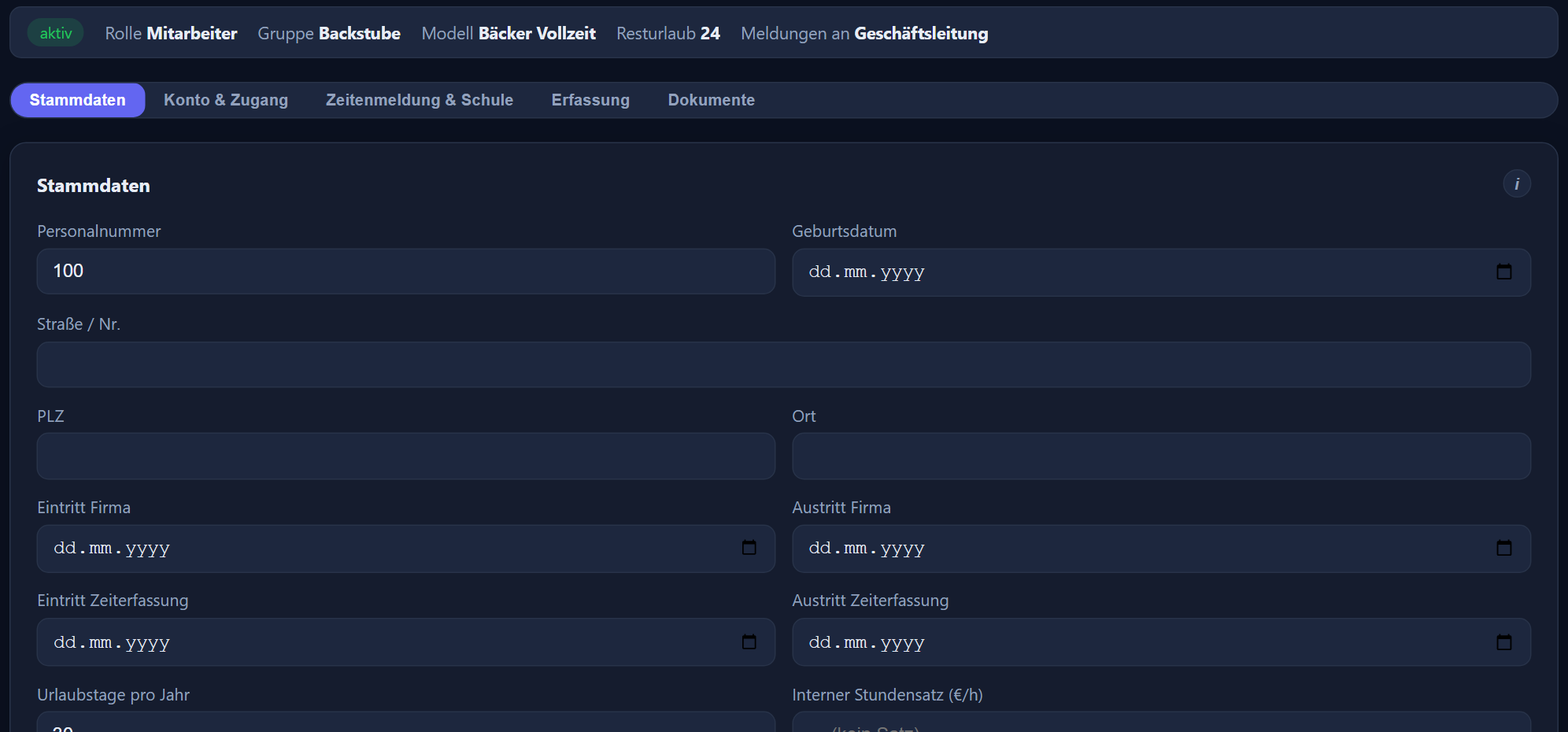
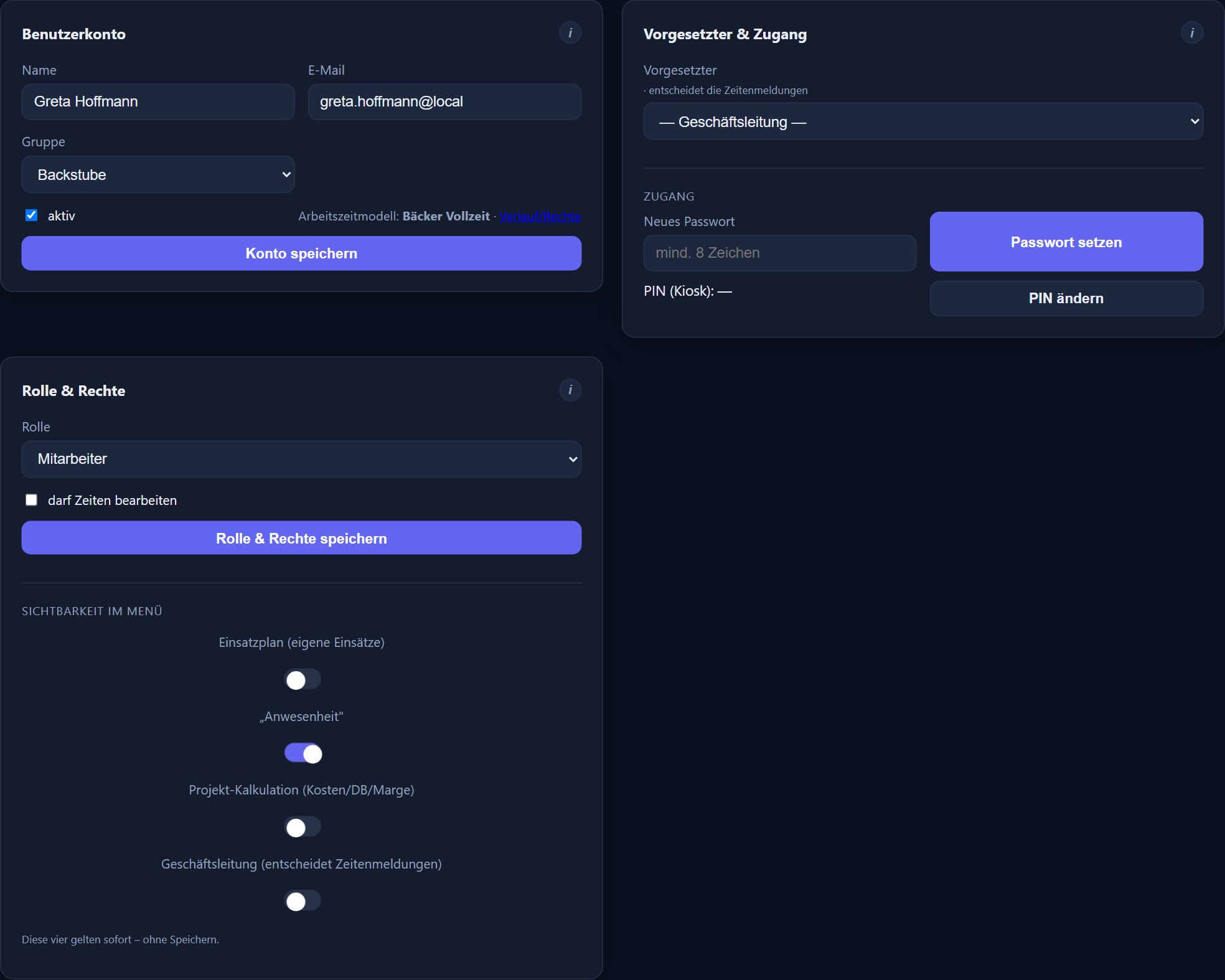
Groups & editor rights
Groups bundle staff for viewing and evaluation; every user belongs to exactly one group and is moved by drag and drop. Two system groups — „inactive employees“ and „former employees“ — always come last and cannot be deleted or renamed. Anyone moved there has their account deactivated (no sign-in, no clocking, no changes) and no longer counts towards the licence. They are included in the payroll export only up to and including the month of leaving according to the personnel record (chapter 13). Conversely, an employee who is deactivated lands in „Ausgetretene Mitarbeiter“ (former employees) by themselves after a confirmation prompt. The user list shows only active people by default; the „Alle anzeigen“ (show all) slider reveals the others.
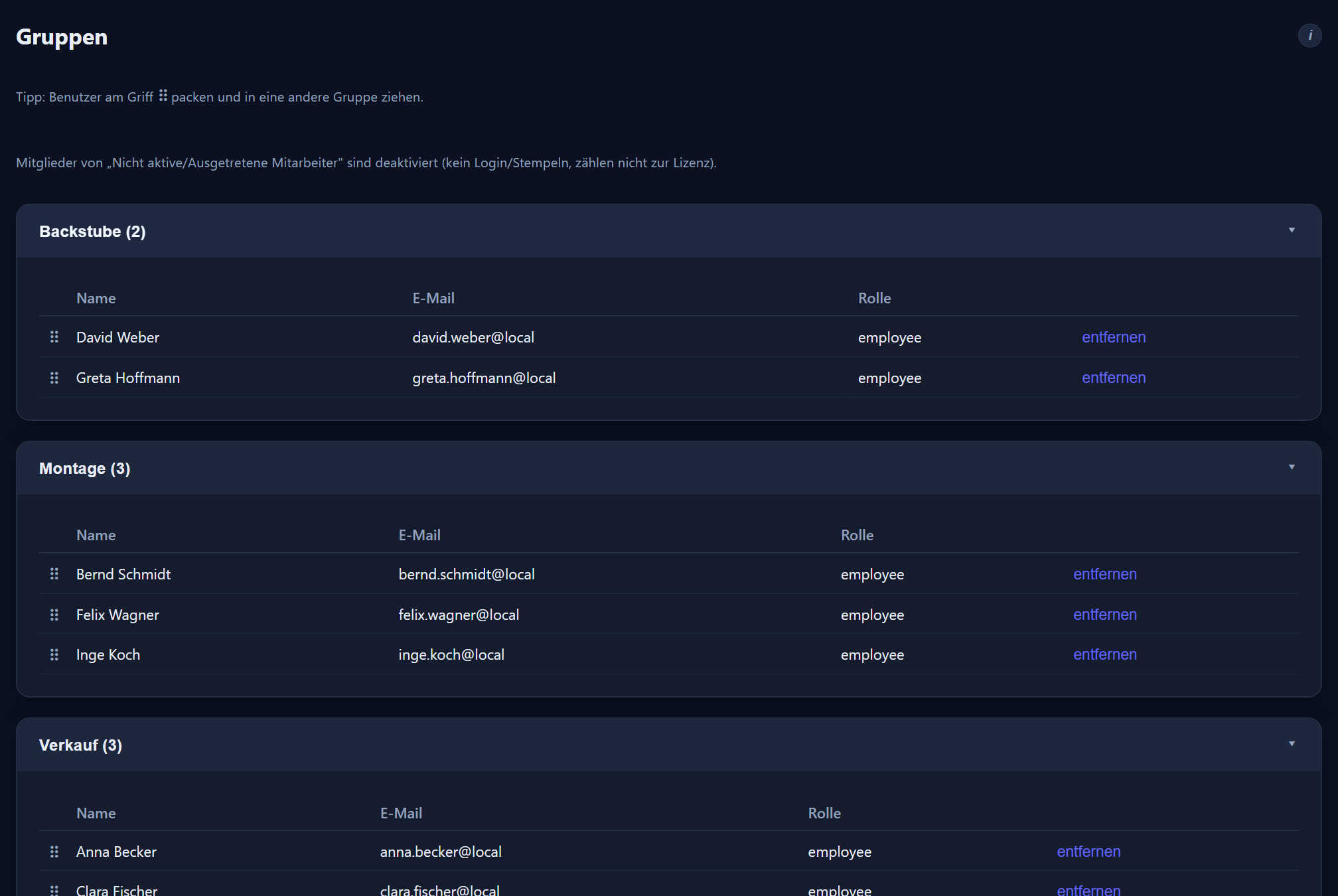
Devices & terminals
Under Devices, phones are approved, assigned to an employee and set up in their rights (clocking on or off, maximum GPS imprecision, location exemptions). Terminals each receive an ID and a secret for setting them up on the device. There are three kinds: time clocks (as a tablet with PIN, as an RFID terminal with chip on a Raspberry Pi, or as Datafox hardware), the attendance board, and the whiteboard, which shows the shift plan on the wall (chapter 9).
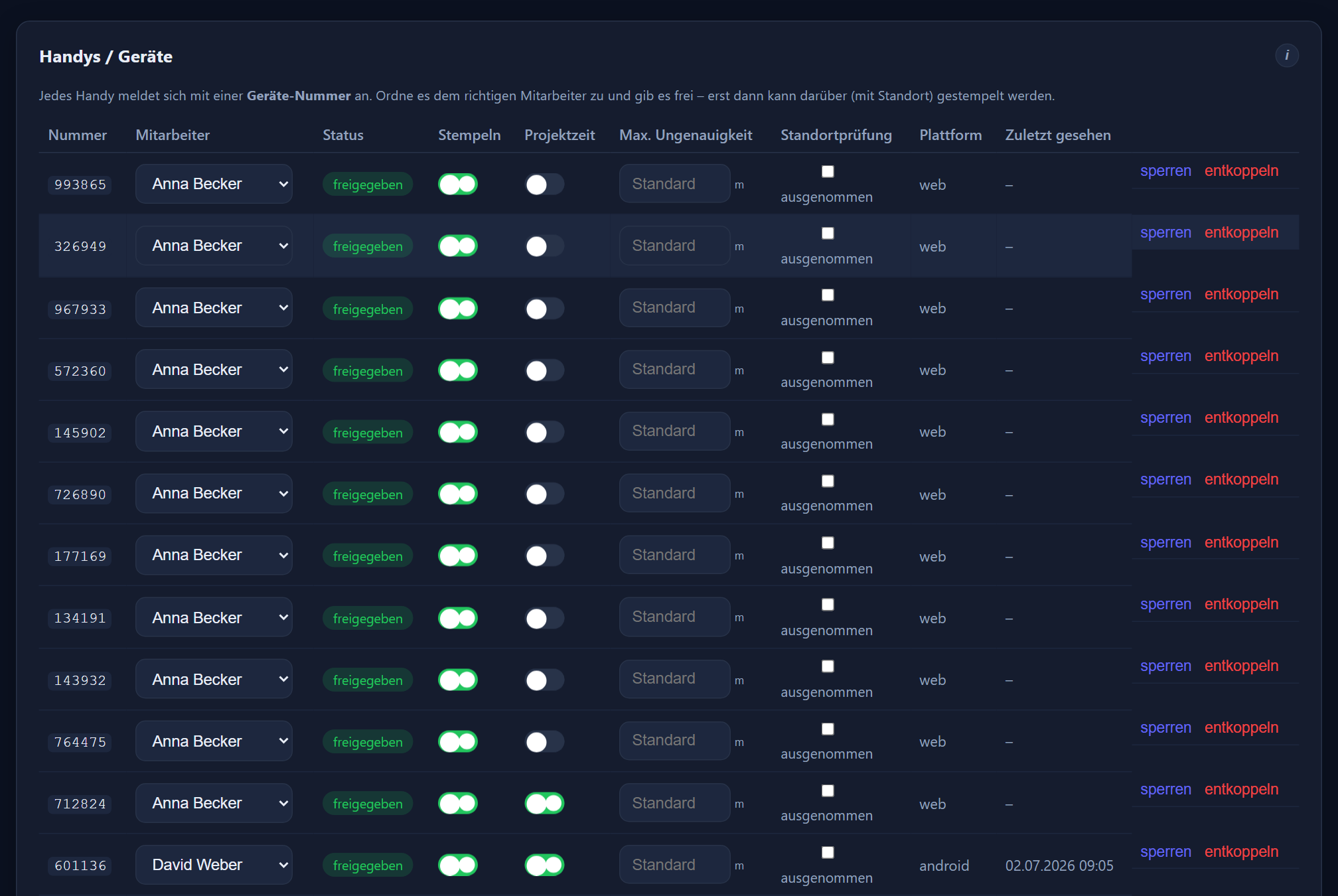
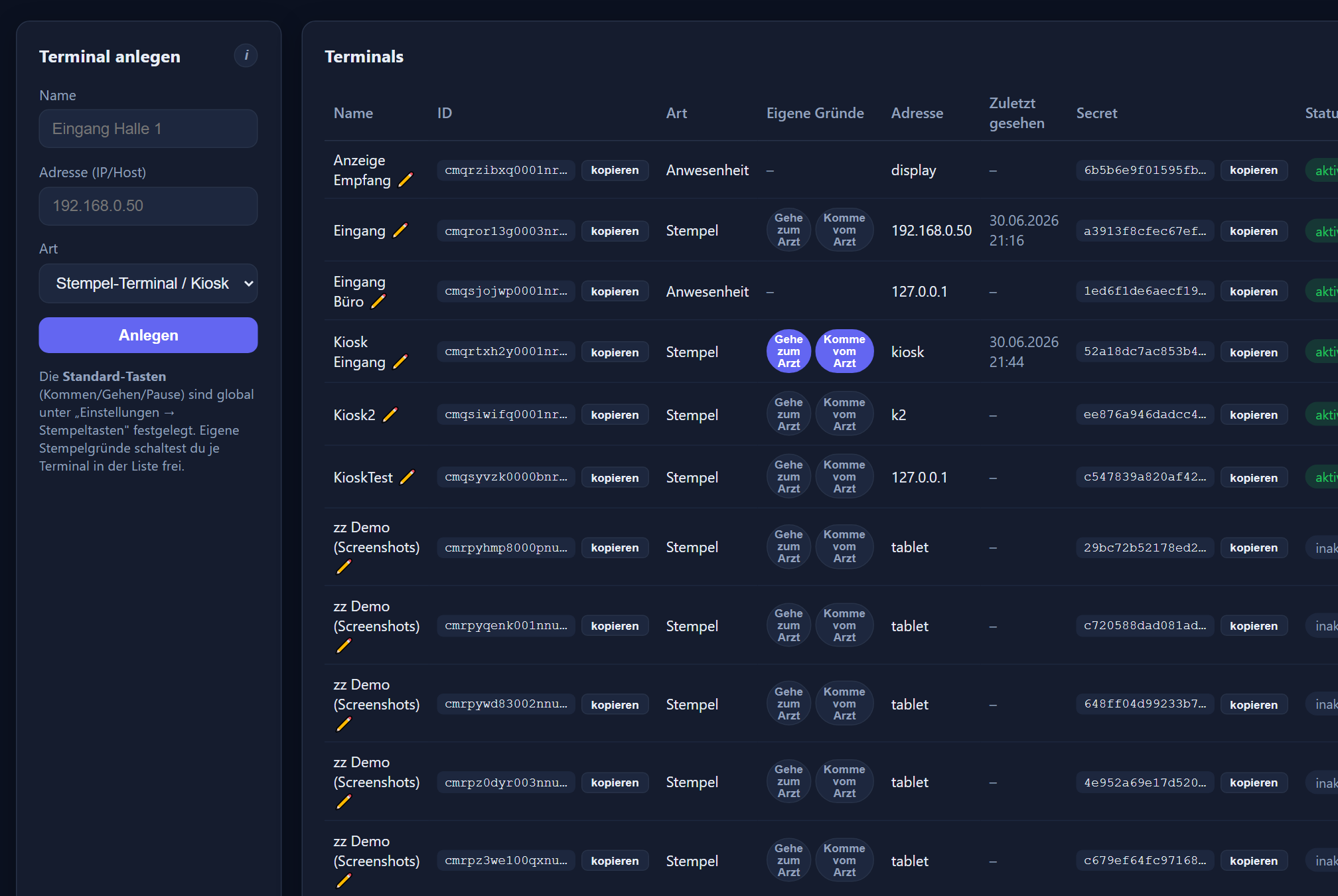
Public holidays & settings
Public holidays are imported per region and supplemented with your own one-off or annually recurring dates (a company shutdown, for instance); on a public holiday the target follows the model's public holiday rule. Every public holiday — imported ones included — can be counted as a whole day, a half day or with a fixed number of hours off (chapter 8); the setting is kept when importing again. The settings bring together the time zone and date format, the global clocking buttons, the recycle bin period, the location check, the sick note check (chapter 5), the upload of sick notes from the payroll software (chapter 13) and the interfaces (DATEV, email/SMTP).
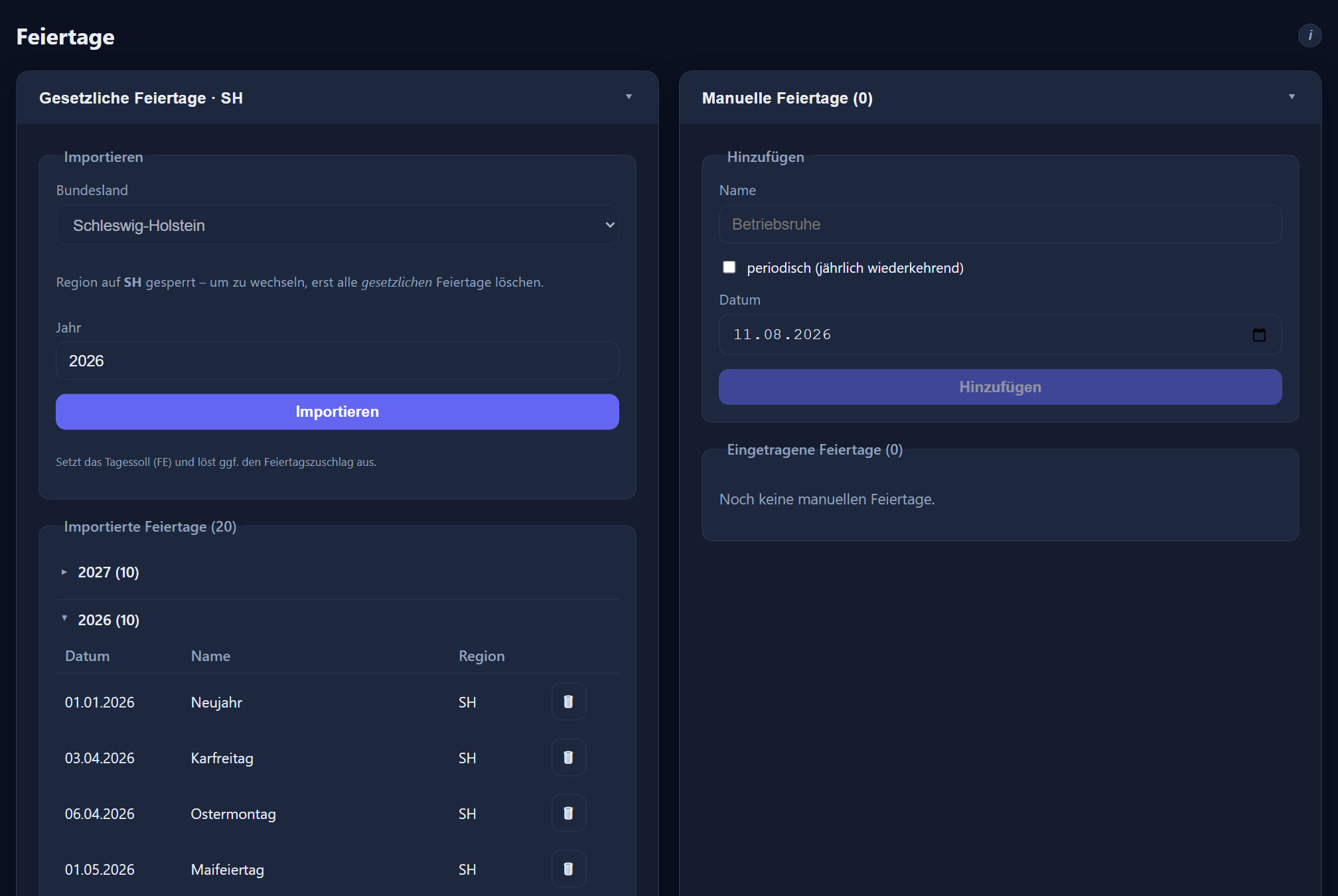
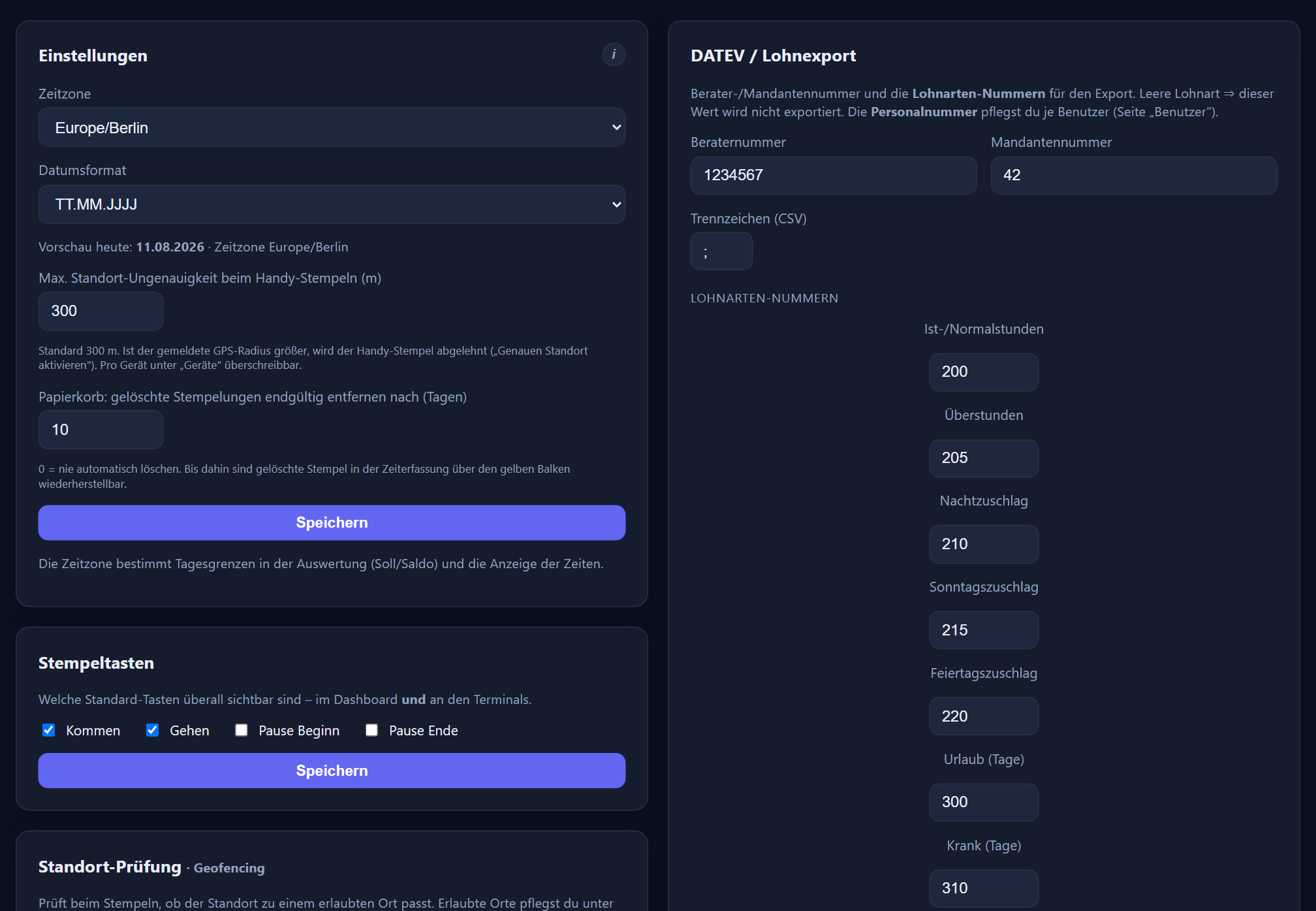
Add-on module: project time with project budget
Project time recording can be added on: time is clocked to customer, project and activity — at a desk or on a phone, with journeys and a visit report — and the project report evaluates it by period, customer, project and employee. For each project an hours budget and a revenue budget in euros can be stored, both optional and independent of each other, plus a warning threshold (default 80 %). The project report shows the consumption over the whole life of the project as a bar with a traffic light: „OK“, „WARNING“ from the warning threshold, and „EXCEEDED“ from 100 %.
Licences & the peak overview
The licence page shows how many accounts are active at once. What counts is the highest number of simultaneously active accounts within a month (the peak), not the number at month end. It shows the current figure, the highest so far this month, the inactive accounts, a monthly history and a free period query.
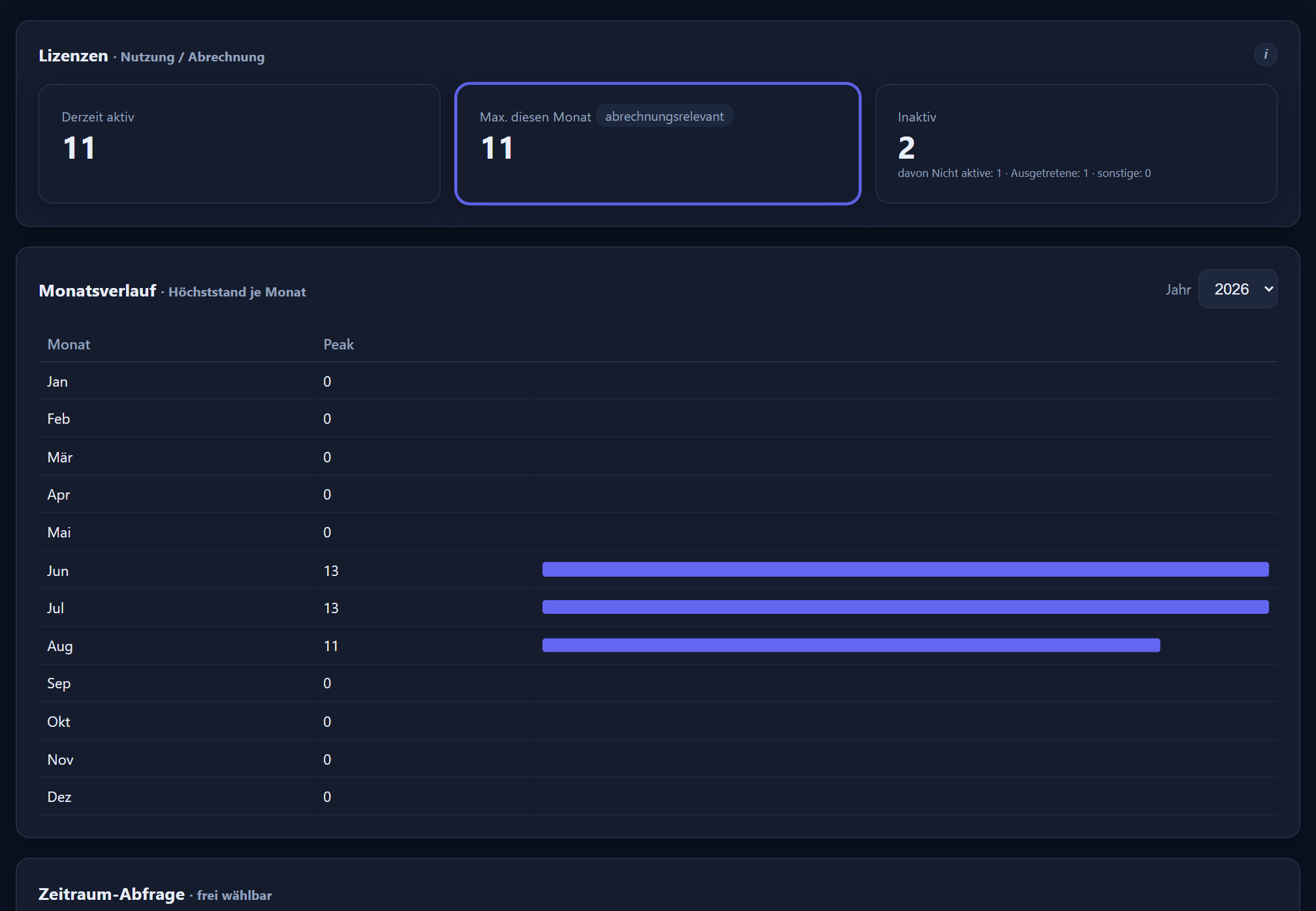
Multi-tenancy & operation
The application is multi-tenant; every data query is bound to a tenant. It runs as a hosted cloud service accessed over HTTPS in Germany. Employees and administrators need only a current browser, the mobile app needs an iPhone or Android device as a PWA, the PIN terminal any tablet, and the RFID terminal a Raspberry Pi with a 7-inch touch display and a chip reader. Anyone holding the same login in several tenants chooses at sign-in which one they want.
Protection against attacks from outside
Delivery is hardened: strict browser rules (a content security policy, no embedding in other people's pages, enforced HTTPS), a session cookie that is invisible to scripts and additionally marked „secure“ behind HTTPS, and blocked foreign origins. Against credential guessing there are brakes: at sign-in per origin, on setup links, and on the PIN terminal PIN per terminal — the last of these locks for a short while after several failed attempts and releases immediately on a correct PIN.
Every change to hours, absences, master data and settings ends up in the log. Deleting a clocking entry is a recycle bin operation with a period, not immediate removal — so a slip of the hand stays curable.
Questions about introducing it, about terminals or about the payroll export? We are happy to show the application against your own processes.