
The snipping tool that can mail, print and archive.
ITN-PDFMailer takes over the Print Screen key and Win+Shift+S, turns any window, screen or printout into a PDF – and sends it by mail, files it on the network or in your Nextcloud, or saves it as a searchable PDF/A for the archive.
See the features Pricing
Instead of the snipping tool
Replaces the Windows Snipping Tool in day-to-day work – with the same keyboard shortcuts, but with PDF, mail, filing and archiving in one step.
Region
Win+Shift+S – the picture freezes and you drag out the area. From there it carries on in the same window: edit, send, save, print.
Full screen with monitor choice
Win+Shift+F – with several screens you pick the one you mean from a thumbnail. The Print Screen key captures every screen at once.
Active window
An icon sits in every title bar: left-click captures, right-click opens the full menu right at the window. Or Ctrl+Alt+P.
The shortcuts can be changed in the options, and the Windows assignment returns when ITN-PDFMailer is closed. They keep working after an RDP session has been disconnected and reconnected.
What each tool can do
| Windows Snipping Tool | ITN-PDFMailer | |
|---|---|---|
| Region, window, full screen | ✓ | ✓ + monitor choice with thumbnails, every screen via Print Screen |
| Win+Shift+S / Print Screen | ✓ | ✓ takes over the shortcuts |
| One-click capture from an icon in every title bar | – | ✓ |
| Result straight as a PDF (A4, WYSIWYG) | – | ✓ |
| One click to a PDF attachment in your default mail program | – image via „Share" | ✓ |
| Collect several screenshots → one ZIP / one mail | – | ✓ |
| Filing to a network drive, SFTP/FTPS, Nextcloud (with a download link) | – | ✓ |
| Printing with a footer (PC name, user, date and time), up to 4 printer targets | plain printing | ✓ |
| Virtual printer: from any program → PDF → mail | – | ✓ |
| PDF/A-3u for the archive, searchable (image printouts too) | – | ✓ |
| Automatic bulk printing (every printout filed automatically) | – | ✓ |
| Copy text out of a screenshot (text recognition in the image) | ✓ | – text recognition only for printouts as PDF/A |
| Screen recording, freehand region, delay timer, pen/highlighter/shapes | ✓ | – |
Windows and Snipping Tool are trademarks of Microsoft Corporation. ITN-PDFMailer is an independent product of ITN Network GmbH.
Features
Everything that sits between „document" and „sent" – in one small tool. The interface comes in German and English.
Virtual printer
Print to the „ITN-PDFMailer" printer from any application – a PDF appears straight away.
Capture the screen
A region, the full screen with a choice of monitor, every screen at once, or the active window – by keyboard shortcut or from the icon in the title bar. Compared with the snipping tool.
Image editor
Rotate, zoom, fit, move and crop – with a WYSIWYG preview of the PDF page.
Invert colours
Turn dark screenshots round for white paper – black and white swapped, colours kept.
Send
Opens your default mail client (Simple MAPI) with the PDF attached – Outlook, Thunderbird and the rest.
Save & print
Save the PDF wherever you like, or send it to a real printer.
Clipboard
Put the image or file on the clipboard and paste it somewhere else.
Drag & drop and „send to"
PDFs, images, text and any other files, through the drop window or the Explorer context menu. Several files? → one email with all of them attached.
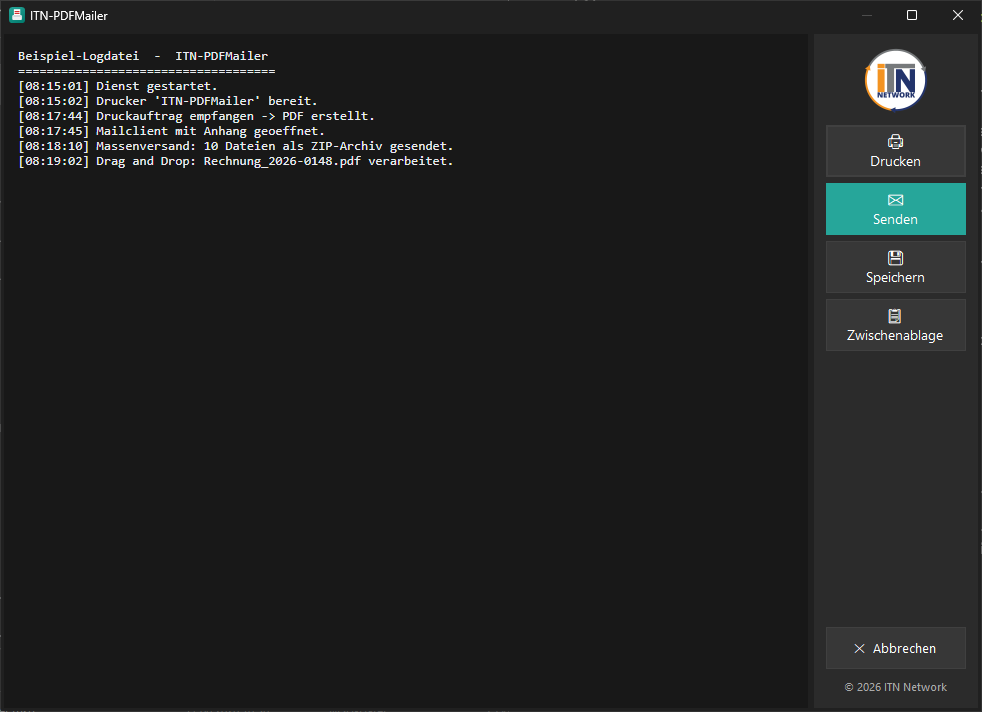
View text files
txt, log, xml, csv, json and more, viewed and printed straight from the window.
Discreet notifications
Two levels: important things only (start-up and errors), or everything including successful jobs.
Automatic updates
Checks for new versions at start-up and updates itself.
No third-party runtime
PDFs are produced using what Windows already provides – no Ghostscript, no extra installation.
Print attribution
When a capture is printed: a footer with the PC name, the user and the date and time, plus an automatic choice of portrait or landscape.
Collection folder
Gather several captures in one folder, each with its own name, and send them together, as a ZIP, or save or print them. Counter badges show how many.
PDF/A for the archive
Save, send or file printouts as PDF/A-3u (ISO 19005-3) – searchable, even when the program prints the page as nothing but an image. More on this.
Printer targets
Up to four named targets – a pop-up before each print asks where it should go.
Automatic bulk printing
One switch – and every printout is saved individually and without prompting to a fixed storage target. Ideal for runs out of an ERP system (many certificates, for instance).
A virtual printer – from any program
The central feature: if it can be printed, it can be sent as a PDF.
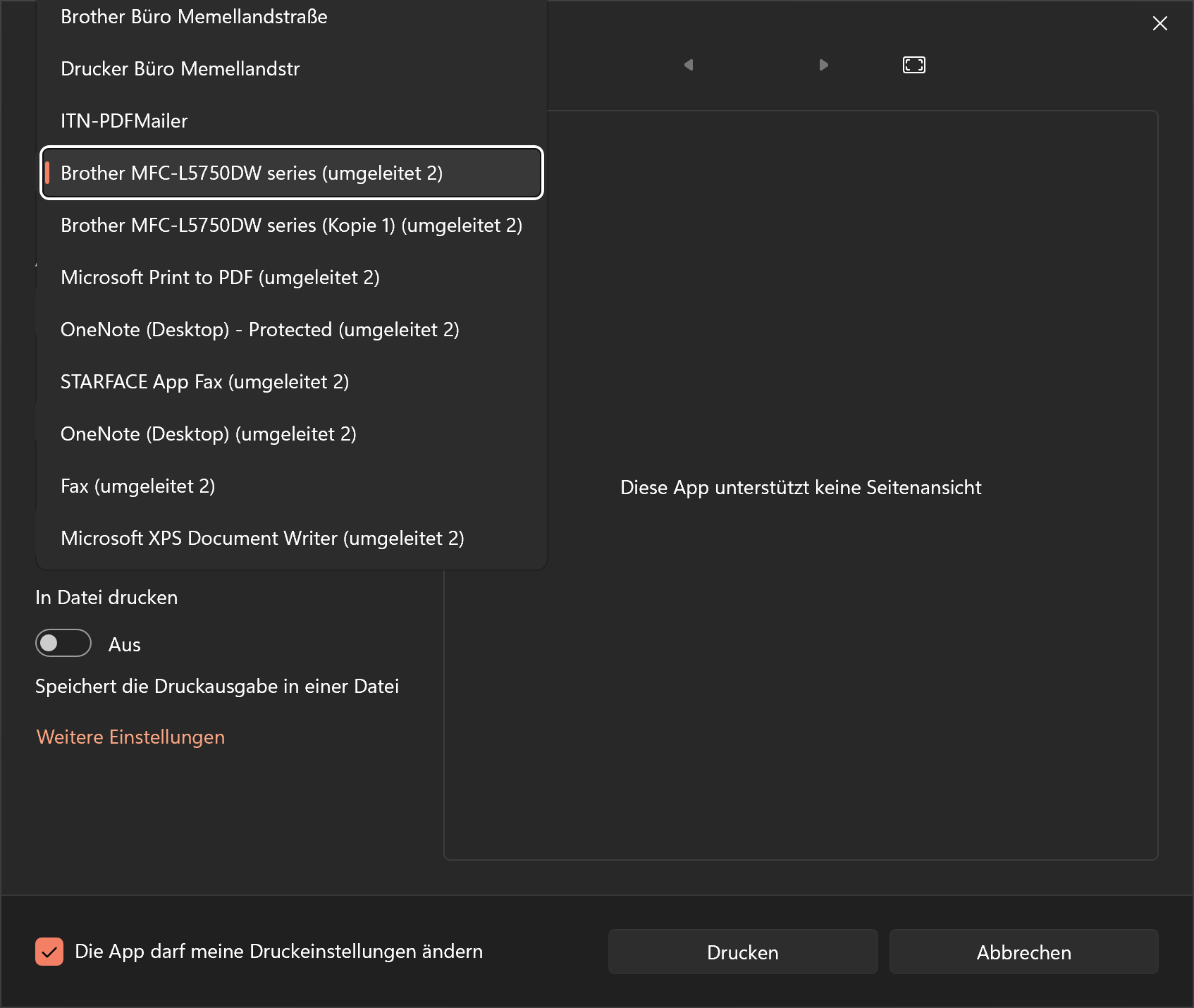
Choose the „ITN-PDFMailer" printer
In your program's usual „print" dialogue (Ctrl + P), just select „ITN-PDFMailer" and print.
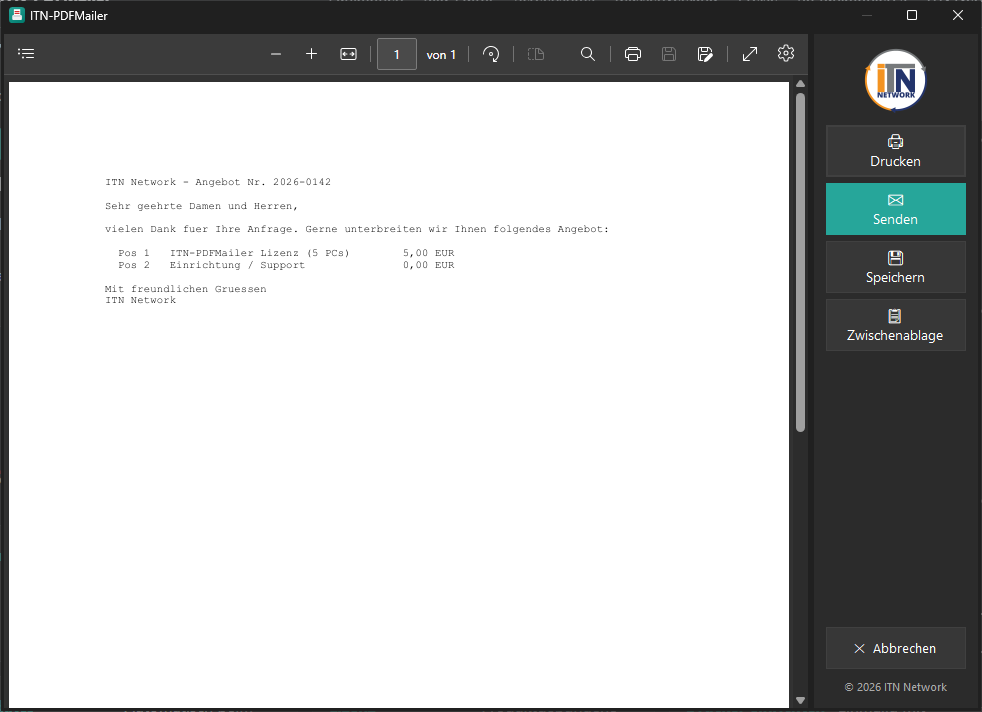
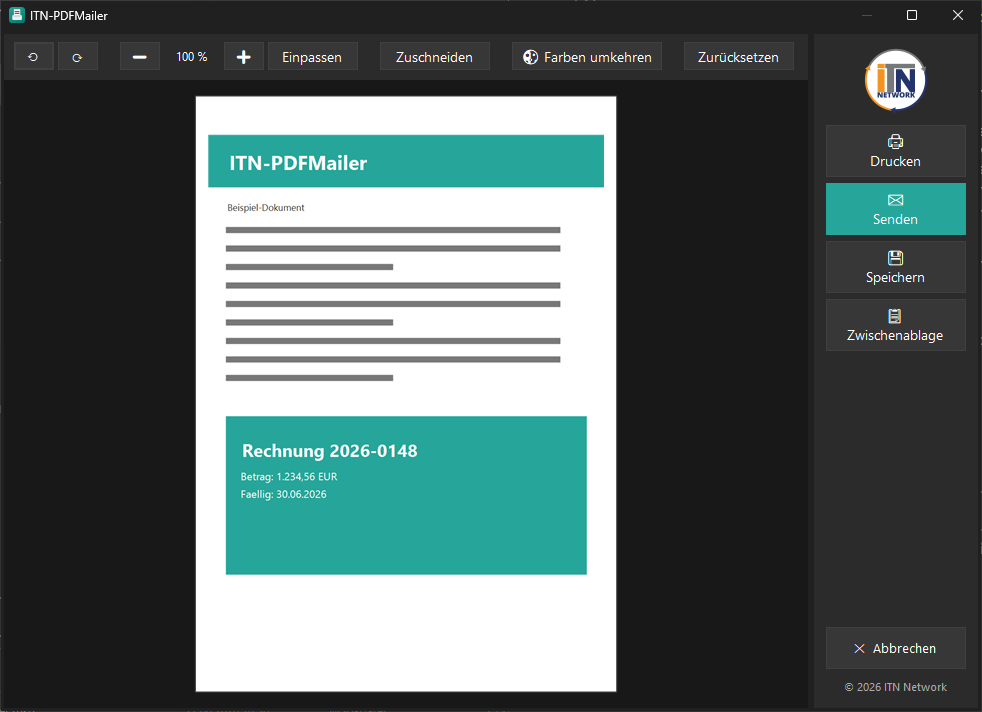
The PDF appears – send and the rest
The finished PDF is shown immediately. On the right: send (an email with it attached), save, print or clipboard.
Works with practically any Windows application that can print – with no export function needed in the program itself.
PDF/A-3u – for the archive, and searchable
Edit and crop the image
With screenshots and images you see the eventual PDF page on the left and can adjust it directly.
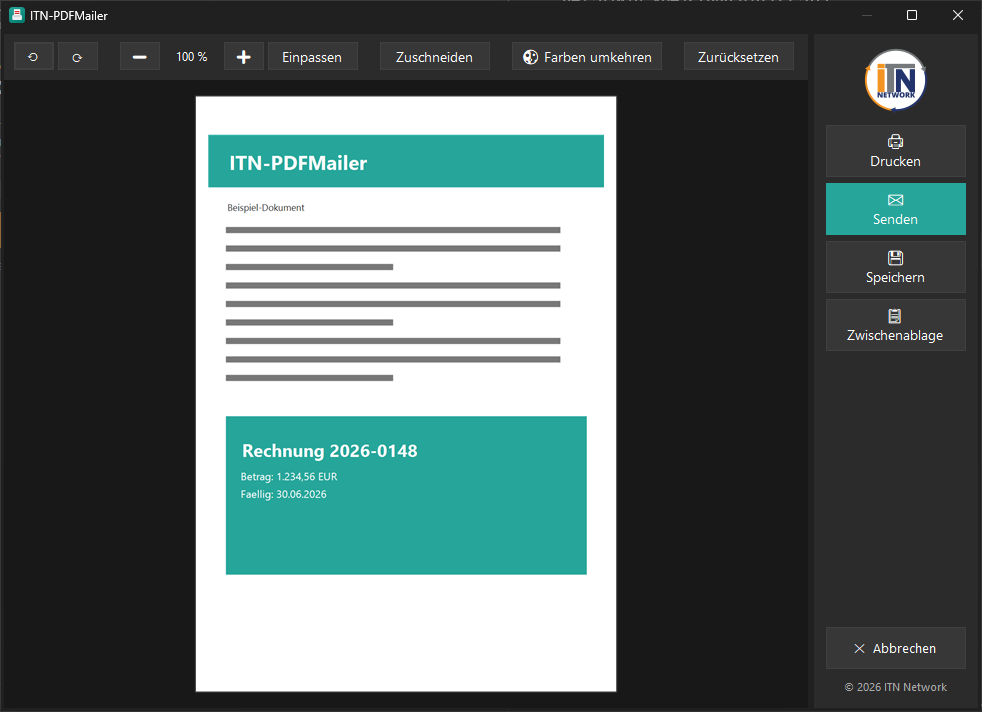
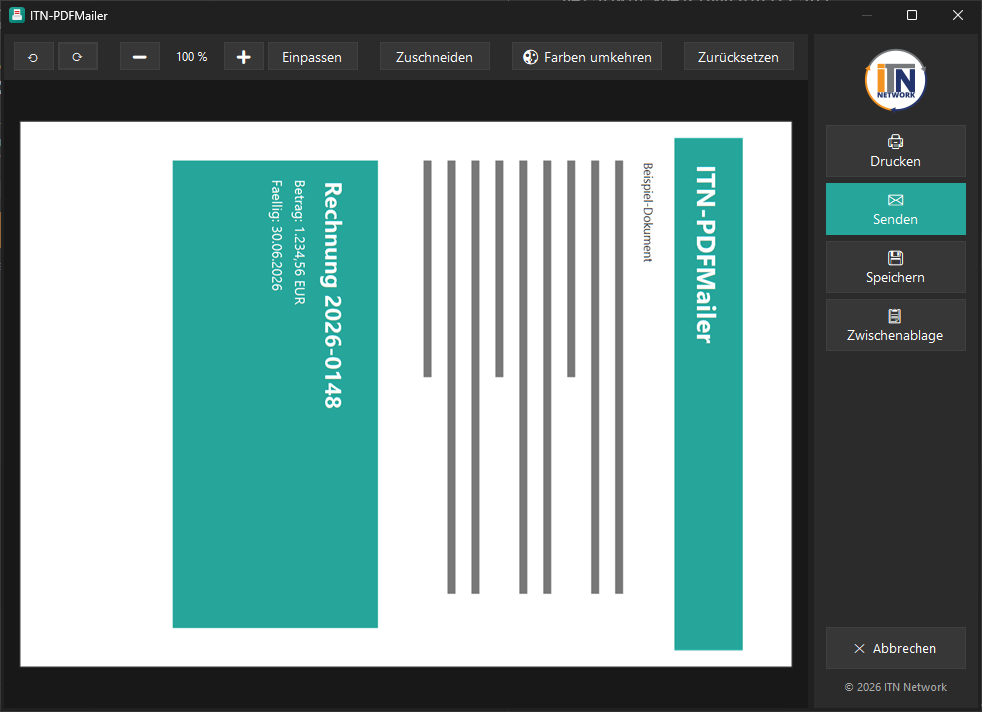
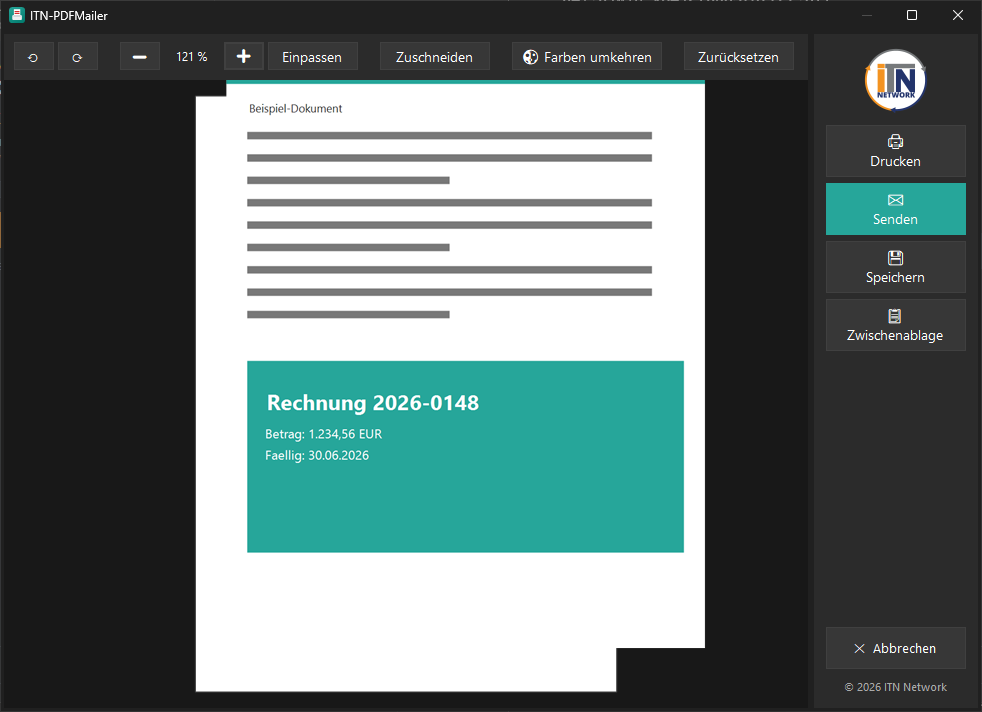
Cropping – in three steps
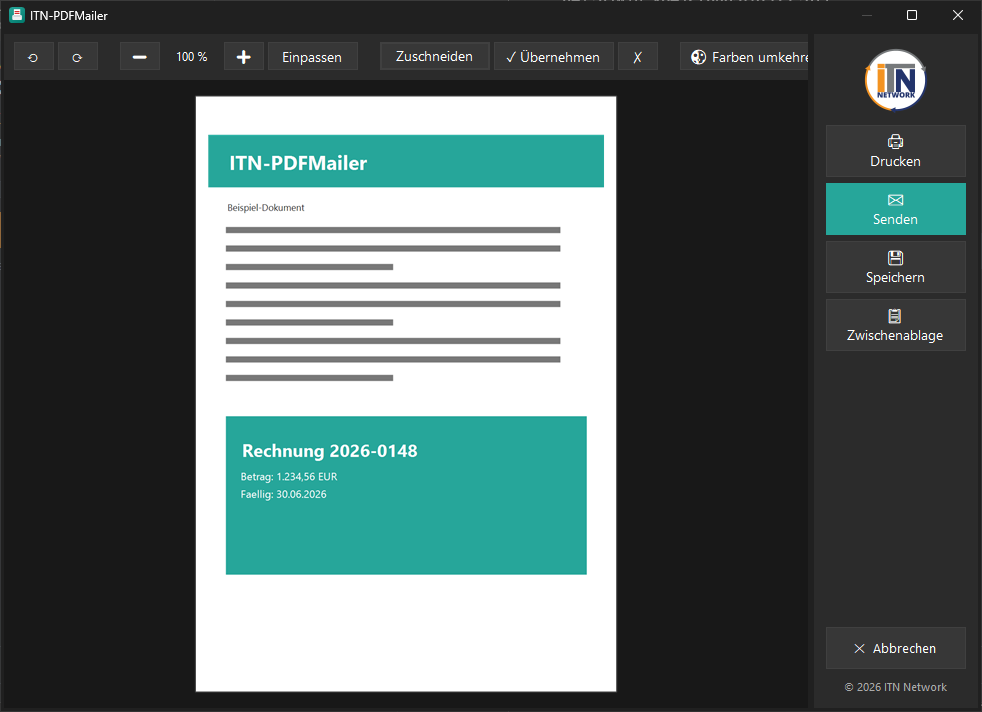
Click „crop"
Crop mode becomes active; „✓ apply" and „✗" appear.
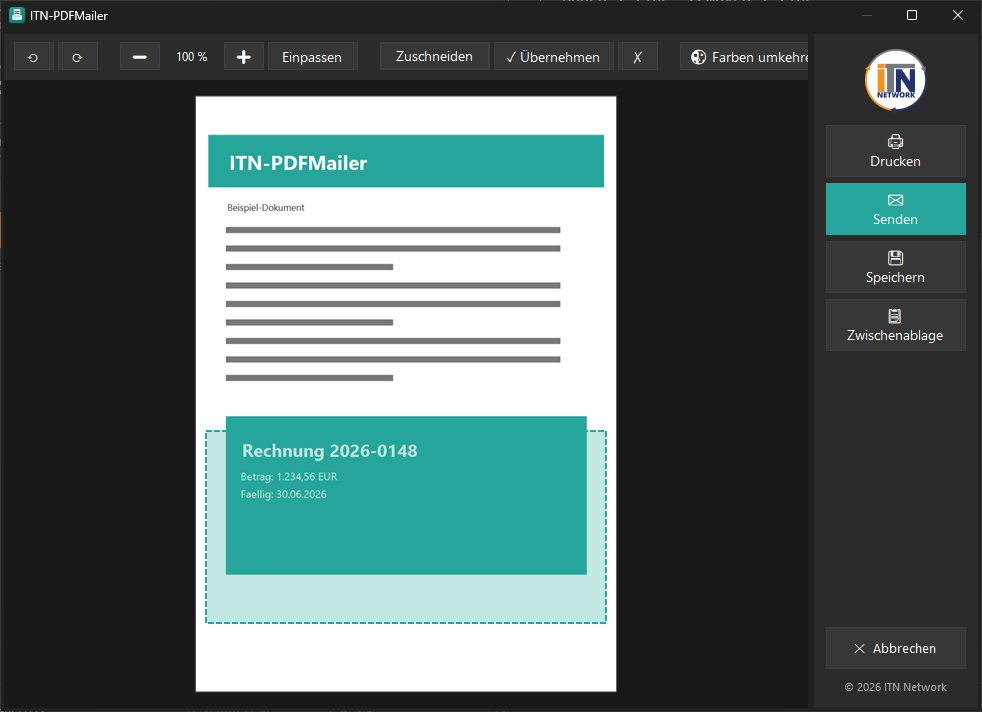
Draw the area
Mark the part you want with the mouse (a dashed selection).
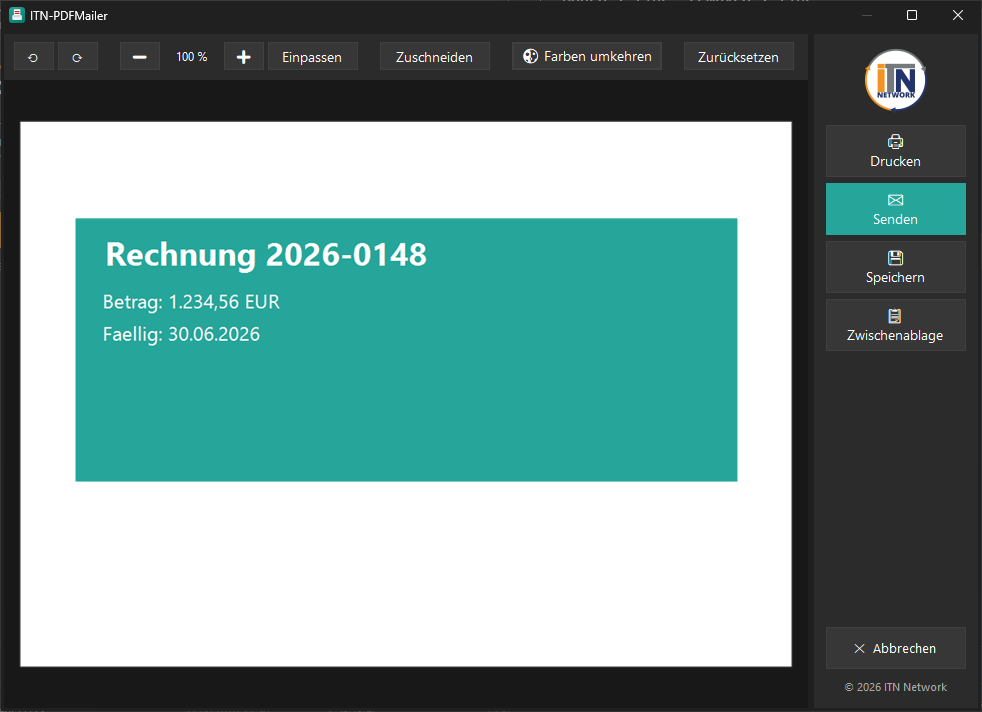
„✓ apply"
Only the selected part remains – then send, save, print or copy to the clipboard.
Tip: „reset" discards every change and brings the original image back.
Screenshots
The dark, uncluttered selection window – preview on the left, actions on the right. (Click an image to enlarge it.)
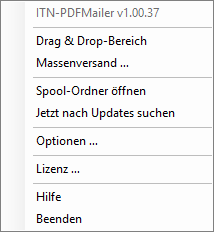 Always to hand in the notification area
Right-click the tray icon: full-screen snipping and region snipping at the top,
then the drag-and-drop area, bulk sending, automatic bulk printing, the spool folder, updates,
options, licence, help and exit. Left-clicking opens the ITN website.
The same menu also opens on a right-click on the window icon in the title bar.
Always to hand in the notification area
Right-click the tray icon: full-screen snipping and region snipping at the top,
then the drag-and-drop area, bulk sending, automatic bulk printing, the spool folder, updates,
options, licence, help and exit. Left-clicking opens the ITN website.
The same menu also opens on a right-click on the window icon in the title bar.
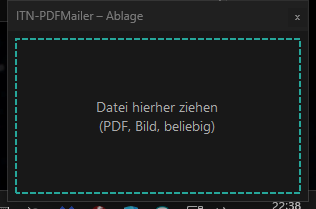 Drag & drop area
A small window that stays visible: drag a PDF, an image or any file(s) into it –
the selection window opens straight away.
Drag & drop area
A small window that stays visible: drag a PDF, an image or any file(s) into it –
the selection window opens straight away.
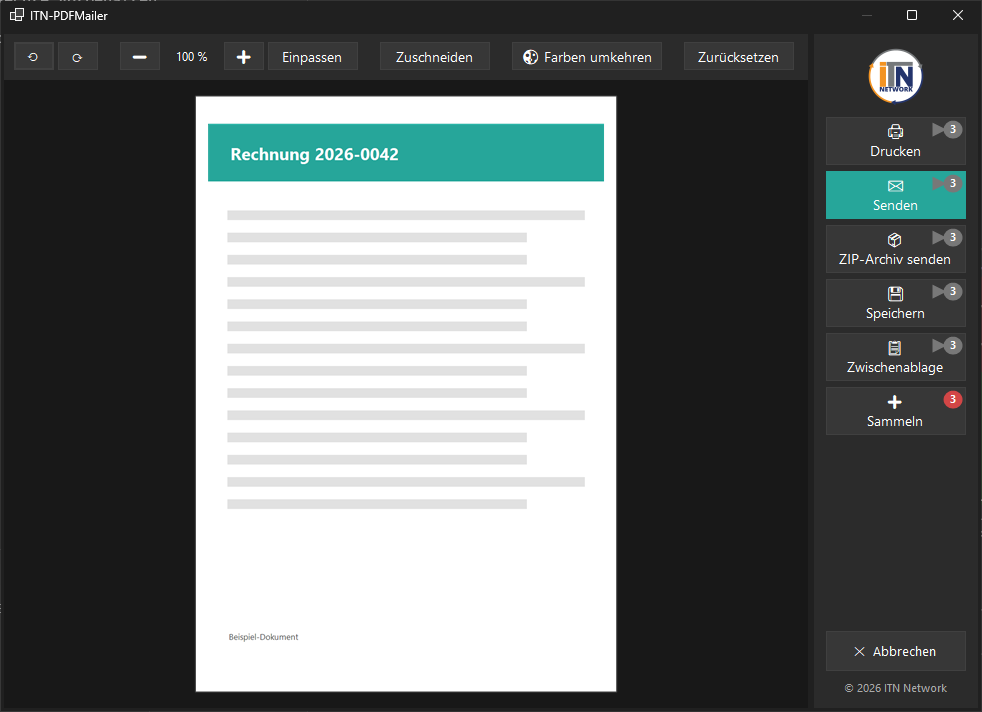 Collecting several screenshots
Use „➕ collect" to put several captures into the folder (each can be named) and
send all of them at once, send them as a ZIP, save or print them.
Collecting several screenshots
Use „➕ collect" to put several captures into the folder (each can be named) and
send all of them at once, send them as a ZIP, save or print them.
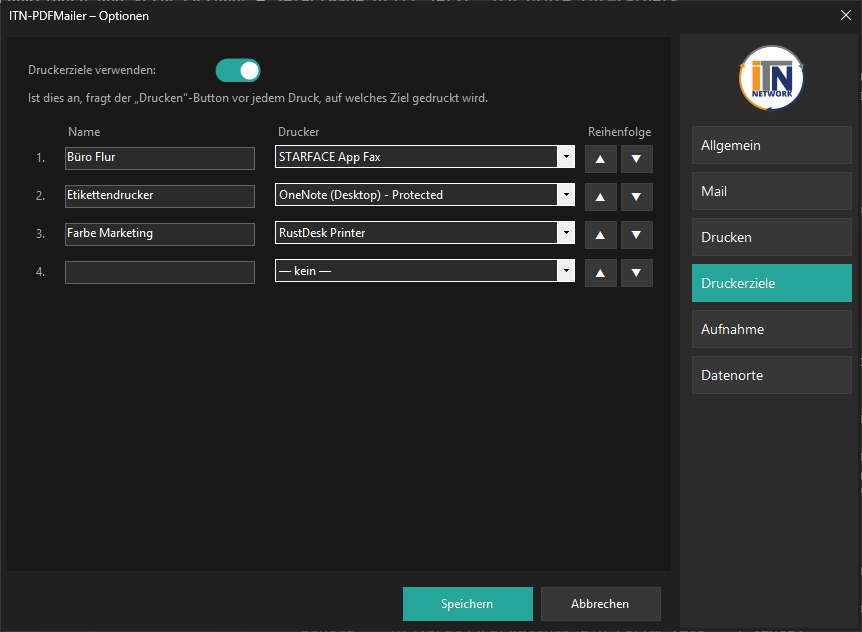 Printer targets
Define and order up to 4 named printer targets – before each print a pop-up
asks which one to use.
Printer targets
Define and order up to 4 named printer targets – before each print a pop-up
asks which one to use.
Bulk sending – many files, one email
Many documents sent in seconds – without attaching each one by hand.
Through the tray menu „bulk sending" – in three steps
Choose „bulk sending"
Right-click the icon in the notification area → „bulk sending …".
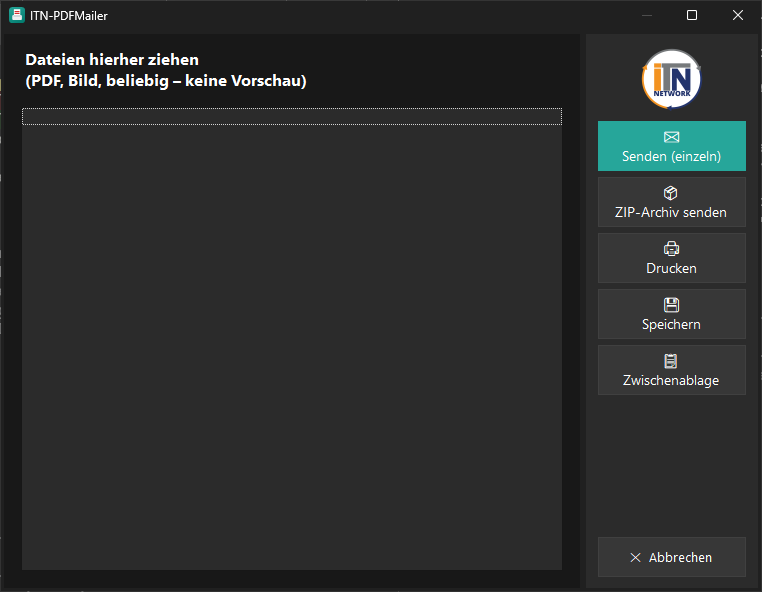
Drag the files in
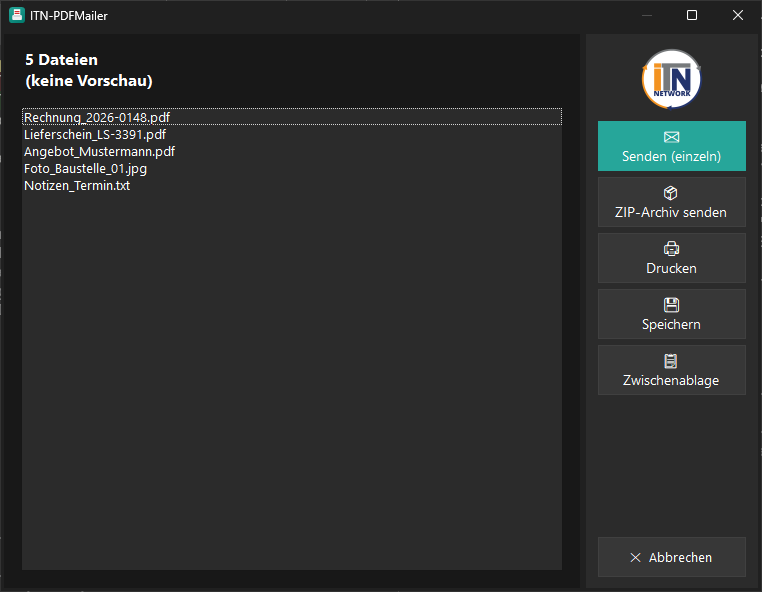
The collection window opens empty. Drag one file or many into it – PDFs, images, text or anything else. More can be added at any time.
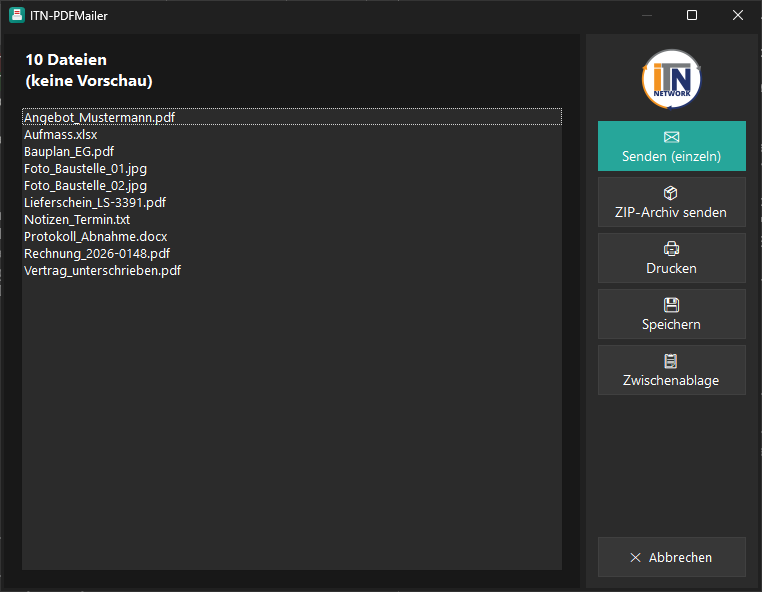
„Send (individually)" – one email, every attachment
One click on „send (individually)" opens one email with all the files as separate attachments. (Or print, save or copy the whole batch.)
.exe, for instance).
Sending a ZIP archive – how it goes
Collect the files
Gather the files you want in the bulk sending window as usual (as many as you like, of any type).
Choose „send ZIP archive"
The button sits directly below „send (individually)". It packs every file into one ZIP.
Progress & sending
A progress display shows which file is being packed. Then one email opens automatically with the finished ZIP as its only attachment.
.exe into the
drag & drop area and ITN-PDFMailer asks whether it should be zipped before sending
(many mail servers block .exe attachments) – after that only „send" remains available.
In bulk sending, use „send ZIP archive" for the same purpose.
Every route to sending
Bulk sending (tray menu)
Open an empty collection window and drag files in – ideal for several attachments.
Drag & drop area
A small window kept in the foreground – just drag files into it.
„Send to ITN-PDFMailer"
Right-click in Explorer (more options) – works for several selected files too.
„Open with" / shortcut
Drag the file(s) onto a desktop shortcut or hand them over with „open with".
Virtual printer
Print to „ITN-PDFMailer" from any application → PDF → send.
The separate drag & drop area is unaffected by this – both routes are available side by side.
Storage targets & cloud
Saving not only locally – fixed storage targets including Nextcloud with a public link.
Local
A fixed folder or „browse…" (choose in Explorer).
SMB share
A Windows network path (\\server\share), optionally with credentials.
FTPS / SFTP
Encrypted upload to FTP-over-TLS or SSH servers.
Nextcloud
WebDAV upload + a public share link with a validity you choose.
Automatic bulk printing – every printout filed automatically
A switch instead of a dialogue: printed documents go to a fixed storage target without anyone doing anything.
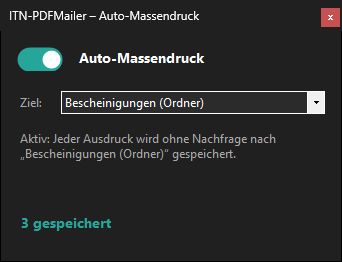 One small window with a switch
A slider on or off, below it the target (storage target) and a live counter of the documents filed.
One small window with a switch
A slider on or off, below it the target (storage target) and a live counter of the documents filed.
Setting it up
- Create a target in options → storage targets (local folder, SMB, FTPS or SFTP).
- Open the tray menu → „automatic bulk printing …".
- Choose the target and turn the switch on – done.
- From then on every printout is saved there automatically (with a timestamp in the file name).
The tick in the tray menu shows the mode is active. Switch it off again → the selection window appears as usual.
Your data stays with you
There is no ITN cloud between your desk and the recipient.
Mail through your own program
The PDF is handed to your default mail program and goes out over your mail server – like any other message.
Filing on your own systems
A network share, FTPS, SFTP or your Nextcloud. The credentials for each storage target are kept encrypted.
Text recognition runs locally
Recognition uses the tools built into Windows, on the PC. No document leaves the building for it.
The connection to ITN
Only the licence check and the search for updates – nothing else.
Pricing 🏢 B2B
An annual licence subscription. All prices net, plus VAT at the statutory rate. Entry always starts at 5 PCs / €5.
| Number of PCs | Calculation | Price / year |
|---|---|---|
| 5 PCs | minimum licence | €5 |
| 10 PCs | €5 + 5 × €1 | €10 |
| 50 PCs | €5 + 45 × €1 | €50 |
| 100 PCs | €5 + 95 × €1 | €100 |
| 150 PCs | €100 + 50 × €0.90 | €145 |
| 250 PCs | €100 + 150 × €0.90 | €235 |
All amounts net per year, plus VAT at the statutory rate. This English text is provided for convenience; the German version of these terms is the legally binding one.
Frequently asked questions
Does it replace the snipping tool?
For day-to-day work, yes: ITN-PDFMailer takes over Win+Shift+S and the Print Screen key and covers regions, full screens, every screen at once and the active window – except that it then goes straight out as a PDF by mail, into storage or into the archive. What the Snipping Tool can do on top is set out openly in the comparison table.
Do I need Outlook?
No. Any mail program that supports Simple MAPI will do – Outlook, Thunderbird and others. ITN-PDFMailer opens your default program with the PDF attached; the subject and body text can be preset.
Is PDF/A-3u suitable for archiving?
PDF/A-3u to ISO 19005-3 is the format for long-term archiving and the one document management systems expect. The files produced have been checked with the veraPDF reference validator and passed every rule. Whether it satisfies your particular retention obligation is a question for your archiving policy – the format is what we supply.
Does it work on a terminal server or over RDP?
Yes. ITN-PDFMailer runs on Windows Server 2019 and later, and the keyboard shortcuts keep working after an RDP session has been disconnected and reconnected. Licensing is per installation, so per PC or per server.
Is my data uploaded to a cloud?
No. Mail goes through your own mail program, filing goes to your own servers or your Nextcloud, and text recognition runs locally on the PC. The only traffic to ITN is the licence check and the search for updates.
Can I use it privately?
No. ITN-PDFMailer is supplied to companies, associations, foundations and other organisations only. Consumers within the meaning of § 13 of the German Civil Code are excluded from use.
How it works
Three steps – that is all it takes.
Capture
Print a document to „ITN-PDFMailer", capture a region, a screen or a window, or hand files over by drag & drop or „send to".
Preview & adjust
Check the PDF or image in the dark selection window; with images, rotate, crop or invert the colours.
Send / save / print
One click to send it as an email attachment, save it, print it or put it on the clipboard.
System & notes
Please note: on Windows 11 the „send to ITN-PDFMailer" entry appears in the classic context menu (right-click → „show more options").