
Putting the time tracking app on your phone
There is nothing to download from an app store. You open one address in your browser once and put the page on your home screen — after that it has an icon of its own and starts like any other app, with no address bar. It takes less than two minutes.
Have these ready first
- The address:
zef.itn-network.de/app— exactly like that, with the/appat the end. Without/appyou land in the desktop view. - Your credentials (email address and password). Your administrator will give you these.
- The right browser: Chrome on Android, Safari on iPhone and iPad — those are the ones described below. It will not work from the browser built into another app (a messenger, say); in that case type the address into the browser again.
Tip: have the address sent to you in a message and tap it — then you cannot mistype it. All that matters is that it then opens in the right browser (see above).
Android — with Chrome
Samsung, Xiaomi, Google Pixel and every other Android device. The route described is the one in Chrome.
Open Chrome and enter the address
Tap the address bar at the top and enter zef.itn-network.de/app. The sign-in screen appears.
Open the three-dot menu
To the right of the address bar are three dots stacked vertically (⋮). Tap them.
Tap „Install and create shortcut“
Scroll down in the menu. The entry sits between „Show reading mode“ and „Desktop site“ and is often shortened to „Install and create short…“. In older versions of Chrome it is called „Add to Home screen“ — it means the same thing.
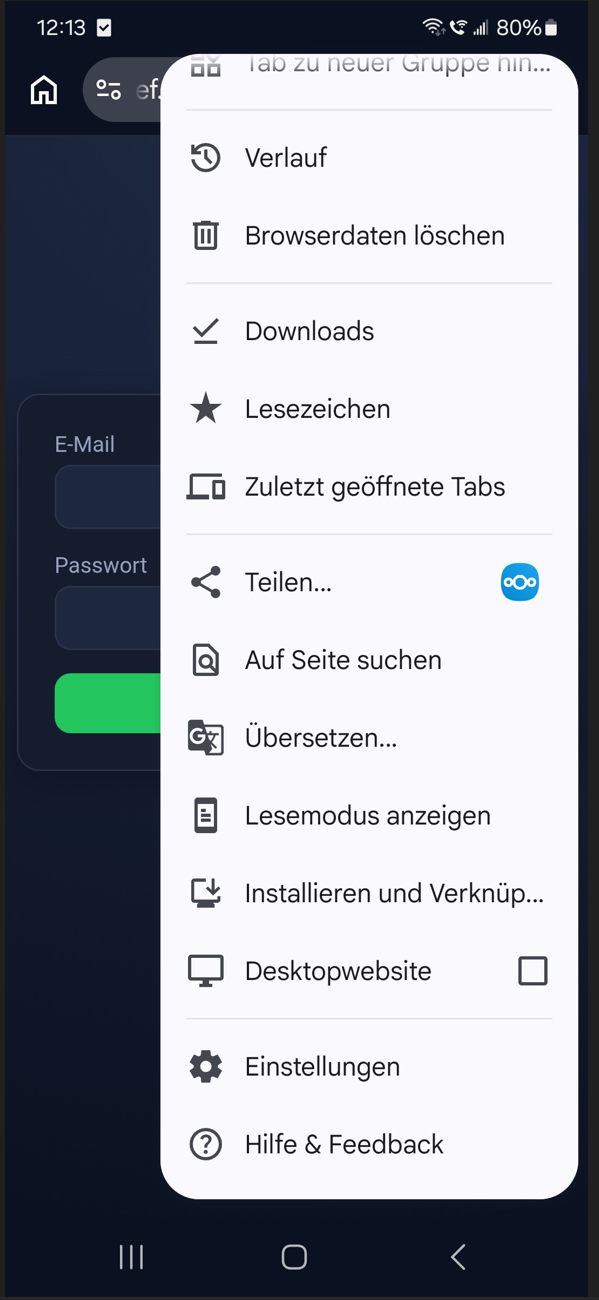
Confirm
To confirm, the phone shows the app's icon and name. Both come from the application itself and look like this:
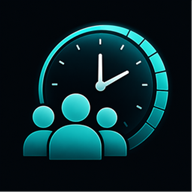
Done — the icon is on your home screen
From now on you start the time tracking app from that icon rather than from the browser. There is no address bar any more; the app runs full screen.
Cannot find a suitable menu entry? Then the page was opened in a browser that does
not offer it (the browser built into another app, for instance), or the address was opened without
/app. Enter the address in Chrome again and try once more.
Want to remove it again? According to Google's help, through Settings → Apps → See all apps → select the app → Uninstall. Your recorded hours are unaffected — they live on the server.
iPhone and iPad — with Safari
The route described is the one in Safari, following Apple's own help.
Open Safari and enter the address
Tap the address bar, enter zef.itn-network.de/app and open it.
Open the menu in the bar at the bottom
A bar with the address floats at the bottom of the screen. On its left sits the menu icon (three short lines) — tap it.
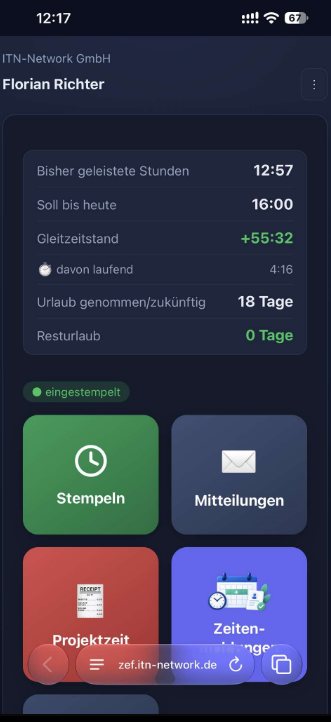
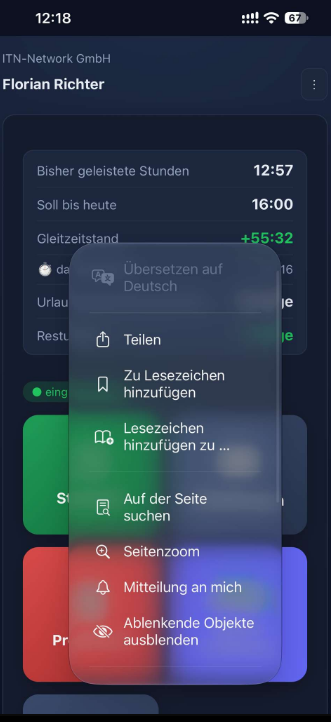
Choose „Share“
Tap „Share“ in the menu (the top icon, with the upward arrow).
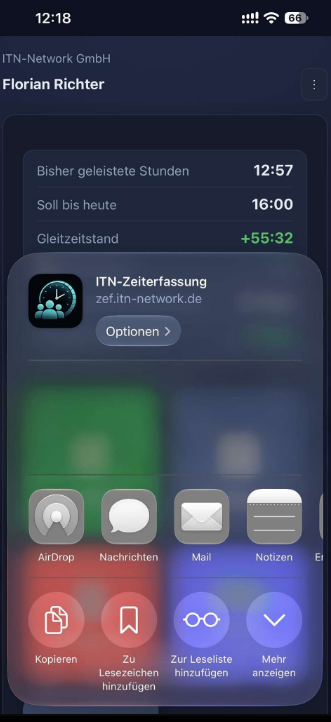
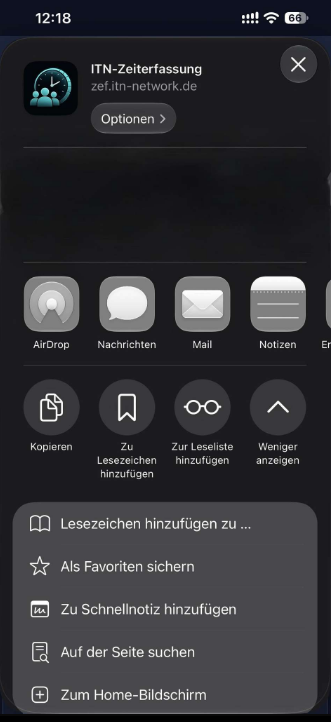
„Show more“ and then „Add to Home Screen“
The share sheet already shows the icon and the name ITN-Zeiterfassung at the top. Below it is the list: tap „Show more“ there — the full list unfolds and right at the bottom is „Add to Home Screen“. Tap it, leave the name as it is in the next window and confirm with „Add“ at the top right.
From now on, start it from the icon
Always open the time tracking app from the new icon — not from the browser any more. Only that way does it run full screen and remember your sign-in reliably.
Cannot find a suitable entry? Then open the address in the iPhone's default browser and try again there.
Your first sign-in — and why a number appears
After the first start you sign in with your credentials. The app then shows a device number and waits: for security, your administrator has to approve this phone once — otherwise anyone with stolen credentials could clock in.
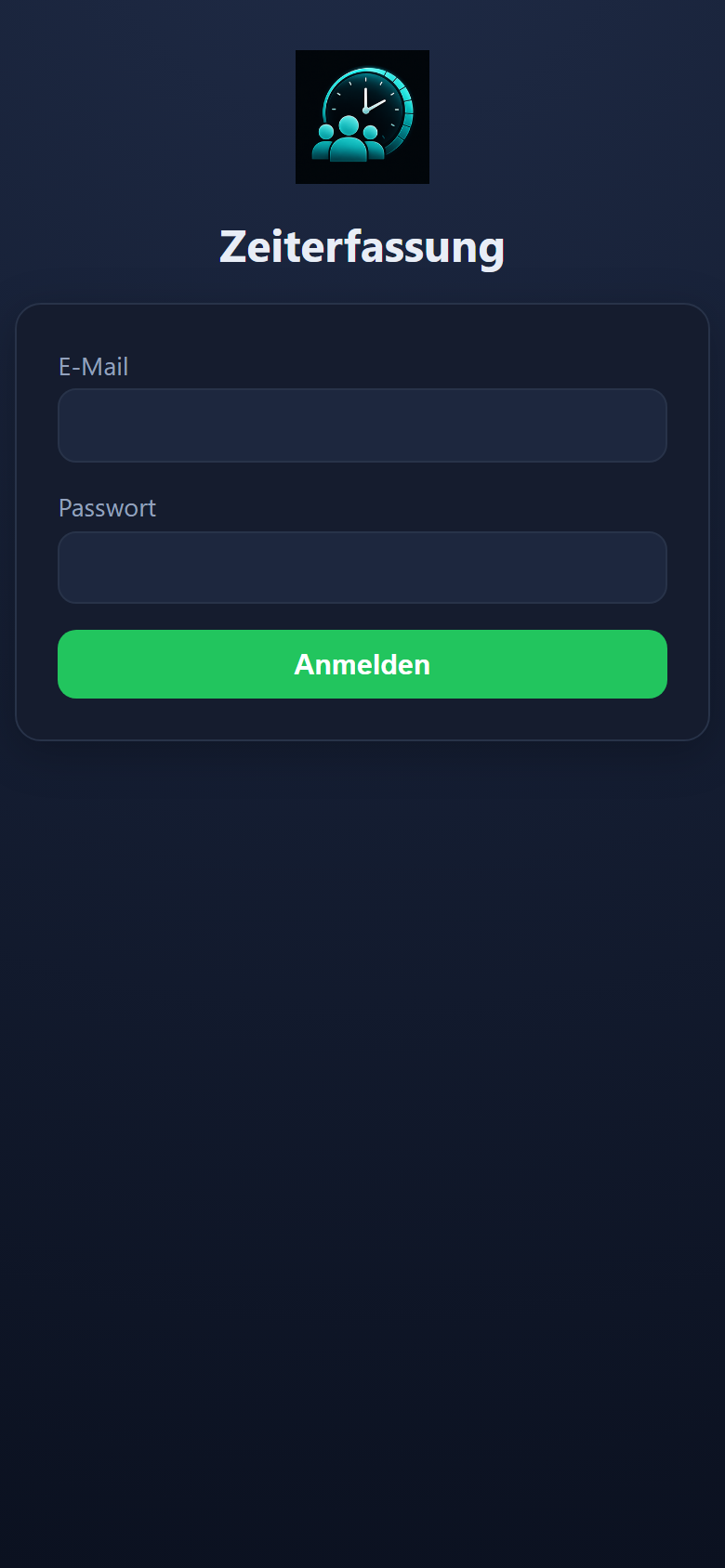
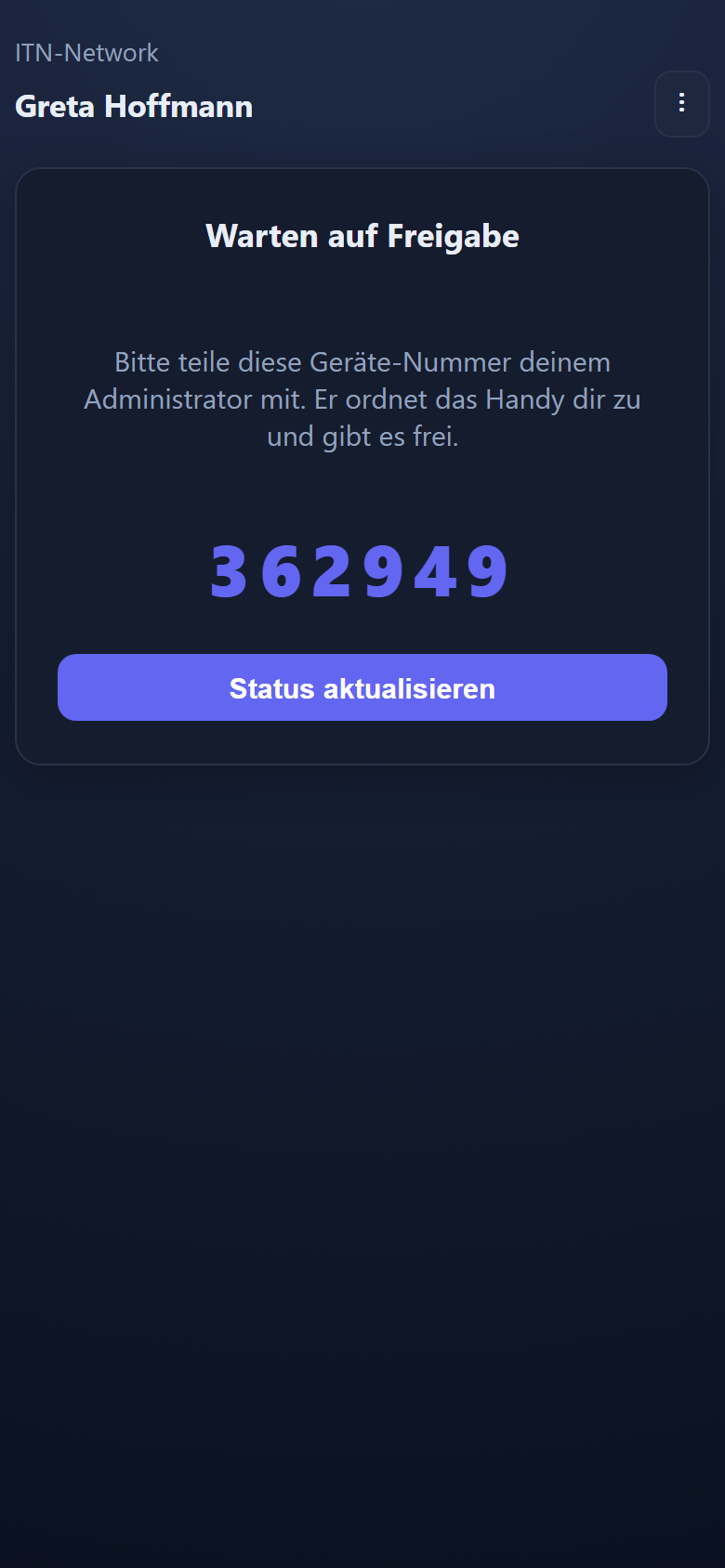
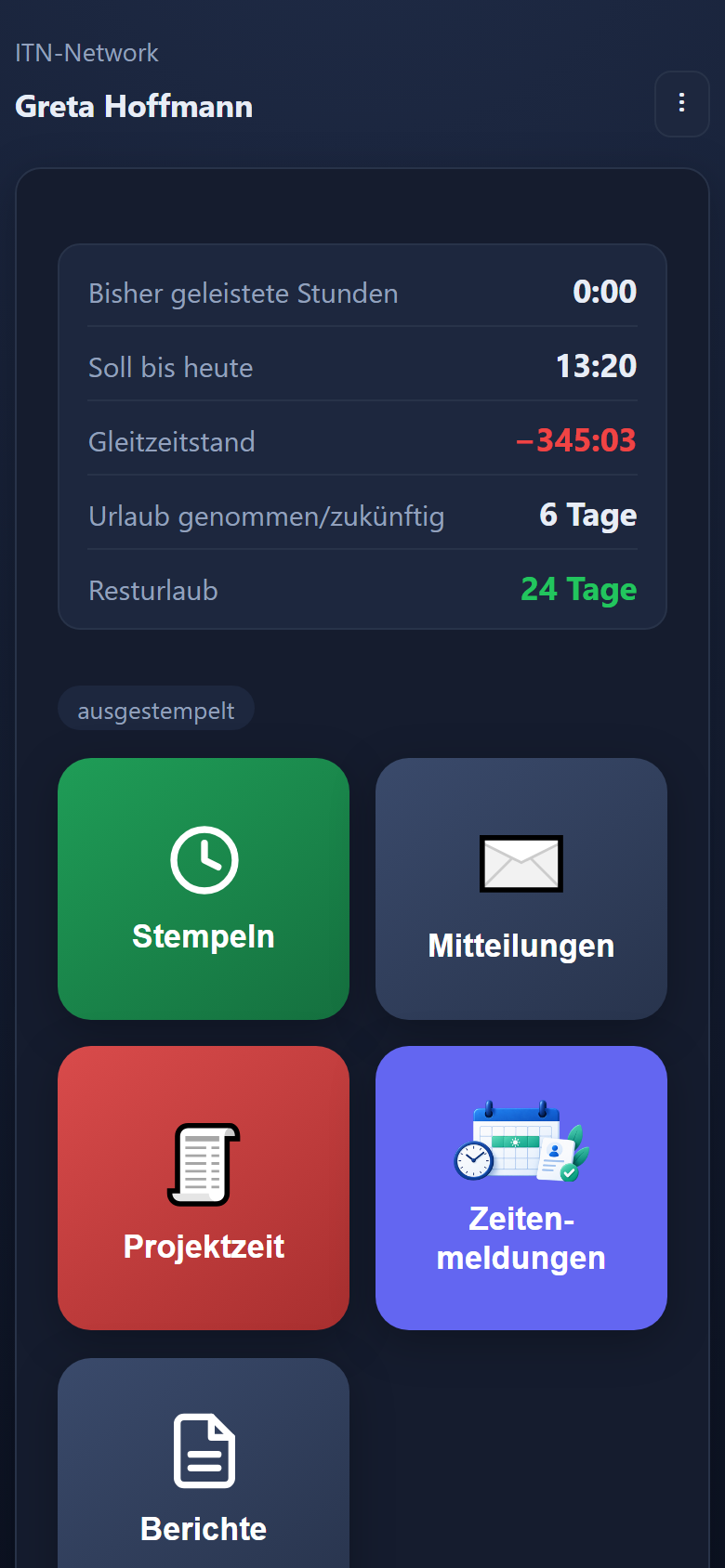
Give the number to your administrator (a call, a message, a shout across the room). Once they have approved the device, tap „Refresh status“ — the home screen with your time account then appears. This happens only once per phone.
Worth knowing
- It keeps working without a signal: entries are stored on the phone and submitted automatically once there is reception again — with the correct time from when you made them.
- Location: when you clock in, the phone asks once for location permission. Please allow it, ideally as „precise location“ — without a location, clocking in through the app is not possible. If the location is too imprecise, the entry is rejected with a notice; wait a moment and try again.
- The app keeps itself up to date. When a new version appears, it loads the next time you open it. If something does look out of date: close the app completely (swipe it away from the list of running apps) and open it again.
- A lock for the app: a PIN lock of its own can be set up through the ⋮ menu — handy if other people also use the phone.
- Which version is running? The ⋮ menu, right at the bottom: the version and date are there.
- Signing out is in the ⋮ menu too. The icon stays on your home screen.
The short version, to pass on
Android (Chrome)
- Open Chrome, enter zef.itn-network.de/app
- Tap ⋮ to the right of the address bar
- Install and create shortcut (older versions: „Add to Home screen“)
- Confirm with Install
- From then on, start it from the new icon
iPhone / iPad (Safari)
- Open Safari, enter zef.itn-network.de/app
- Tap the share icon (a square with an upward arrow)
- Scroll in the list to Add to Home Screen
- Check the name and tap Add
- From then on, start it from the new icon
Then: sign in, give the device number shown to your administrator, wait a moment, tap „Refresh status“ — done.
Does a step look different on your phone?
Not a problem: the wording changes with new versions of Android and iOS. If in doubt, go by what is on your screen. The manufacturers' help pages also show the current route:
- Google Chrome Help: Use web apps (Android) — the three-dot menu, „Install and create shortcut“, uninstalling through the settings.
- Apple Support: Turn a website into an app in Safari (iPhone) — „Add to Home Screen“, „Edit Actions“, „Open as Web App“.
- Apple Support: Bookmark a website in Safari on iPhone — the share button and the list.
The menus on your device may look different from the pictures — the sequence stays the same. The screenshots show a device set to German.
Version 1.0.65 · Questions about setting it up? Write to us.